2 On the sending device, touch and hold a le, select the les you want to share, then touch
. Touch Huawei Share, then touch the icon of the recipient device to send the le.
Operations may vary if you are sharing les from apps directly.
3 On the recipient device, touch Accept to accept the transfer.
To view the les received, go to Files, then go to Internal storage > Huawei Share on the
Categories tab.
Received pictures or videos can also be found in Gallery > Albums > Huawei Share.
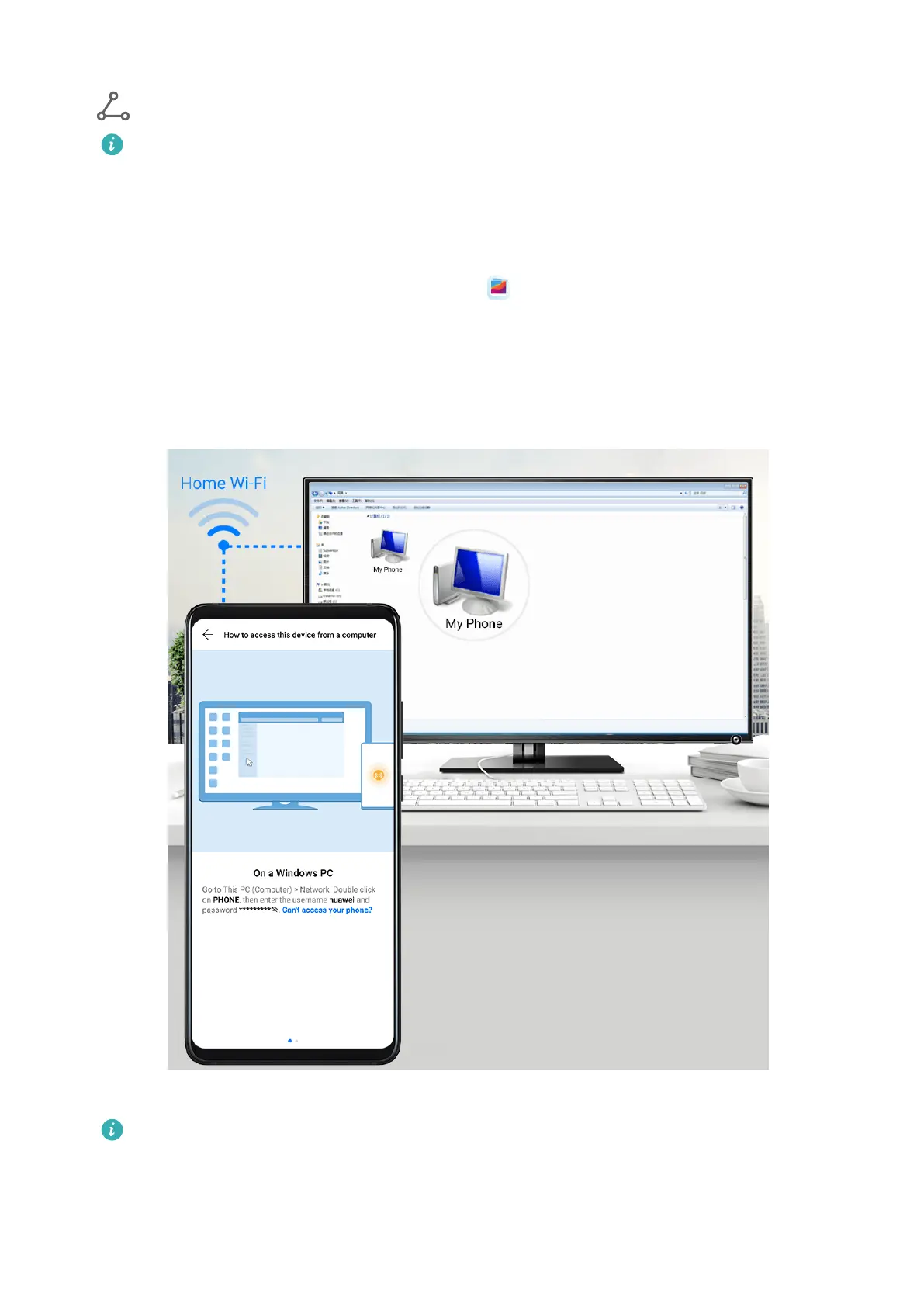
Share Files Between Your Device and Computer
You can use Huawei Share to quickly and easily share les wirelessly between your device
and a computer.
1 Make sure your device and computer are connected to the same Wi-Fi network.
If the computer is a MagicBook (PC Manager earlier than version 9.1), this is not
necessary. All you need to do is make sure its Wi-Fi and Bluetooth switches are
enabled.
2 On your device, enter the Huawei Share settings screen, and enable Huawei Share and
Computer share.
Smart Features
24





 To Next Page