3 Record the Name shown on computers and the user name and password under
Verication on computers.
4 On your computer, go to:
• Windows: Computer > Network
• mac OS (mac OS 10.8 or later): Finder > Go to > Network
5 On your computer, double-click the name of your device, and enter the user name and
password recorded earlier.
6 Open a folder of your device such as the Internal storage folder, then view, edit, or copy
les from the folder to the computer, or copy les from the computer to this folder to
store them in your device.
You can also edit the les in this folder on your computer, and the changes will be synced
to your device automatically. Similarly, if you edit any les on your device, the changes
will be synced to your computer as well.
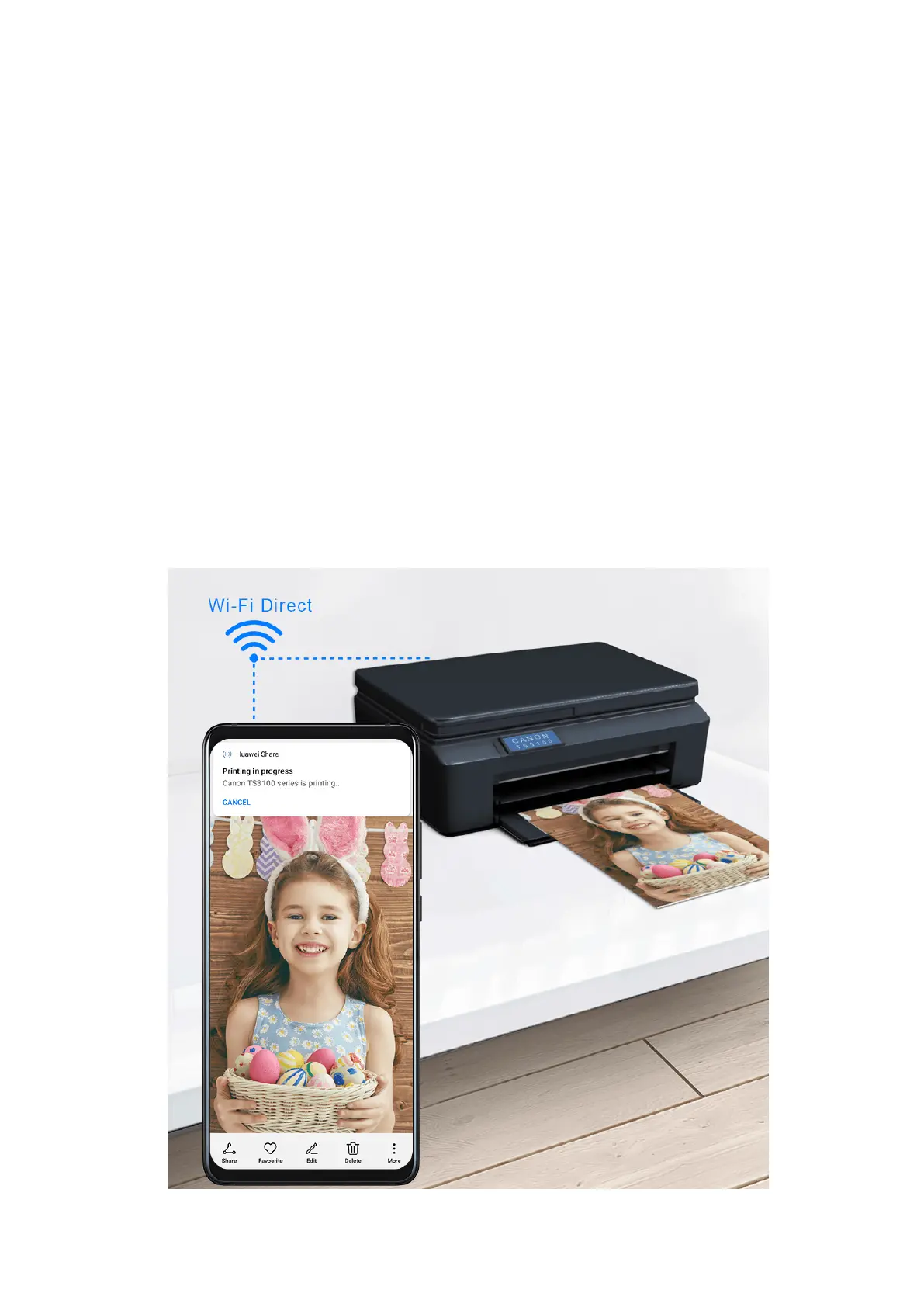
One-Touch Printing with Huawei Share
When a printer that supports Huawei Share is nearby, you can use Huawei Share to nd the
printer and print out pictures or PDF les from your device.
1 Depending on the type of printer, ensure the following:
Smart Features
25










 To Next Page