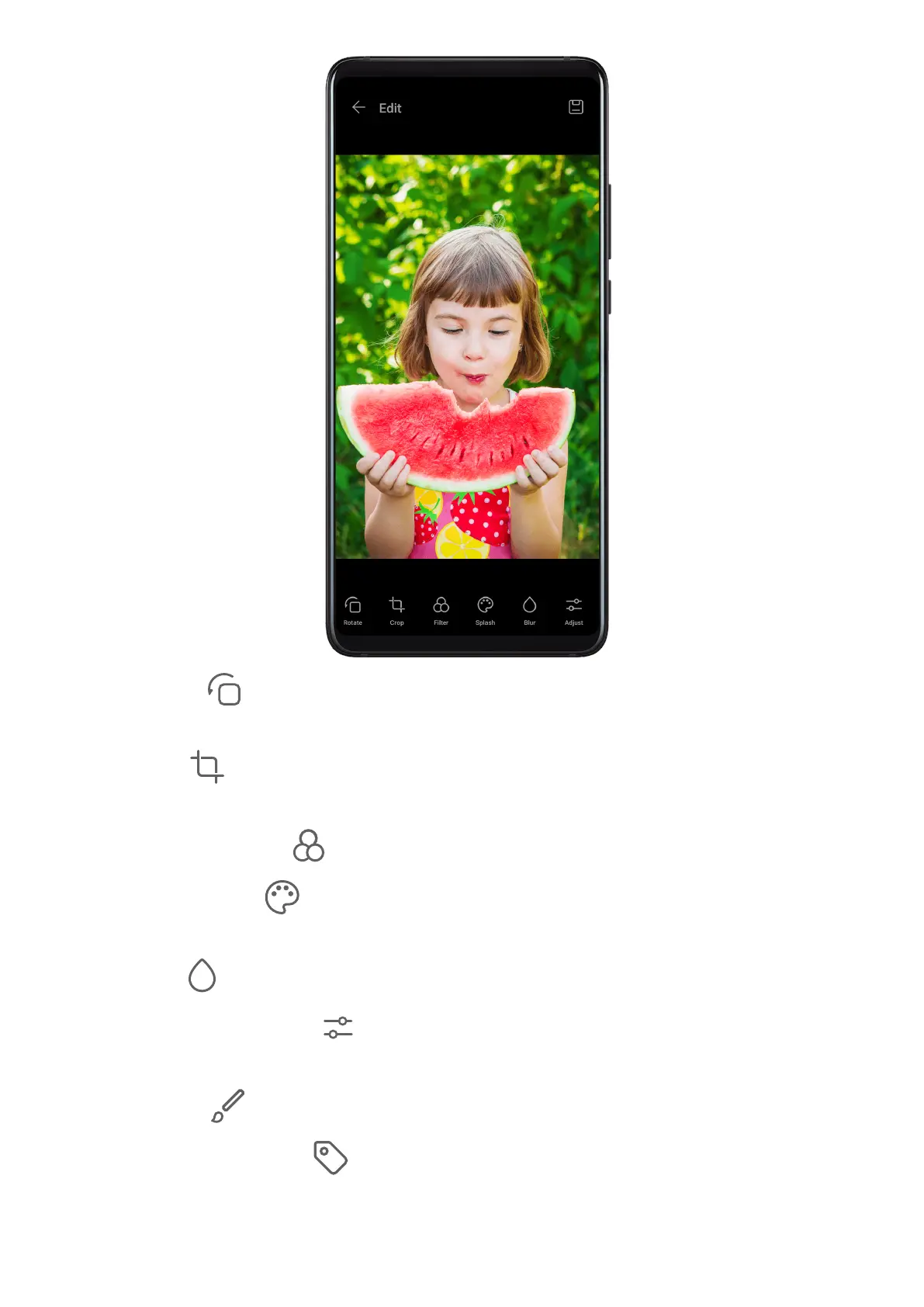
• Rotate: Touch and drag the angle wheel to the desired orientation.
You can also touch Rotate to rotate your photo 90 degrees or Mirror to ip it.
• Crop: Touch and drag the grid or its corners to make your selection.
You can also select a xed ratio and drag the corners of the grid to crop the photo.
• Add lter eects: Touch to select a lter.
• Colour splash: Touch to select the colours you want to highlight. Other parts of the
photo will be black and white.
• Blur: Touch , select a blur mode, and drag the slider to adjust the blur.
• Adjust photo eects: Touch to adjust the brightness, contrast, saturation, and other
qualities of the photo.
• Grati: Touch to select a brush and colour to add grati.
• Add a text element: Touch to select an element style and font format.
Camera and Gallery
37







 To Next Page