6
6
T
T
h
h
e
e
E
E
C
C
3
3
2
2
5
5
M
M
a
a
n
n
a
a
g
g
e
e
r
r
G
G
U
U
I
I
D
D
e
e
s
s
c
c
r
r
i
i
p
p
t
t
i
i
o
o
n
n
HUA WEI
13
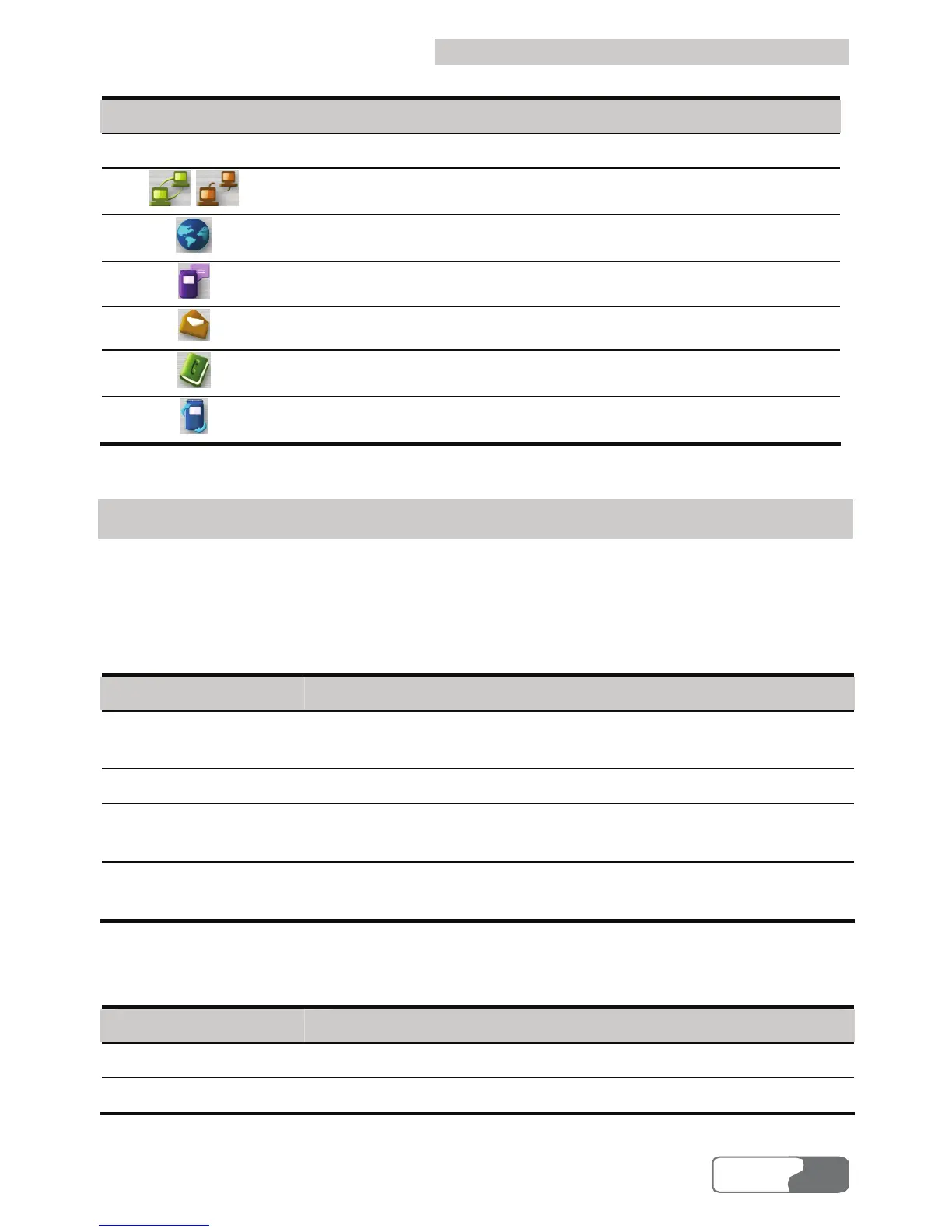
Shortcut icon/key Description
F1
Access the online help.
/ /F2
Connect to/Disconnect from the network.
/F3
Start the default Internet browser in your operating system.
/F4
Access the Call interface.
/F5
Access the SMS interface.
/F6
Access the Contacts interface.
/F7
Access the Call Log interface.
Status Information on the Interface
The status information displayed on the interface depends on the service that is going on.
All the status and the descriptions are listed as follows.
The following table lists the status information when the interface is being initialized and in
minimized status.
Status information Description
Signal strength Displays the current network type and signal strength. The
larger the number of the bars is, the stronger the signal is.
Network Information about the network Status.
Duration of this
connection
Displays the duration of the current data connection.
Volume of this
connection
Displays the volume of the current data connection.
The following table lists the status information when the interface is maximized.
Status information Description
Signal strength Indicates the current network type and signal strength.
Network The information about the network status.



 To Next Page