• Swipe up on the thumbnail to select a method for sharing the screenshot with others.
• Tap on the thumbnail to edit, delete, or do more with the screenshot.
Screenshots are saved to Gallery by default.
Take a Partial Screenshot
Use Partial screenshot to take a screenshot of a part of the screen. You can choose your
preferred screenshot shape (such as a rectangle, oval, or heart).
Take a Partial Screenshot with Knuckle Gestures
The gures are for reference only.
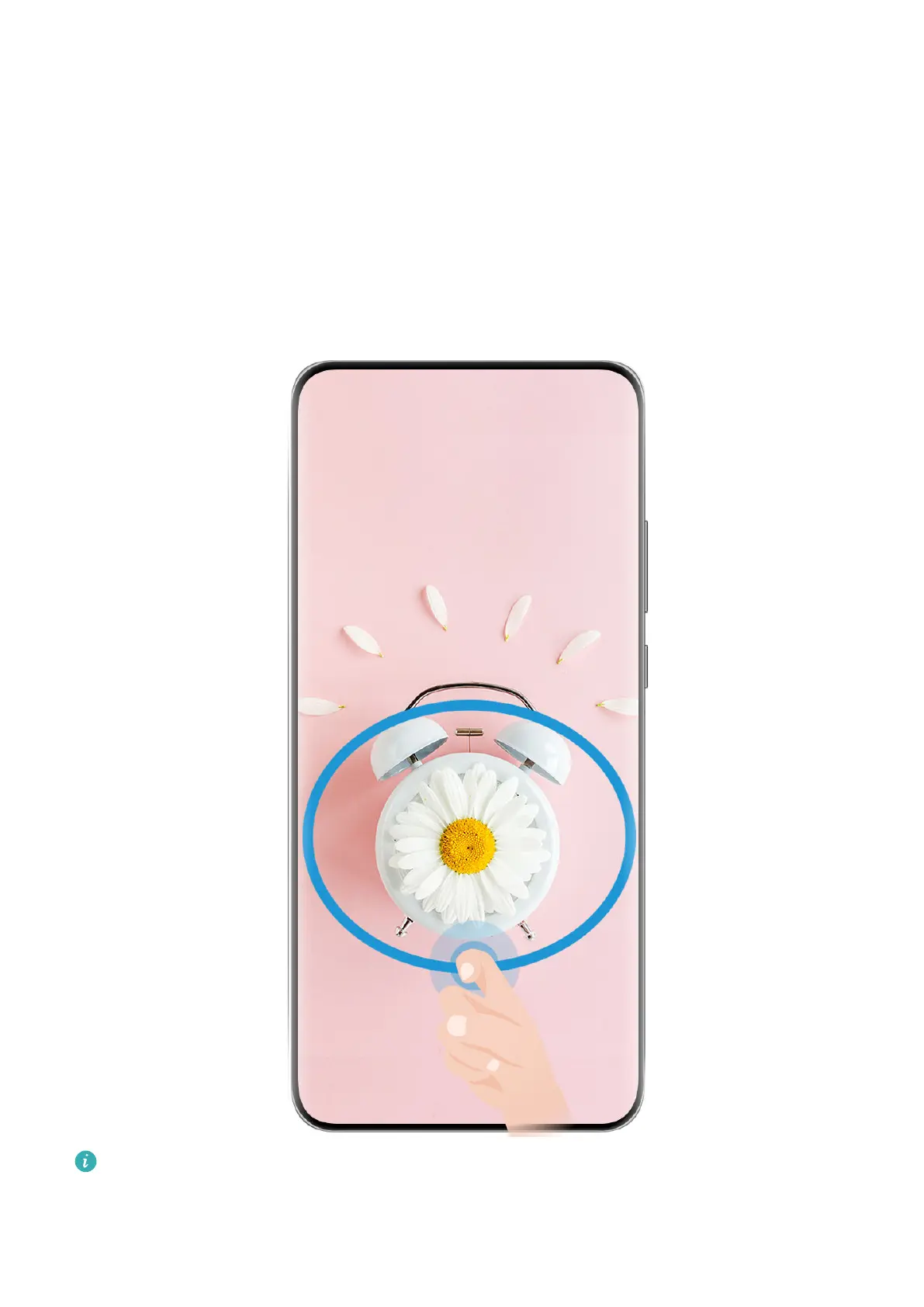
1 Knock on the screen with a single knuckle and hold to draw an enclosed shape around the
part of the screen that you wish to capture. Make sure that your knuckle does not leave
the screen.
Essentials
18



 To Next Page