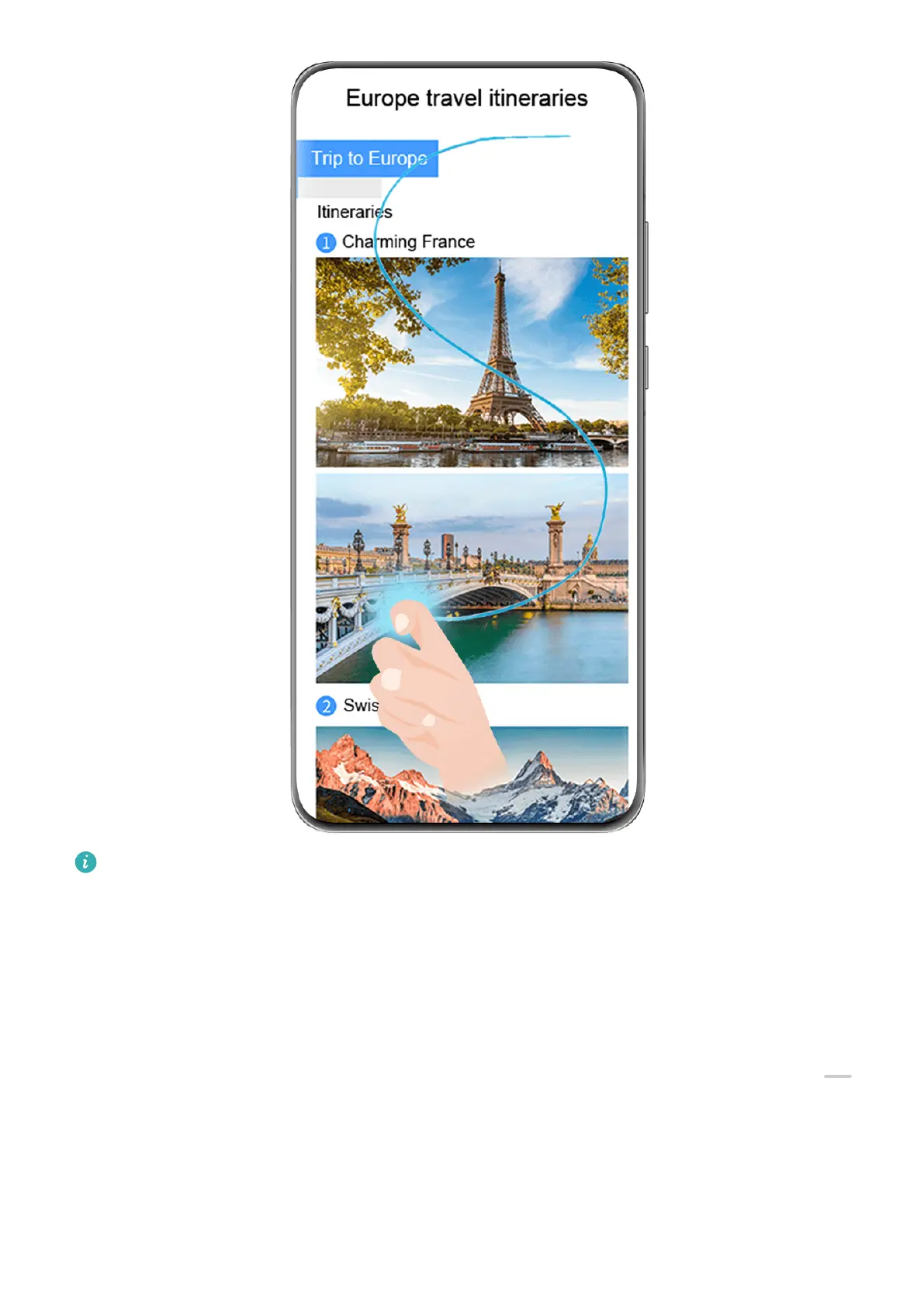
The gures are for reference only.
1 Tap a single knuckle against the screen and hold to draw an "S". Your device will
automatically scroll to the bottom of the page to capture all of the content in a single
screenshot.
2 You can touch the screen at any time to stop the scrolling.
Use a Shortcut to Take a Scrolling Screenshot
1 Swipe down from the upper right edge of the screen to display Control Panel, touch
to expand the shortcut switches panel, touch the triangle icon next to Screenshot, and
touch Scrollshot in the displayed dialog box.
2 You can touch the screen at any time to stop the scrolling.
Swipe down on the Thumbnail to Take a Scrolling Screenshot
Essentials
20



 To Next Page