• Quick app projection: Touch and hold down on an app icon on your phone, and touch the
projection menu to project the app to the large-screen device and open it.
Exit Desktop mode
You can exit Desktop mode in any of the following ways:
• Touch Exit to exit Desktop mode.
• Go to > Project screen to return to wireless projection.
• In Control Panel, touch to expand the shortcut switch panel (depending on your
device model), and touch Wireless Projection to exit wireless projection.
• Swipe down from the upper left edge of your phone to display the notication panel and
touch DISCONNECT to exit wireless projection.
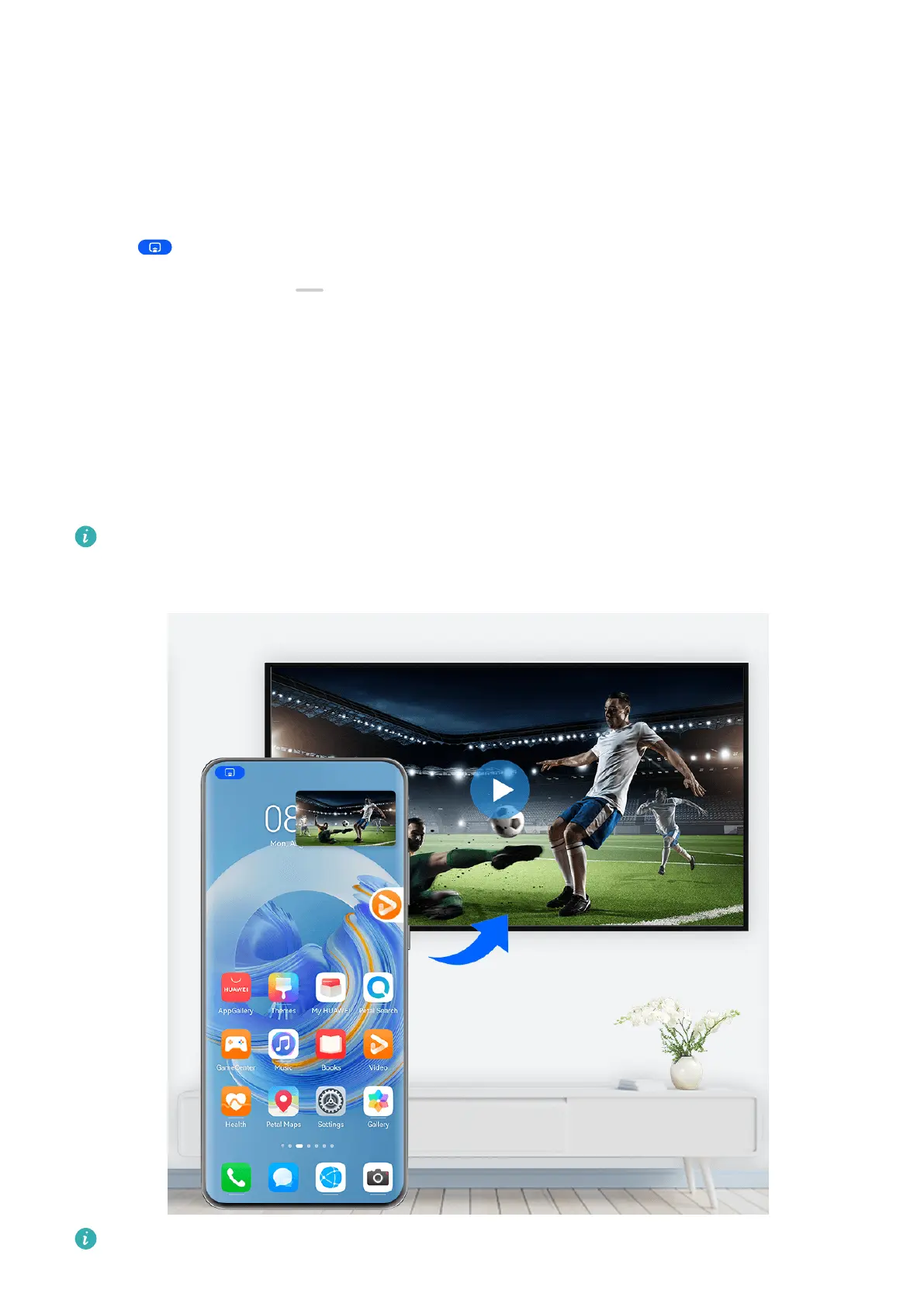
Project the Current App to a Large-screen Device
You can project the current app on your phone to a large-screen device (for example, a
Huawei Vision), while continuing to use and browse other apps on your phone.
App projection is supported on large-screen devices that support the Cast+/Miracast
protocol.
The gures are for reference only.
Smart Features
45



 To Next Page