Getting started
Step 1: Connecting to a network
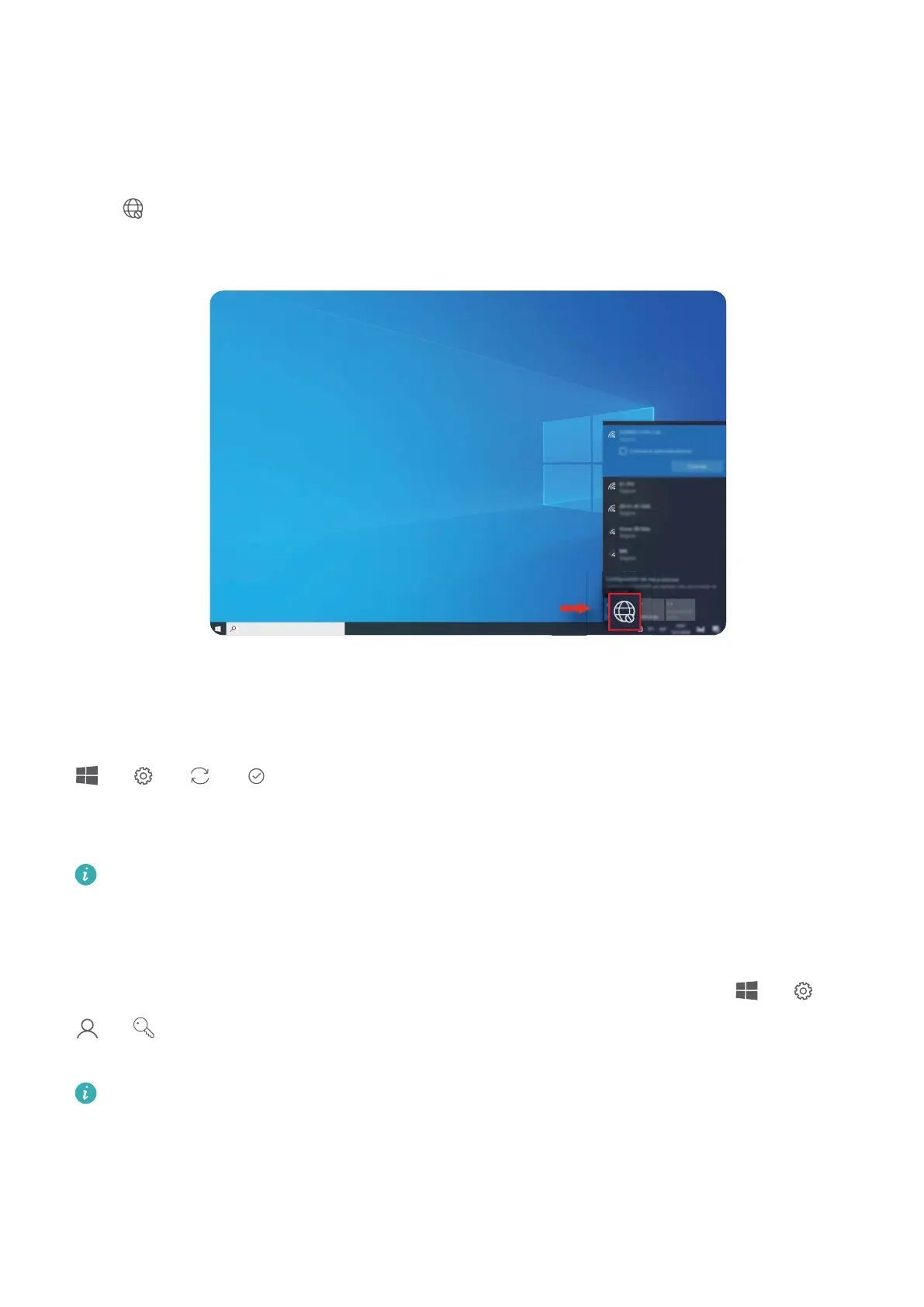
Click in the lower right corner of the desktop. Select a Wi-Fi network and follow the
instructions to establish a connection.
Step 2: Activating Windows
Windows will activate automatically when you connect to the Internet for the rst time. Click
> > > to check if Windows has been activated.
If Windows cannot be activated, restart the computer, connect to the network, and try again.
If the issue persists, connect to a dierent network or wait a while before trying again.
If Windows is not activated, some features on your computer may be restricted.
Step 3: Enrolling a ngerprint
If you skipped the ngerprint enrolment process during the initial setup, click > >
> . Select Windows Hello Fingerprint, then follow the instructions to enrol your
ngerprint.
• Ensure that your ngertips are clean and dry, or your ngerprint may not be enrolled
correctly.
• Each user can enrol up to 10 ngerprints.
8




 To Next Page