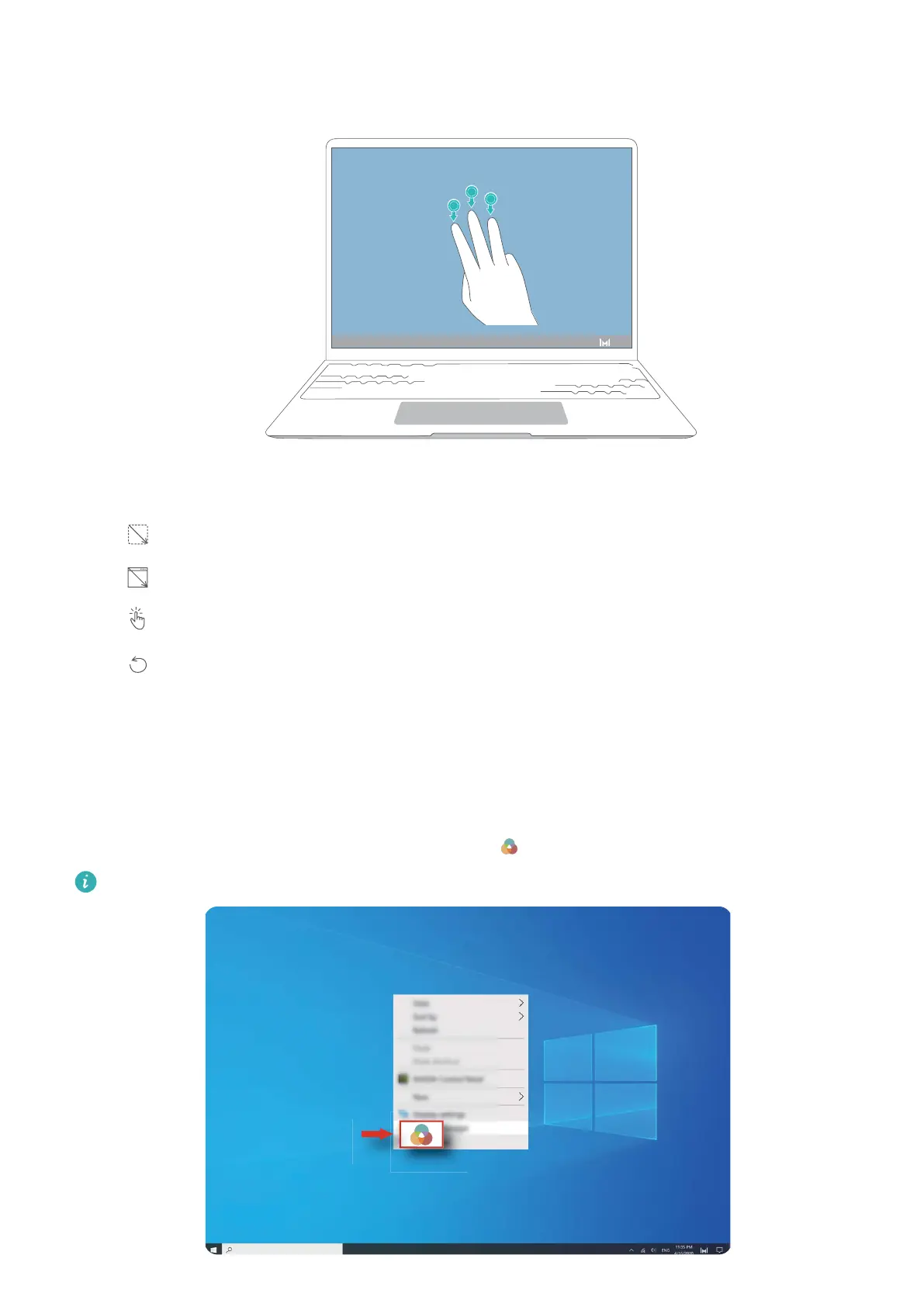
1 Slide down with three ngers on the touchscreen. The screen will dim, and blue guidelines
will appear on the screen.
2 Use any of the gestures below to take a screenshot. If the gesture is not recognised, a
screenshot will not be taken, but you will remain in the screenshot interface.
•
Selection: Draw a diagonal line to capture a rectangular area.
•
Window: Draw a diagonal line across a window to capture the window.
• Screen: Touch the screen with one nger to capture the whole screen.
• Custom: Draw an enclosed area to capture that part of the screen.
Eye Comfort mode
Enable Eye Comfort mode when using the computer for prolonged periods to prevent eye
strain and fatigue.
Right-click any empty space on the desktop, click , and enable Eye Comfort.
The screen will have a slightly yellow hue when Eye Comfort mode is enabled.
Highlighted features
11



 To Next Page