5 On y
our computer, double-click the name of your phone and enter the user name and
password previously noted down.
6 Open a shared folder on your phone, such as the Internal storage or Album folder to view,
edit, or copy les from your phone to your computer or vice versa.
Changes made to les in the shared folders on your computer will be automatically
sync
ed to your phone and vice versa.
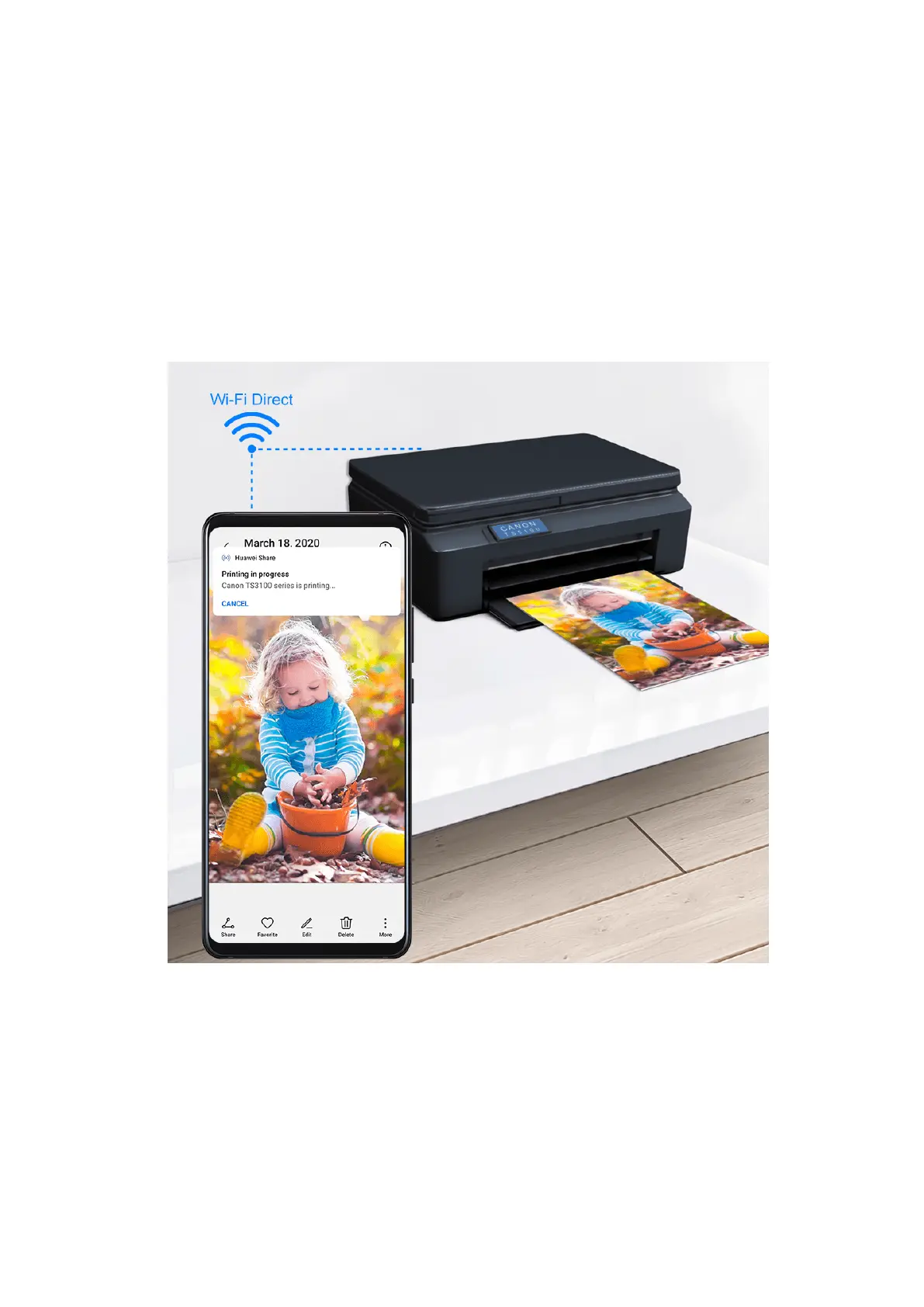
One-Touch Printing with Huawei Share
When a printer that supports Huawei Share is nearby, you can use Huawei Share to nd the
printer and print out pictures or PDF les stored on your phone.
1 Depending on the t
ype of printer, ensure the following:
• Wi-Fi capable printers: The printer must be powered on and connected to the same
network as your phone.
• WiFi Direct capable printers: The printer must be powered on and have enabled WiFi
Direct.
• Bluetooth capable printers: The printer must be powered on and discoverable via
Bluetooth.
2 On your phone, preview the le to be printed, then go to Shar
e > Huawei Share.
Settings
144



 To Next Page