13
Connect Smart Camera to your Android™ / iPhone®
English
5.3 Setup
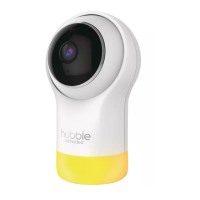
Connect the Smart Camera to the Power Adaptor, then plug into the electrical
outlet. The Camera must be within range of the Wi-Fi® router with which you
want to connect. Make sure the password of the router is available for entering
during the in-app setup process.
Status of LED Indication:
- Pair / Setup state: LED is Flashing Green.
- Unconnected state: LED is Flashing Red.
- Connected state: LED is Solid Green.
Note:
You can only setup via a compatible smartphone or tablet only.
5.4 User Account and Camera Setup on Android™ or Apple devices
What you need
• Camera Unit
• Power adaptor for the Camera
• Device with Android™ system version 8.0 and above
• Or iPhone®/iPad® with iOS version 12.0 and above
5.4.1 Connect the Camera
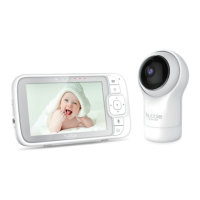
• Switch the parent unit off before connect the camera to Wi-Fi®.
• Connect the power adaptor to the electrical outlet and insert the plug
into the power socket on the back of the Camera Unit, DO NOT switch
the power on at the power point yet.
5.4.2 Download HubbleClub by Hubble Connected App
• Scan the QR code with your smart device
and download
HubbleClub by Hubble
Connected
App from the App Store for iOS
devices or from the Google Play™ Store for
Android™ devices.
• Install
HubbleClub by Hubble Connected
App
on your device.




 To Next Page