NEW 1060PLUS Graphics Tablet
5
/ 15 www.huion.com
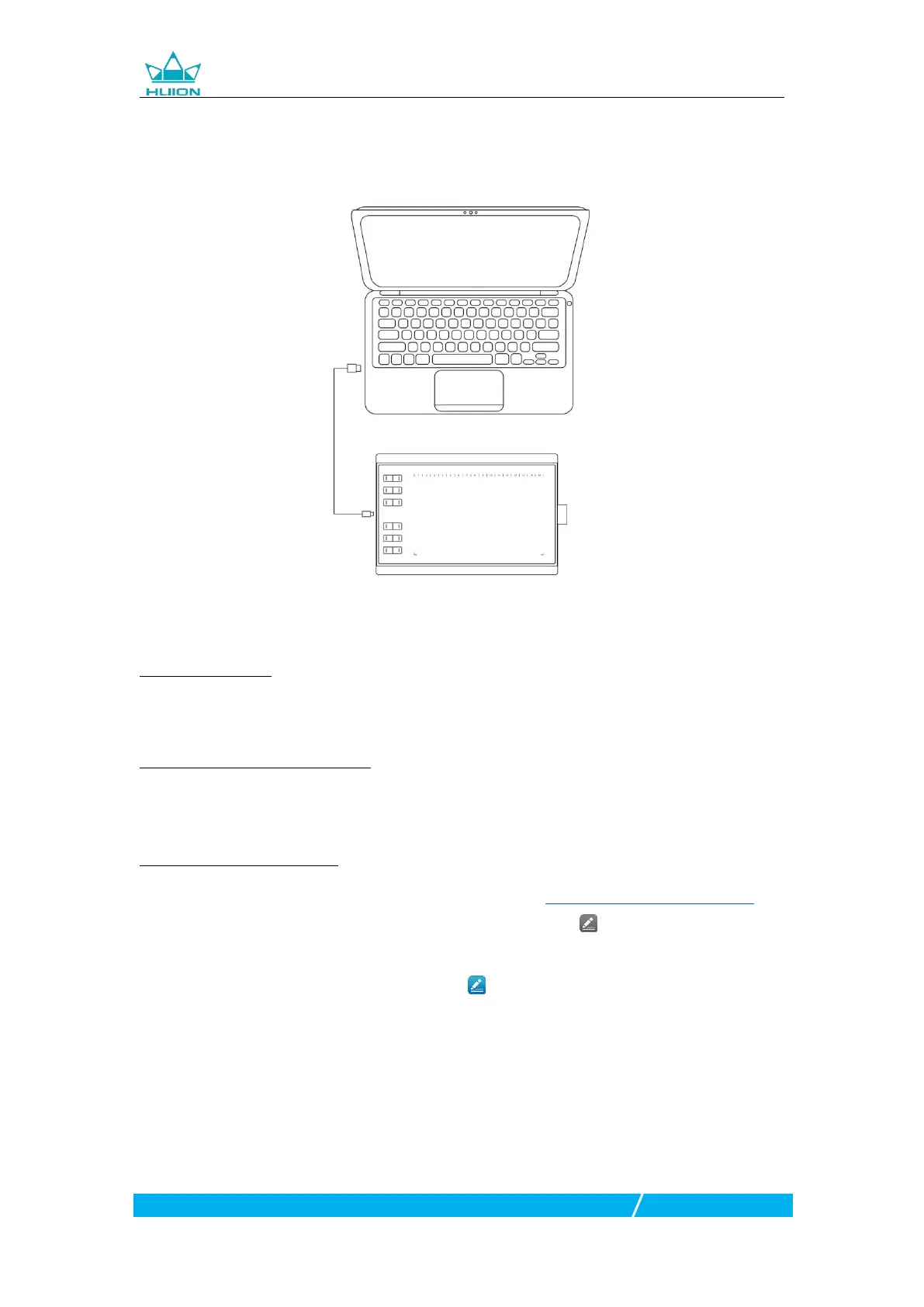
1.3 Tablet Connection
1. Connect the tablet to your computer with USB cable.
1.4 Driver Installation
1.4.1 OS Support
Windows 7 or later,macOS 10.11 or later
1.4.2 Install via Micro SD Card
Connect the tablet to your computer, then open the Micro SD Card folder, click
driver program and finish the installation following the instructions.
1.4.3 Install via Download
You can also download the driver from our website: www.huion.com/download
After finishing installation, you can find the driver icon in the system tray area,
which means the driver was installed successfully; when you connect the tablet to
computer, the icon will change to color , which means the driver has already
recognized the tablet and you can start using it now.
1. Before installing, you need to uninstall other driver of similar products, including
the old driver of this product.
2. Before installing, please close all graphics software and anti-virus software to
avoid unnecessary mistake.




 To Next Page