5. Hardware Installation
5.1 Hardware Installation for Windows
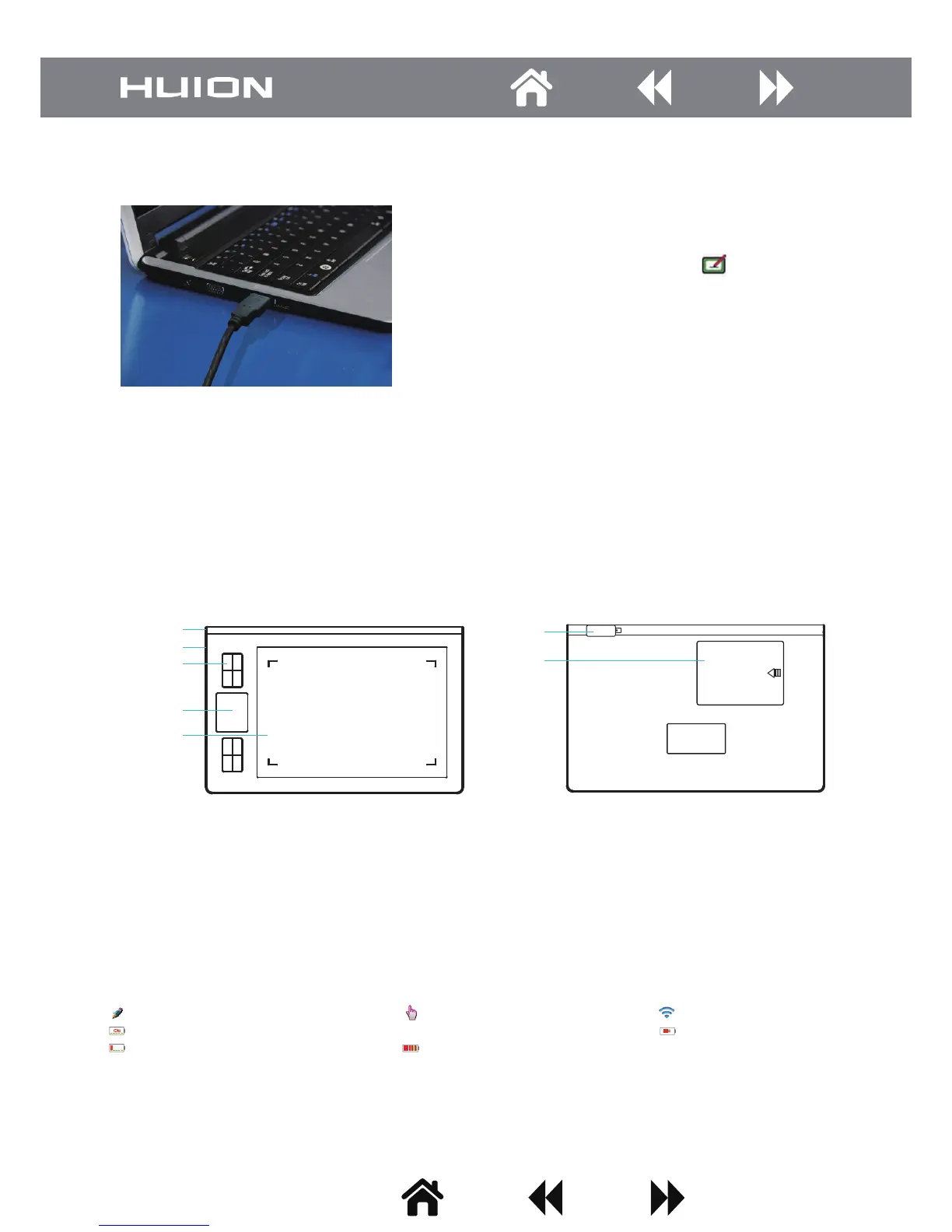
Connect the tablet via USB cable to the PC after the driver installation
is finished.
After connecting, the cross on the tablet icon ( ) will disappear.
1. Charging Method
• Connect the wireless graphic tablet to your PC by using USB cable. Turn the power switch ON.
2. Connection Method
(1) Wireless Mode
• Turn the power switch ON. then plug the wireless receiver to PC and wait for three seconds.
• Tips: It will “auto sleep” if it’s not used for over 10 minutes. please switch the power to “OFF”, then to “ON” when
you want to wake it up.
(2) Wired Mode
• Unplug the wireless receiver from your PC, and connect the wireless tablet to the PC via the provided USB cable,
and ready to use after 3 seconds waiting.
Digital Pen Indicator Touch Keys Indicator Wireless Mode Indicator
Low Power Indicator (Please charge your device) Wired Charging Indicator
Wired Mode Indicator Power Indicator
3. LED Indicator
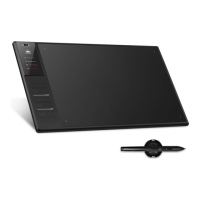
6. Wireless Graphic Tablet
6.1 Dual working modes - wired & wireless
Wireless Graphic Tablet:
Model: DWH69
Battery Slot
Wireless Receiver
Express Key
Power Switch
USB Port
TFT Screen
Working Area
Model: W58
Content
Content
-5-
5.2 Hardware Installation for Mac
a. Plug one end of the included USB cable into the USB port on the tablet and the other into an available USB port
on your Mac.
b. Please turn on the pen and graphic tablet if there is a switch on them.
c. Battery pen and rechargeable pen using the instructions found in section lll below.


 To Next Page