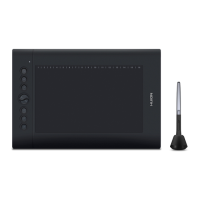
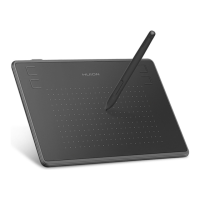
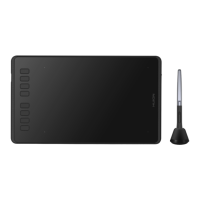
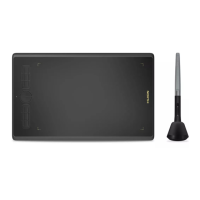
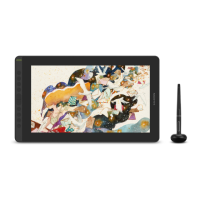
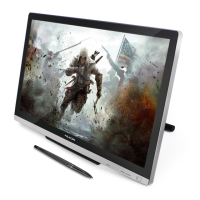
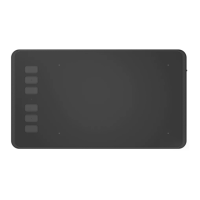
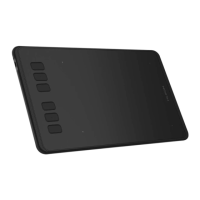
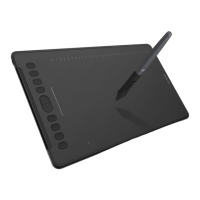
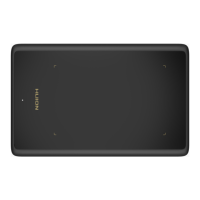
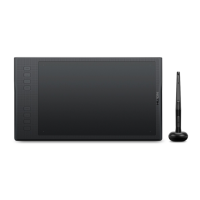
The LED light on the tablet is the main indicator for hardware funtionatity. Depending on your graphic tablet model,
it may be located at a different place of the tablet. That is shown in the diagram above. This LED indicator normally
stays off, and will only turn on or off in response to various conditions. Watch the state of the LED on the tablet as
you go through these test steps:
(1) For battery pen, press down the switch button at the top of the pen, then the pen will be turned on and activated.
If you want to quit your work, press it again to turn it off. For rechargeable pen, tap on any surface with the tip of
the pen to “wake it up”.
(2) As soon as the graphic tablet itself is activated, the LED will be lit briefly, and will turn off again.
(3) When the tablet detects the presence of the digital pen, the LED will blink slowly. This happens either when pen
tip is hovering or placing within the working area of the tablet.
(4) When you press a button on the pen barrel, the LED will be lit up.
(5) Hovering and moving the pen in the working area will cause the cursor on the screen to move accordingly.
6.2 Follow the steps to verify if the tablet is installed properly
7. Usage Tips
* Do not use more than two devices at the same time in case the screen cursor is jittering or not moving.
(1) Double tapping
When you double tap with the digital pen (equivalent to the mouse double click), try to keep the pen’s tip
away from the tablet’s surface, or at least try to lift the pen tip as fast as possible before the second tap.
(2) Storing the digital pen
While storing the pen, make sure the pen tip does not touch anything, especially do not let the pen stand in a
cup or pen holder with the tip down. Even though the possibility is low, constant stress on the pen tip
might damage sensitive pen structure. Place the pen in a pen holder, or turn the pen tip pointing
upward or horizontally with the pen tip free of any pressure by other objects.
(3) Using a pen without an ordinary mouse
You may install a digital pen, a digital mouse, and a normal mouse on your computer at the same time.
However, only one device is able to work at once.
-7-
Content
Content


 To Next Page