13
3.7 Erasing the Test Results Memory
WARNING: Once the test results have been erased
from memory they are permanently deleted and
can no longer be viewed or uploaded to SureTrend.
NOTE: Once started, the erase function cannot be
stopped, and will take about 30 seconds to erase a
full 2000 results.
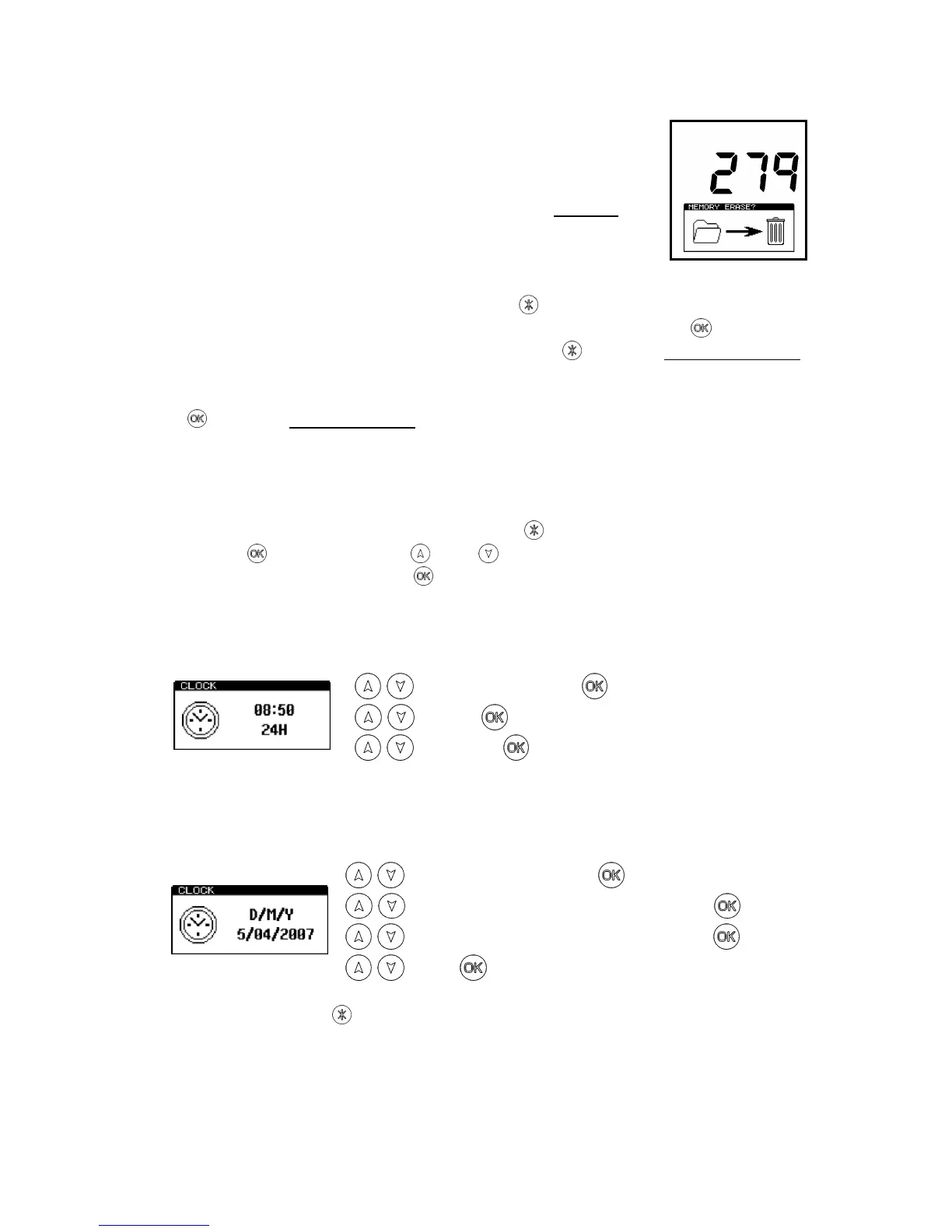
The entire test results memory can be cleared using the MEMORY
ERASE function, by first selecting the , then using the up or down
arrows to select the MEMORY menu option, then press
to select,
and then pressing and holding down the button for 2 seconds.
The display will show the total number of stored results to be
erased. To accept and start the erase function, press and hold down
the button for 1 second, or press any other button to exit the
option.
3.8 Setting the Clock Time and Date
To set or change the clock time, date, and format, select the
CLOCK menu option by pressing the button. Scroll to “CLOCK”
and press
. Then use the and buttons to change the time and
date value, followed by the button to accept each new value.
First the time is set (style hours minutes), which can be
configured as either a 12-hour clock (select AM or PM) or a 24-hour
clock (select 24H):
Next set the date format, which can be configured for either
European format, select D/M/Y for day, month, year, or American
format, select M/D/Y for month, day, year):
TIP: Pressing the button at any point will exit the clock set-up
mode, leaving the time and date unchanged.
NOTE: The clock does not have automatic daylight saving
adjustment. If this is required, the time must be manually changed
when necessary.


 To Next Page