EasyManua.ls Logo

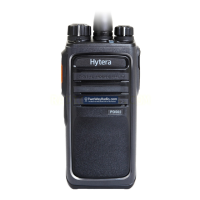
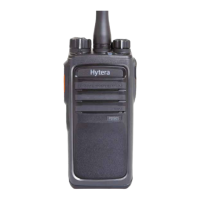
Hytera PD56X R5.6 - User Manual

Hytera PD56X R5.6
22 pages
Print Icon
To Next Page IconTo Next Page
Loading...
DIGITAL PORTABLE RADIO
使
OWNERS MANUAL

Questions and Answers

  • R
    Ruth ValenciaJul 31, 2025
    Why can't I communicate with other members on my Hytera PD56X R5.6?
    • B
      brittanyjonesJul 31, 2025
      There could be several reasons why you can't communicate with other members. First, the frequency or signaling may not match. Ensure your TX/RX frequency and signaling are the same as the other members. Second, the channel type (digital/analog) may be set inconsistently, so make sure all members are on the same digital/analog channel. Finally, you may be too far away from the group; try moving closer to the other members.
  • A
    April KimAug 4, 2025
    What to do if the voice is weak during receiving on Hytera PD56X R5.6?
    • J
      jennifermackAug 4, 2025
      If the voice is weak, discontinuous, or totally inactive during receiving, consider these potential causes: The battery voltage may be low, so recharge or replace the battery. The volume level may be too low; increase the volume using the volume control knob. The antenna may be loose or improperly installed; reattach the antenna after turning off the radio. The speaker may be blocked or damaged; clean the surface of the speaker.
  • V
    Victoria WoodAug 9, 2025
    How to fix a Hytera PD56X R5.6 Portable Radio that fails to power on?
    • J
      Jerry HartAug 9, 2025
      If your radio fails to power on, the battery may be improperly installed; remove it and reattach it. Alternatively, the battery power may be depleted; recharge or replace the battery. Also, the battery contacts may be dirty or damaged; clean the battery contacts.
  • J
    Jennifer WilliamsonAug 12, 2025
    Why am I hearing noise on my Hytera Portable Radio channel?
    • T
      Tristan HamiltonAug 12, 2025
      If you are hearing irrelevant communication or noise on the channel, it could be due to radios using the same frequency; try changing the frequency or adjusting the squelch level. Another reason might be that the radio is set with no signaling; set signaling for all member radios to avoid interference at the same frequency.
  • K
    Karen EstesAug 17, 2025
    How to reduce loud noise on Hytera PD56X R5.6?
    • J
      James RobertsAug 17, 2025
      If the noise is too loud, you may be too far away from other members; move closer to them. You may also be in an unfavorable location; move to an open and flat area and restart the radio. Additionally, external disturbances like electromagnetic interference could be the cause; move away from equipment that may cause interference.
  • S
    sydneydickersonAug 21, 2025
    What to do if the LCD on my Hytera PD56X R5.6 Portable Radio doesn't display anything?
    • B
      Barbara RiddleAug 21, 2025
      If the LCD does not display any information, the LCD may have temporarily failed. Try restarting the radio.
  • M
    Maria TurnerAug 27, 2025
    What to do if I cannot use the keys on my Hytera Portable Radio?
    • M
      Michael MontoyaAug 27, 2025
      If you cannot use the keys, the keypad may have temporarily failed. Try restarting the radio.

Summary

Preface

Instructional Icons

Disclaimer

RF Radiation Information

RF Radiation Profile

Defines Radio Frequency (RF) and its common applications.

RF Radiation Safety

Discusses the development of safety standards for RF radiation exposure.

FCC Regulations

Operational Instructions and Training Guidelines

EU Regulatory Conformance

Items in the Package

Product Overview

Product Controls

Identifies and explains the physical controls, buttons, and indicators on the radio unit.

Programmable Keys

Before Use

Attaching the Battery

Provides instructions on how to assemble and disassemble the battery for the radio.

Attaching the Antenna

Illustrates the procedure for attaching and detaching the radio antenna.

Attaching the Belt Clip

Details the steps for removing screws and assembling the belt clip onto the radio.

Attaching the Accessories

Shows the process of attaching various accessories to the radio unit.

Charging the Battery

Charging Status Indication (on charger)

Explains the meaning of LED indications on the charger for different charging statuses.

Status Indication

LCD Icon

Details various icons displayed on the LCD screen, including battery status, TX power, operation modes, and call/message indicators.

LED Indicator

Explains the meaning of different LED color patterns and their corresponding radio status indications.

Menu Navigation

Menu Structure Overview

Presents the hierarchical structure of the radio's customizable menu items and how to navigate them.

Basic Operations

Powering On;Off

Instructs on how to turn the radio on and off using the power control knob.

Adjusting the Volume

Details how to adjust the audio volume level of the radio using the control knob.

Selecting a Zone

Explains how to select a zone, which is a group of channels, via menu or programmable keys.

Selecting a Channel

Describes how to select a channel using the channel selector knob or programmed keys.

Locking and Unlocking the Keypad

Provides methods to lock or unlock the keypad to prevent accidental key presses, via default, programmable key, or menu.

Contact List Management

Details how to access and manage the preset contact list for private, group, and all calls.

Favorite Contact Management

Explains how to add, view, and delete favorite contacts for quick access to regular contacts.

Call Services

Call on Digital Channel

Explains how to initiate and conduct private, group, or all calls on a digital channel.

Contact List or Call Log

Details how to initiate calls using the contact list or call log on a digital channel.

Call on Analog Channel

Describes calling operations on analog channels, both without and with signaling.

Message Service

Quick Text

Explains how to send preset quick text messages directly from the radio.

Inbox

Describes how the radio stores received messages, including icons for status and capacity limits.

Outbox

Details how the radio saves sent messages, including icons for status and capacity limits.

Feature Description

Radio Features

Lists and briefly describes general radio features like device information and settings.

Conventional Features

Details conventional radio features such as access management, talk around, and basic voice services.

Digital Features

Explains digital-specific features like message, security, and supplementary services.

Analog Features

Lists and describes analog radio features such as access management, signaling, and security.

VOX Feature

Provides detailed instructions and precautions for using the Voice Operated Exchange (VOX) feature.

Troubleshooting

Care and Cleaning

Product Care

Provides essential tips for maintaining the product and preventing damage.

Product Cleaning

Gives instructions on how to clean the radio safely and effectively.

Optional Accessories

Hytera PD56X R5.6 Specifications

General IconGeneral
Channel Capacity256
IP RatingIP54
Frequency RangeVHF: 136-174 MHz, UHF: 400-470 MHz
Channel Spacing12.5/20/25 kHz
Operating Voltage7.4 V
BatteryLi-ion 2000 mAh
Power OutputVHF: 5W, UHF: 4W
Operating Temperature-30°C to +60°C
Storage Temperature-40℃ ~ +85℃

Related product manuals