EasyManua.ls Logo

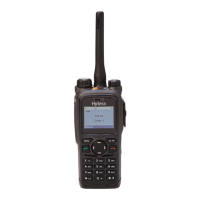
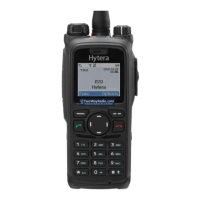
Hytera PT580H Plus - User Manual

Hytera PT580H Plus
21 pages
Print Icon
To Next Page IconTo Next Page
Loading...
Preface
Thanks for your favor in our product. To derive optimum performance from the product, please read
this manual, the corresponding TETRA Terminal Series Feature Book and the Safety Information
Booklet carefully before use.
This manual is applicable to the following product:
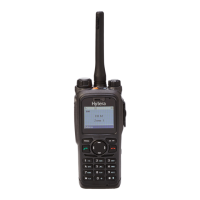
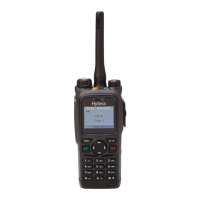
PT580H Plus TETRA Portable Terminal

Questions and Answers

  • M
    Mary TannerJul 27, 2025
    Why does my Hytera PT580H Plus Handhelds fail to register or find a network?
    • M
      Michelle YatesJul 27, 2025
      If your Hytera Handhelds terminal fails to register on the network or cannot find a network, first ensure you're not operating in DMO; switch to TMO. Then, verify the signal strength to ensure you are within network coverage. If the issue persists, contact your network operator to confirm that your terminal has been granted network access.
  • A
    Angela GrayAug 2, 2025
    What to do if abnormal disconnection occurs during a call on Hytera Handhelds?
    • M
      myerswilliamAug 2, 2025
      If you experience abnormal disconnections during a call on your Hytera Handhelds, check the signal strength to ensure you are within the network coverage in TMO. If you are in DMO, move to an open and flat area, away from high buildings or underground locations that may be blocking the signal, and then restart the terminal.
  • Y
    Yesenia StoneAug 6, 2025
    Why calls cannot be established on my Hytera Handhelds?
    • J
      jennifer25Aug 6, 2025
      If you cannot establish calls on your Hytera Handhelds, first check the signal strength to ensure that both you and the called party are within network coverage. Also, verify that your terminal is operating in the correct mode.
  • S
    Stephanie JohnsonAug 11, 2025
    Why can't a certain group call be initiated or received on Hytera Handhelds?
    • W
      Whitney GuerraAug 11, 2025
      If you cannot initiate or receive a specific group call on your Hytera Handhelds, check if your terminal is a member of the target group. If not, contact your dealer to add the terminal to the group. Also, ensure that your terminal is authorized to access the target group by contacting the network operator.
  • B
    Brett MannAug 16, 2025
    Why a half-duplex call cannot be established on Hytera Handhelds?
    • N
      Nicholas MillerAug 16, 2025
      If a half-duplex call cannot be established on your Hytera Handhelds, ensure the call is established within the predefined time period. The channel may be occupied by another terminal with higher call priority, or the channel resources may be allocated to other services due to an overloaded network; in these cases, wait until the channel becomes available and try again.
  • O
    omcdanielAug 22, 2025
    What to do if status message ID content differs between sending and receiving parties on Hytera Handhelds?
    • S
      scottsnyderAug 22, 2025
      If the content displayed at the receiving party is different from that of the sending party for the same status message ID on your Hytera Handhelds, ensure that all parties have associated the same status message ID with the same content.

Summary

Product Controls

Basic Operations

Turning On;Off the Terminal

Procedure for powering the terminal on and off.

Switching Operation Mode

How to switch the terminal between TMO and DMO operation modes.

PIN Enable

Steps to enable, disable, and change the PIN code for terminal security.

TMO Service

Group Call

PABX;PSTN Call

Emergency Call

Initiating an Emergency Call

How to make an emergency call for urgent situations.

Answering an Emergency Call

Procedure for answering emergency calls.

Ending;Exiting an Emergency Call

How to end or exit an emergency call.

Message Service

DMO Service

Individual Call

Initiating and answering individual calls in DMO mode.

Emergency Call

How to initiate and answer emergency calls in DMO.

Troubleshooting

Hytera PT580H Plus Specifications

General IconGeneral
Frequency RangeUHF: 400-470MHz
Channel Spacing12.5kHz/20kHz/25kHz
Operating Voltage7.4V
Operating Temperature-30℃ ~ +60℃
Storage Temperature-40℃ ~ +85℃
Shock & VibrationMIL-STD-810 G
Output PowerUHF: 4W

Related product manuals