EasyManua.ls Logo

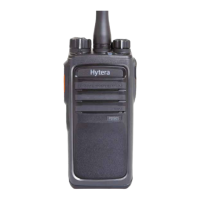
Hytera PD602 - User Manual

Hytera PD602
41 pages
Print Icon
To Next Page IconTo Next Page
Loading...
1
Preface
Thanks for your favor in our product. To derive optimum performance from the product, please read this
manual and the supplied Safety Information Booklet carefully before use.
This manual is applicable to the following model:
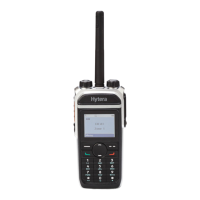
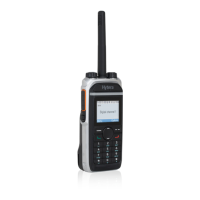
PD602 VHF Digital Portable Radio

Other manuals for Hytera PD602

Questions and Answers

  • H
    Henry MunozAug 16, 2025
    How to fix Hytera PD602 Portable Radio when unable to communicate with other members?
    • J
      Justin FloresAug 16, 2025
      If you are unable to communicate with other members using your Hytera Portable Radio, here are a few things to check: * Ensure that your TX/RX frequency and signaling are the same as those of the other members. * Verify that all members are using the same channel type (digital or analog). * Consider your distance from other members; try moving closer to them.
  • S
    samueloliverAug 19, 2025
    What to do if the Hytera PD602 Portable Radio voice is weak during receiving?
    • E
      Elizabeth MillerAug 19, 2025
      If you're experiencing weak, discontinuous, or no voice during receiving on your Hytera Portable Radio, consider the following: * Charge or replace the battery, as low battery voltage can cause this issue. * Increase the volume by rotating the Volume Control knob. * Ensure the antenna is properly attached by reassembling it after turning off the radio. * Check the speaker for any blockage and clean the surface of the speaker.
  • G
    gentryjenniferAug 21, 2025
    How to troubleshoot power-on failure on Hytera PD602 Portable Radio?
    • D
      donovanblakeAug 21, 2025
      If your Hytera Portable Radio fails to power on, consider these potential causes and solutions: * Ensure the battery is correctly installed by removing and reassembling it. * Charge or replace the battery, as the battery power may be depleted. * Clean the battery contacts, as a poor connection due to dirty or damaged contacts can prevent power-on.
  • J
    jeremiahwilliamsAug 25, 2025
    Why is the noise too loud on my Hytera PD602 Portable Radio?
    • P
      pattersonangelaAug 26, 2025
      If the noise level is too loud on your Hytera Portable Radio, the issue might be due to: * Being too far away from other members, so try moving closer. * Your location. Buildings or underground areas may block communication. Move to an open and flat area and restart the radio. * External disturbance, such as electromagnetic interference. Try to stay away from equipment that may cause interference.
  • J
    James RamosAug 28, 2025
    What to do if I hear irrelevant communication on my Hytera Portable Radio channel?
    • M
      Matthew HarrisonAug 28, 2025
      If you're hearing irrelevant communication or noise on your Hytera Portable Radio channel: * You may be interrupted by radios using the same frequency. Try changing the frequency or adjusting the squelch level. * The radio may be set with no signaling. Set signaling for all member radios to avoid interference at the same frequency.
  • B
    Brian OsbornAug 31, 2025
    What to do if the voice is weak during receiving on Hytera Portable Radio?
    • D
      David AlvaradoAug 31, 2025
      If you are experiencing weak, discontinuous, or inactive voice during receiving on your Hytera Portable Radio, first try recharging or replacing the battery, as the battery power may be too low. Also, ensure the volume isn't set too low by increasing it. Check the antenna; if it's loose, power off the radio and reinstall the antenna. Finally, inspect the speaker for blockages and clean the surface. If the problem persists after these steps, further assistance may be needed.
  • N
    Neil SmithSep 2, 2025
    How to fix power-on failure on Hytera Portable Radio?
    • R
      robertturnerSep 2, 2025
      If your Hytera Portable Radio is experiencing power-on failure, start by removing the battery and reattaching it to ensure it's properly installed. If that doesn't work, the battery may be drained, so recharge or replace it. Also, inspect the battery contacts for dirt or damage; clean them if necessary. If the radio still won't power on after these steps, it may require professional inspection.
  • B
    Barry PhamSep 5, 2025
    Why is there noise on the channel of my Hytera Portable Radio?
    • U
      uramirezSep 6, 2025
      If you are experiencing irrelevant communication or noise on the channel with your Hytera Portable Radio, it may be due to interference from other radios using the same frequency. Try changing the frequency or adjusting the squelch level. Alternatively, the radio may be set with no signaling. In this case, set signaling for all member radios to avoid interference at the same frequency.
  • S
    Shawn SmithSep 9, 2025
    What to do if I cannot communicate with other members on Hytera Portable Radio?
    • C
      Christopher WilcoxSep 9, 2025
      If you cannot communicate with other members using your Hytera Portable Radio, first ensure that your TX/RX frequency and signaling are set to the same as those of the other members. Also, verify that all members are on the same channel type, either digital or analog. Finally, you may be too far away from the group; try moving closer to the other members.
  • A
    Anna SharpSep 12, 2025
    How to fix GPS if it cannot locate position on Hytera PD602?
    • C
      Cody RoblesSep 12, 2025
      If the GPS on your Hytera Portable Radio cannot locate your position, it's likely due to a lack of GPS signal. Move to an open and flat area, and then restart the radio to try again.

Summary

Preface

Copyright Information

Disclaimer

Details the company's commitment to accuracy and potential changes in specifications, disclaiming guarantees for third-party content.

RF Radiation Information

RF Radiation Profile

Defines Radio Frequency (RF) as electromagnetic radiation used in communication and other fields, which may generate radiation during use.

RF Radiation Safety

Explains the development of standards for safe RF exposure by experts from various industries and international organizations.

FCC Regulations

States FCC requirements for radio products marketed in the U.S., including RF labels for user guidance on occupational health.

Operational Instructions and Training Guidelines

Provides guidelines for optimal performance and compliance with RF exposure limits, including transmission duty factor and procedures.

FCC Statement

Compliance with RF Exposure Standards

Lists the RF energy exposure standards and guidelines that Hytera's 2-way radio complies with.

RF Exposure Compliance and Control Guidelines and Operating Instructions

Outlines guidelines and operating instructions for controlling RF exposure and ensuring compliance with occupational/controlled environment limits.

IC statement

Confirms compliance with Industry Canada licence-exempt RSS standards and outlines the two conditions for operation.

EU Regulatory Conformance

Documentation Conventions

Instructional Icons

Explains icons used in the manual, indicating notes, cautions, unavailable functions, and channel type availability.

Notational Conventions

Defines conventions for quotation marks, bold text, and symbols used for menu navigation and interface elements.

Key Operation

Describes basic key operations such as short press, long press, and hold actions for interacting with the device.

Items in the Package

Product Overview

Product Controls

Identifies and labels the various physical controls and components of the radio device.

Programmable Keys

Details programmable keys (SK1, SK2, TK) and their assigned shortcut functions for enhanced convenience.

Before Use

Charge the Battery

Provides step-by-step instructions for charging the radio's battery using the specified charger.

Assembling the Antenna

Instructions on how to attach the antenna to the radio by rotating it clockwise.

Assembling the Battery

Step-by-step guide for attaching and securing the battery to the radio.

Assembling the Belt Clip

Instructions for attaching the belt clip to the back of the radio using screws.

Attaching Audio;Programming Cable

Details on how to connect audio or programming cables to the radio's accessory jack.

Status Indication

LED Indicator

Explains the meaning of different LED indications (flashing green, glowing red, etc.) for radio status.

Basic Operations

Powering On;Off

Describes how to turn the radio on and off using the Power On-Off/Volume Control knob.

Adjusting the Volume

Explains how to increase or decrease the output sound volume using the control knob.

Adjust Power Level

Details how to switch between high and low transmit power levels for battery saving or range.

Selecting a Zone

Explains how to manage and switch between different zones, each containing multiple channels.

Selecting a Channel

Instructions on selecting a channel using the Channel Selector knob or a preset channel key.

Switching the Channel Mode

Describes how channels can be programmed as analog or digital and switched via the Channel Selector knob.

Call

Private Call

Details how to initiate and receive private calls, including call back functionality.

Group Call

Explains the process for initiating and receiving group calls, including call back.

All Call

Describes how to initiate an all call and limitations on call back.

Calls on Analog Channels

Instructions for transmitting and receiving calls on analog channels.

One Touch Call

How to use a programmed key to quickly initiate a call with preset contacts.

Time-out Timer (TOT)

Explains the TOT feature which prevents extended channel occupation by automatically terminating transmissions.

Busy Channel Lockout

Describes the feature that prevents interference with other transmissions on the same channel.

Pseudo Trunking

Details the Pseudo Trunking feature, allowing transmission and reception in available time slots.

Functions and Operations

Rent

Information on renting the radio and reminders for rental period expiration.

Scan

How to use the scan feature to monitor communication activities on other channels.

Roam

Enables communication between sites in the same IP Multi-site Connect system.

Talk Around

Allows communication in DM mode when repeaters are malfunctioning or radios are out of repeater range.

Monitor

How to enable the monitor feature to adjust match conditions for signal receiving.

Squelch Off

Activates the feature where the speaker remains unmuted regardless of signal presence.

Adjust Squelch Level

Allows adjustment of the squelch threshold to control when the radio becomes unmuted.

VOX

Enables voice transmission triggered by speaking without holding the PTT key.

LQO

Automatically adjusts received voice volume for different environments and clarifies voice clarity.

Covert Mode

Disables visible indications on the radio for special missions.

GPS Report

Uploads the radio's positioning information to the system when GPS information is required.

Battery Power Indicator

Allows checking the current battery power status via LED indication.

Audio Feedback Suppression

Weakens noise from short-distance communication to improve voice quality.

MIC AGC

Controls audio gain during transmission for proper volume and voice quality.

Radio Registration Service

Automatically registers the radio in the system and acquires online information.

Telemetry

Allows remote supervision and control of connected devices via radio or third-party software.

Man Down

Activates an alert if the radio tilts or remains motionless for a preset period.

Lone Worker

Provides an alarm to summon help if the user cannot operate the radio within a preset time.

Priority Interrupt

Allows terminating ongoing activities to initiate new calls or data services.

Manual Priority Interrupt

Initiates priority interruption by pressing a programmed key to terminate ongoing activity.

Auto Priority Interrupt

Automatically triggers priority for specified services, interrupting current channel activity.

Scrambler;Encrypt

Encrypts audio signals to prevent eavesdropping and ensure communication privacy.

Emergency Alarm

Enables asking for help in emergencies with the highest priority, interrupting ongoing transmissions.

Emergency Type

Describes different emergency types (Siren Only, Regular, Silent, Silent with Voice) and their indications.

Emergency ID Type

Explains the three supported Emergency ID types: None, HDC1200, and 5-Tone signaling.

Emergency Mode

Details three emergency modes (Alarm, Alarm with Call, Emergency Call) for sending alarm information and calls.

Operation Methods for Analog Emergency

Provides methods for initiating and exiting analog emergency alarms (Alarm, Alarm with Call).

Operation Method for Digital Emergency

Details methods for initiating and exiting digital emergency alarms (Alarm, Alarm with Call, Emergency Call).

Troubleshooting

Care and Cleaning

Optional Accessories

Appendix

Signaling Introduction

Introduces the signaling types supported by the radio, such as HDC1200, 5-Tone, and 2-Tone.

HDC1200

Explains HDC1200 signaling compatibility and its functions like PTT ID, Emergency, and Selective Call.

5-Tone

Describes how the radio realizes various calls through 5-Tone signaling and its encoding/decoding processes.

2-Tone

Explains the radio's capability to transmit and receive 2-Tone calls and its encoding/decoding procedures.

Hytera PD602 Specifications

General IconGeneral
BrandHytera
ModelPD602
CategoryPortable Radio
LanguageEnglish

Related product manuals