30
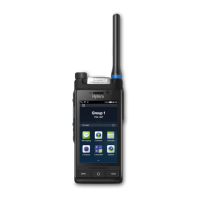
Rotate the Smart Knob to select a talk group. The selected talk group is set as the default group.
Through the menu
a.
Tap
or .
b.
Tap Folder.
c.
Tap the folder, and then tap
on the right side of the talk group.
3.4.1.10 Switching the Selected Folder
The selected folder contains the default group. Only one selected folder is allowed. You can add groups to
which you will initiate calls or send messages to the folder.
To switch the selected folder, do either of the following:
Press the preprogrammed Folder up or Folder down key.
Switch the default group. The folder containing the default group will be set as the selected folder
automatically.
3.4.1.11 Switching the Home Group
If the radio often switches between talk groups, you can set the most frequently used group as the home
group. Then, you can quickly switch to the home group by pressing the corresponding preprogrammed
key.
1.
Tap
or .
2.
Tap Folder, and then tap the folder and talk group.
3.
In the talk group details interface, tap Set Home Group.
4.
Press the preprogrammed Switch to home group key.
If the home group is configured as the startup group, the radio operates under the home group upon
power-on.
3.4.1.12 NTG (TMO Only)
A notice talk group (NTG) is a special talk group with high priority by default. A NTG can be associated with
multiple groups. When initiating a NTG call, you can talk with all the talk groups associated with the NTG.
When the default group is a NTG group, the radio monitors the talk groups associated with the NTG. When
the default group is a talk group associated with a NTG, the radio monitors only the NTG.
After a NTG is configured, it is displayed as "N:" in the Contacts menu. You can access the contact details
interface to view the list of associated groups.


 To Next Page