6
Getting Started
Your Virtual Keyboard
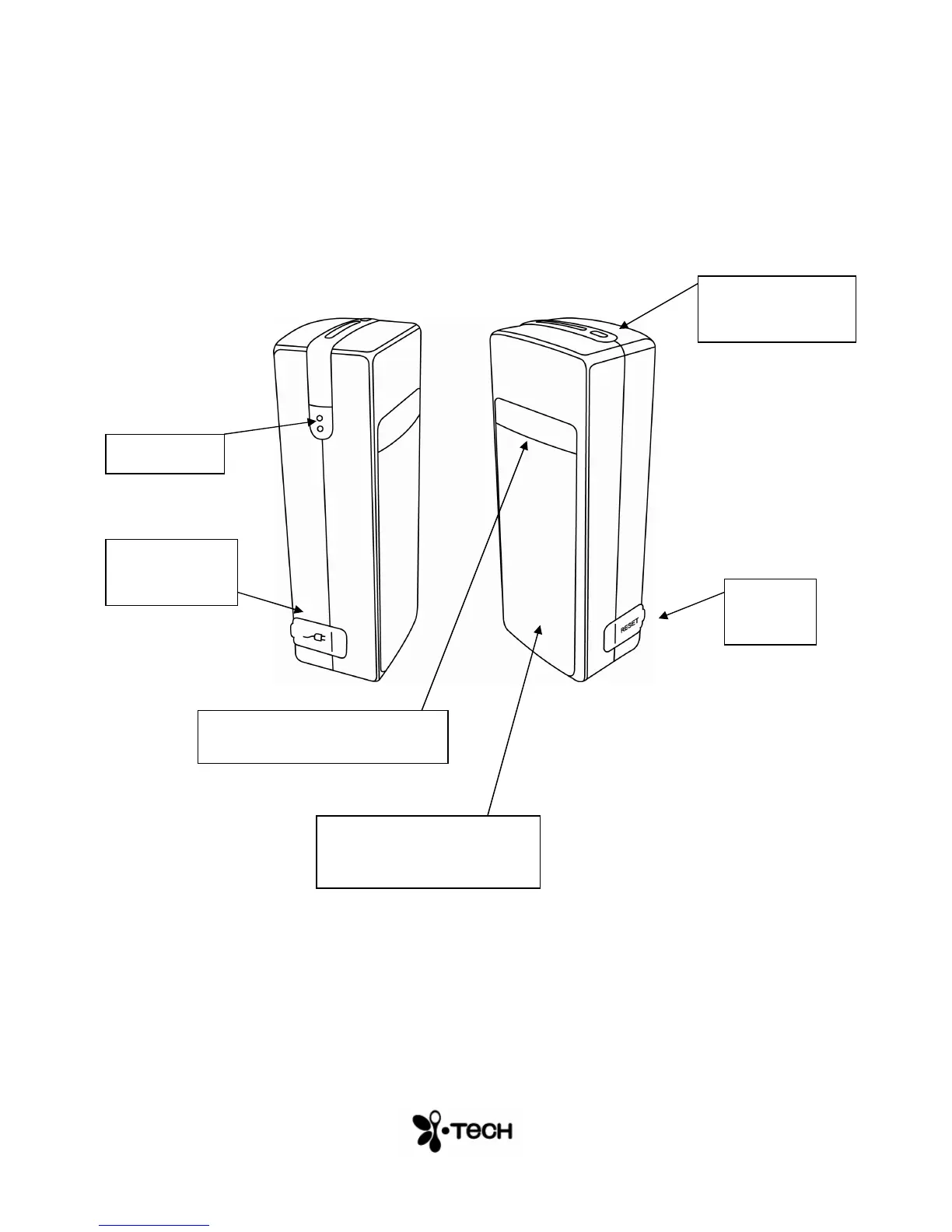
Unpack and inspect your Virtual Keyboard. Take a few moments to
familiarize yourself with device using the diagram below.
Overview
Figure 1 – Getting to know your Virtual Keyboard
Before using your Virtual Keyboard:
• Ensure that you remove all protection materials including the
protection sheet on the laser windows.
• Your Virtual Keyboard will need to be charged for at least 2
hours.
Power Key
Charging
Socket
Status indicator
(LED)
Reset
button
Keyboard projection window
Keyboard sensing
receiver window


 To Next Page