7
Switching On
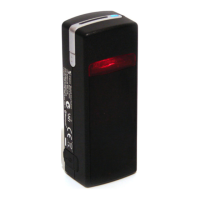
Place the Virtual Keyboard on a flat surface with the Keyboard projection
and sensing windows facing you. To switch it on press the On/Off button,
located on the upper-left hand side.
Once the unit is switched on an image of a keyboard is projected on to the
surface. Notice that the keyboard image is the basic English keyboard,
including 4 Arrow keys, 1 Control, 2 Shift keys, 1 Alt and a VKB dedicated
Fn function key.
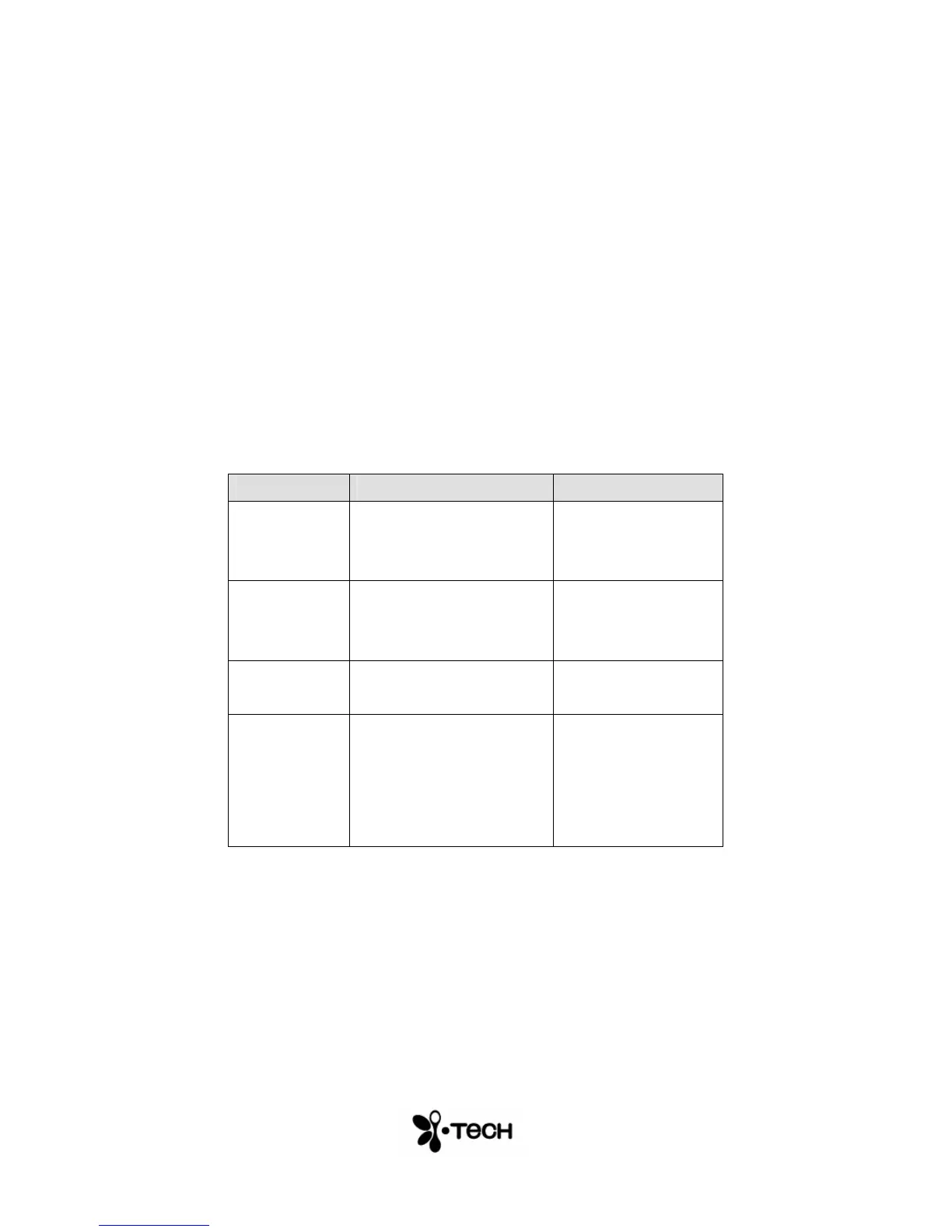
A two-color LED located at the top of the unit indicates the current status of
the Virtual Keyboard, where:
Colour Status/Cause Action
Blinking
Blue
Virtual Keyboard is
ready to pair to a
Bluetooth device
Long Flash
Blue
Virtual Keyboard is
paired to a Bluetooth
device
Blinking
Red
Virtual Keyboard’s
battery is low.
Recharge the
Virtual Keyboard
Solid Red
The area of the
projected keyboard is
exposed to direct
sun-shine or some other
source of direct light.
Move the Virtual
Keyboard to a
shaded location
Table 1 – Functional Status Indicator


 To Next Page