12
Firmware upgrade
Restore the factory default settings
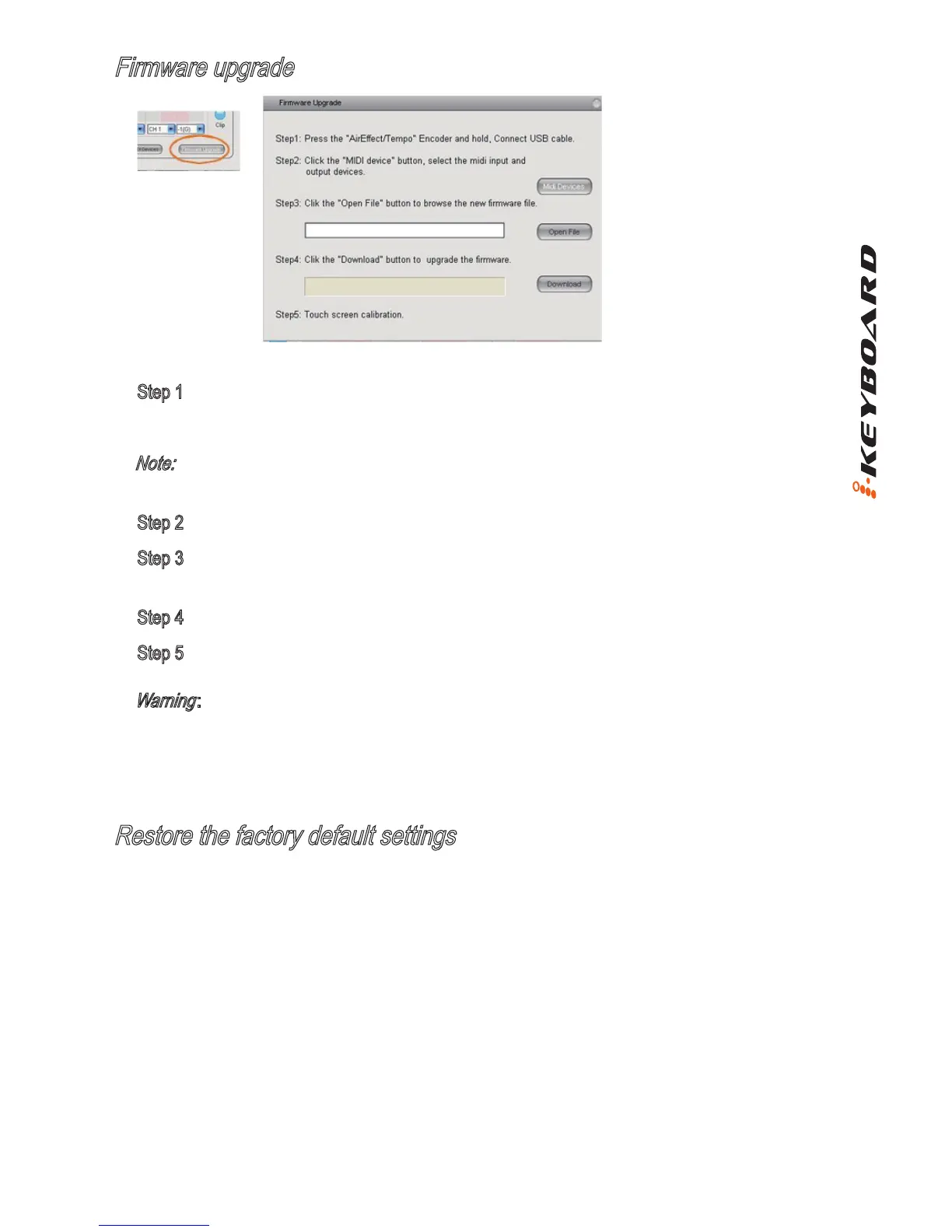
Step 1 Connect the ICON product using a USB connection. Press the “MIDI Device” button at
the top to select your connected ICON product as the “MIDI In and Out” device at the pull-
down menu.
Note: If your connected ICON product model name does not appear on the pull-down menu,
select “USB Audio” as the MIDI In and Out device.
Step 2 Click the “Update” button.
Step 3 Press the “MIDI Device” button at the top to select your connected ICON product as the
“MIDI In and Out” device at the pull-down menu.
Step 4 Click the “Open File” button to browse the new rmware le.
Step 5 Click the “Download” button to upload the rmware.
Warning
:
The rmware upload process “MUST” be completed and not be interrupted during the
le uploading, otherwise the rmware may not be rewritten again.
To restore your iKeyboard settings to factory default, simply import the “Factory Default” setting
le into your iKeyboard with the original setting of the iMap software.


 To Next Page