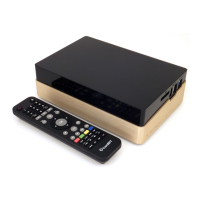
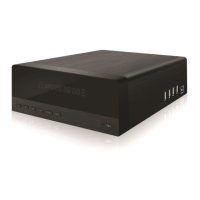
iconBIT XD290HDMI User Manual
10
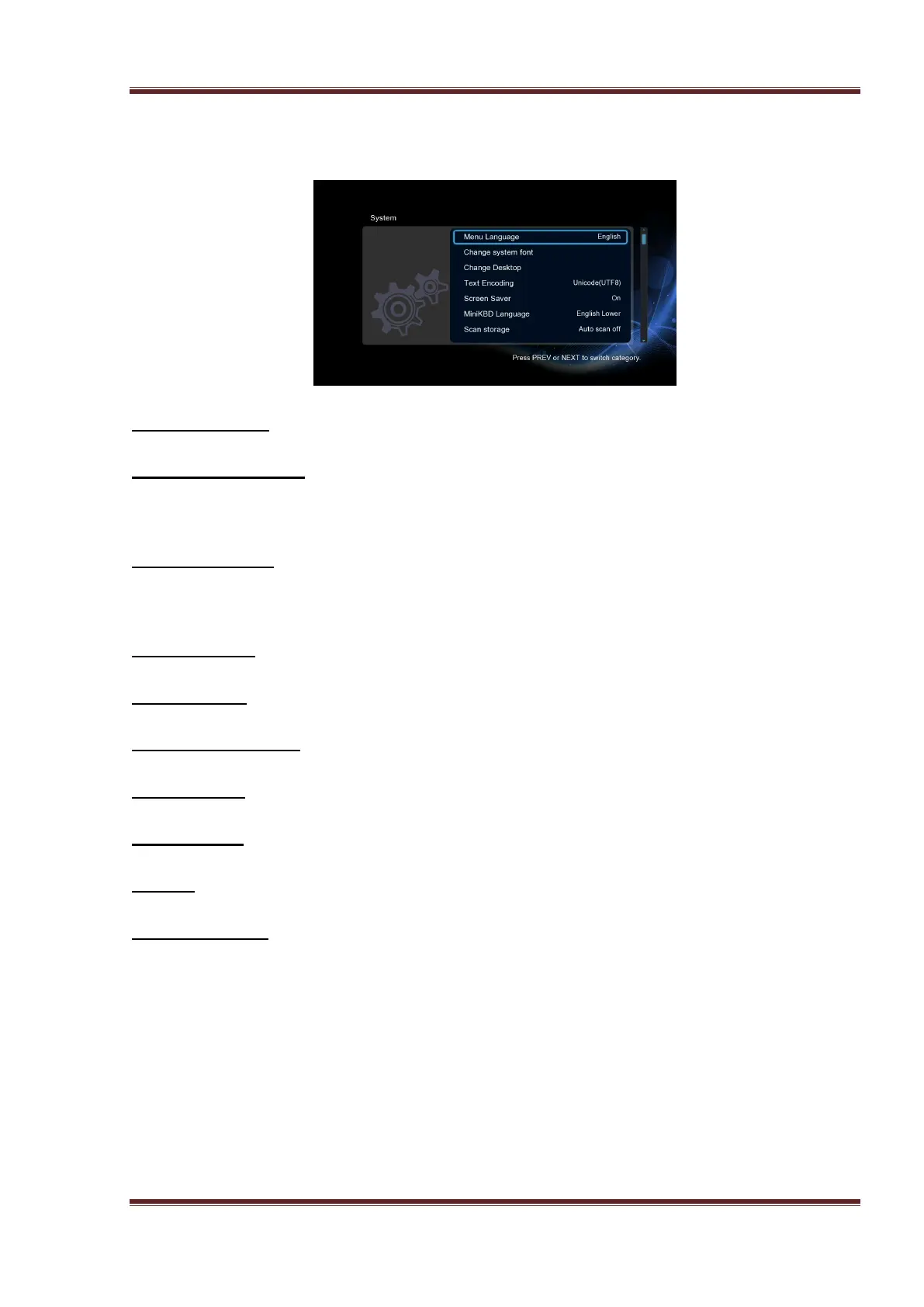
3.1.1 Changing System Settings
Use this menu to configure system settings.
Menu Language
- Select to choose the OSD (On-Screen Display) language.
Change system font
- Select to change system font.
Create a folder named “Resource” in the root directory of your USB or HDD, rename
your font as ‘font.ttf ‘and then copy it to the folder.
Change Desktop
- Select to change the desktop.
Create a folder named “Resource” in the root directory of your USB or HDD, rename
your photo as ‘desktop.png‘ and then copy it to the folder.
Text Encoding
- Select to set the text encoding option (subtitle display).
Screen Saver
- Select to turn on/off screen saver.
Mini KBD Language
- Select to change the language of the mini keyboard.
Scan storage
- Select to set the scan mode of media library.
Resume Play
- Select to turn on/off resume playback (auto-bookmarking) feature for movies.
Format
- Select to format your external HDD.
Restore Default
- Select to restore factory defaults.
Note: HDD format will remove all data stored on the hard disk drive. Please take care and
backup your data in advance!



 To Next Page