iconBIT XDS73D mk2 User Manual English
3.10. A/V Streaming via Network
To stream your media files shared on the home network,
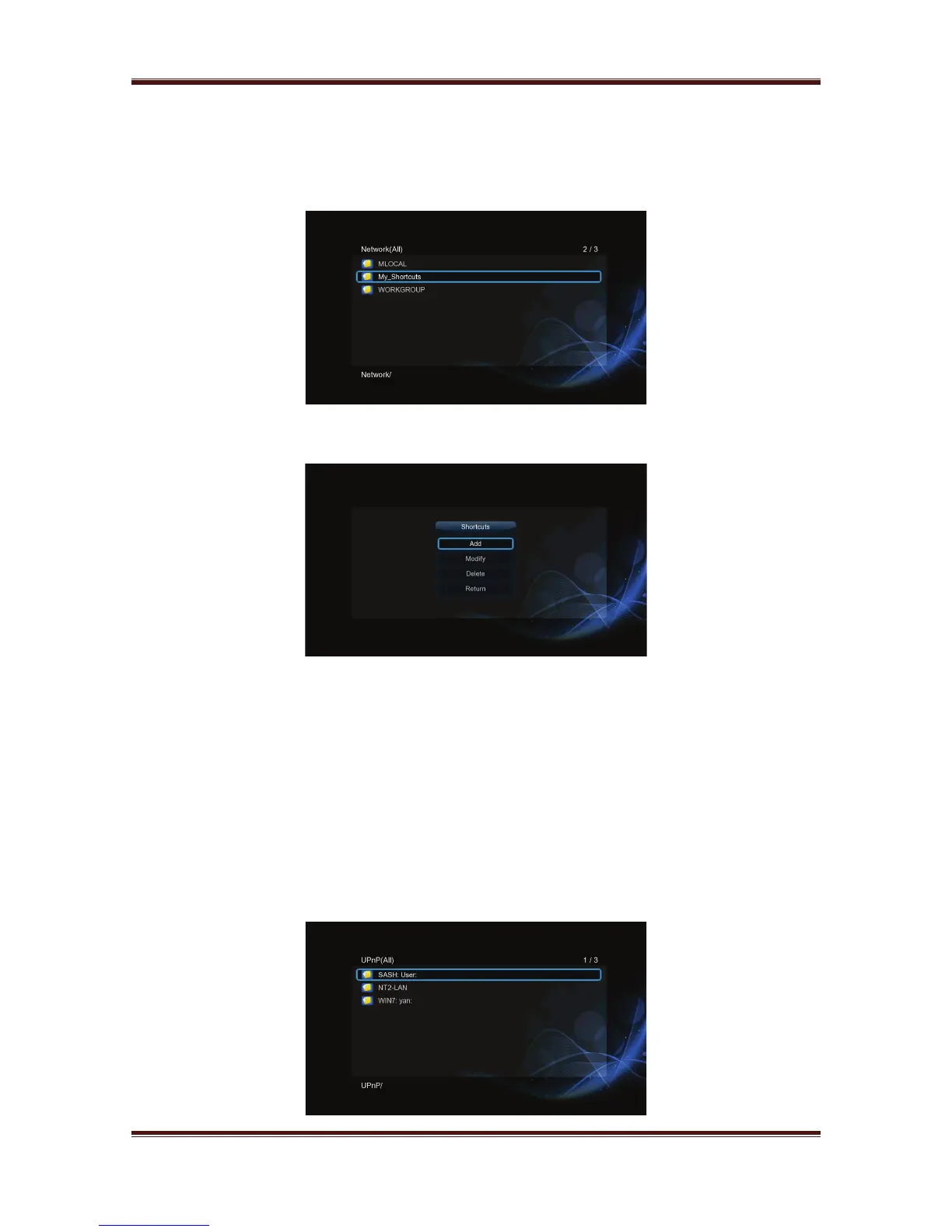
Step 1, Enter into Setup
Network, find your PC the workgroup list. Then you can
select and play the shared media files that you want to browse.
Due to different network conditions, sometimes the workgroup might not be accessed or
shown in the list. You can set ‘Specific File Server IP’ and access it from ‘My_Shortcuts’.
- Press the Red button and a popup menu appears.
- Select Add to open a popup menu where you can input Label, Net User ID, Net
Password, Domain, Host Name, and Specific File Server IP.
3.11. A/V Streaming via UPnP-server
A built-in UPnP (Universal Plug and Play) client has been integrated on the system, which
enables the player to auto-detect UPnP Media Servers on the network to browse and stream
media files from them. There’re a lot of free and commercial UPnP Media Server software,
such as Windows Media Connect, Windows Media Player 11, XBMC Media Center
(Linux/Mac/Windows), MediaTomb (Linux), etc. Please install one of them on your computer,
and share the media files though it.
To stream your media files shared though a UPnP server,
Step 1, Enter into Setup
UPnP menu on the player, select the UPnP-server, then you
can browse the media library shared by UPnP server.
21


 To Next Page