Quick Installation Guide
Jun. 2011 Copyright © IDTECK Co., Ltd.
digit representation of each card.
(4) The first card read becomes the Configuration Card and the following RF Cards are registered as
User Access Cards. Once all User Access Cards have been registered, present the Configuration
Card again to complete the registration. (Please keep the Configuration Card in a secure location
for future changes.)
(5) Now, the Main Unit is entered into the normal operation mode with factory defaulted settings.
7.2. Registration of RF Cards with PINs for RF CARD + PIN MODE
(1) Apply 12 V DC to the unit.
All 3 LEDs will be flashing along with a powered-up melody (do mi sol me do..do mi sol do~).
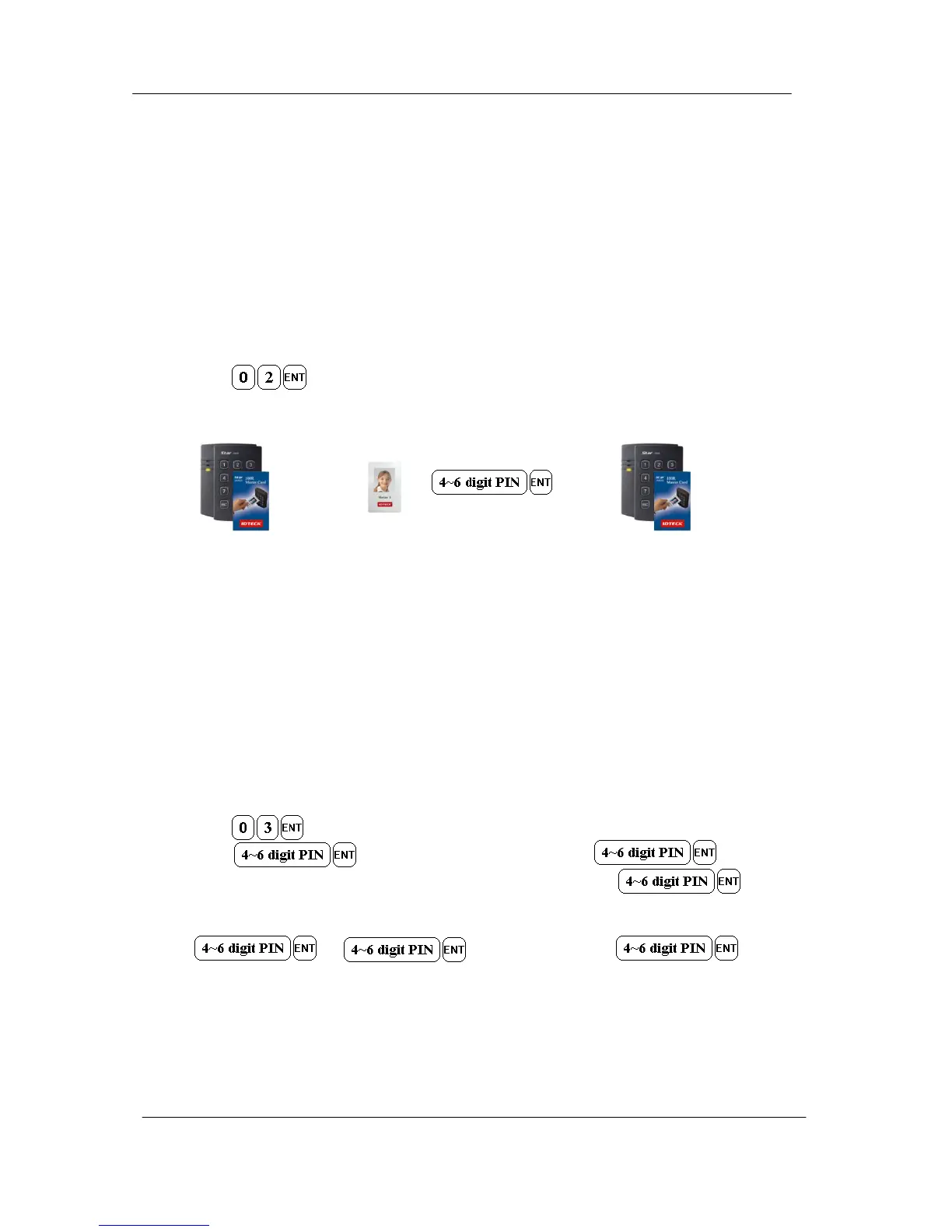
(2) Press from the keypad. (RF CARD + PIN MODE)
(3) Present RF Cards as follow to register Configuration Card and User Access Cards + 4~6 digit
Personal Identification Number (PIN) for each User Access Card.
........
Configuration Card User Access Cards + PINs Configuration Card again to end task
(4) The first card read becomes the Configuration Card and the following RF Cards + PINs are
registered as User Access Cards with assigned PINs. Once all User Access Cards and PINs
have been registered, present the Configuration Card again to complete the registration.
(Please keep the Configuration Card in a secure location for future changes.)
(5) Now, the Main Unit is entered into the normal operation mode with factory defaulted settings.
7.3. Registration of PIN ONLY MODE
(1) Apply 12V DC to the unit.
All 3 LEDs will be flashing along with a powered-up melody (do mi sol me do do mi sol do~).
(2) Press from the keypad. (PIN ONLY MODE)
(3) Enter to register Configuration PIN then to register for
each subsequent User Access PIN at a time and then enter the
(Configuration PIN) to complete the registration.
……..
Configuration PIN User Access PIN .Configuration PIN again to complete the registration.
(4) The first 4~6 digit PIN becomes the Configuration PIN and the subsequent 4~6 digit PINs are
registered as User Access PINs. Once all User Access PINs have been registered, enter the
Configuration PIN again to complete the registration. (Please store the Configuration PIN for
future changes.)



 To Next Page