UNDERSTANDING YOUR ECLIPSE
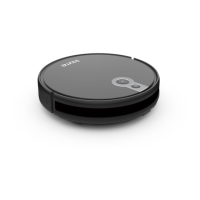
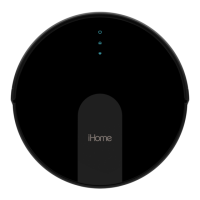
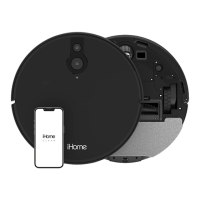
Your iHome Autovac is designed to automatically and methodically clean your
home.Eclipseusesmultiplesensorstocleanyourhomeeciently,rowbyrow.
Cleaning history is available to view in the iHome Clean app. Once cleaning
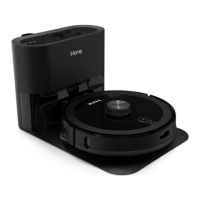
is nished or the battery is low, the Eclipsewill automatically return to the
chargedock.
• Search “iHome Clean” in the App Store or use the QR code
below:
DOWNLOAD THE IHOME CLEAN APP
The iHome Clean app provides an easy step by step guide to get your Eclipse connected to Wi-Fi. Here is a checklist of what you’ll need before getting
started:
NOTE: Connecting Eclipse to Wi-Fi is not required but highly recommended. Using the iHome Clean app, you can follow the steps to connect your Eclipse
to Wi-Fi . The app will let you manage Eclipse from anywhere, set cleaning schedules, view cleaning history, access support and more!
9
USING THE IHOME CLEAN APP
• An iPhone (iOS 10 or later) OR Android (4.4 or later).
• MakesurethatyourphoneisconnectedtoyourdesiredWi-FiNetwork.ThiswillbethenetworkthatyourAutovacEclipseconnectsto.
• YourWi-Finetworkmustbea2.4Ghznetwork(5Ghznetworksarenotsupported).
• Download and launch the iHome Clean app from the app store. Create a user account.
• Follow the steps in the app to add the Eclipse.
Foryourconveniencewe’vecreatedavideotowalkthroughtheAppSetupprocess.ScantheQRcodebelowtowatch.


 To Next Page