38 39
NOTE: Since the WIFI transmission rate is limited so it will takes a
while to download the entire video by WIFI. You can also export the
video to your computer to check the videos.
How to view GPS logs?
The GPS carried by the S2 model dash camera is a trajectory
tracking device that can only display the driving track and does not
have positioning function and the real-time path feature, in other
words, when you view the real-time video through the APP while the
camera is working, you cannot view the GPS track.
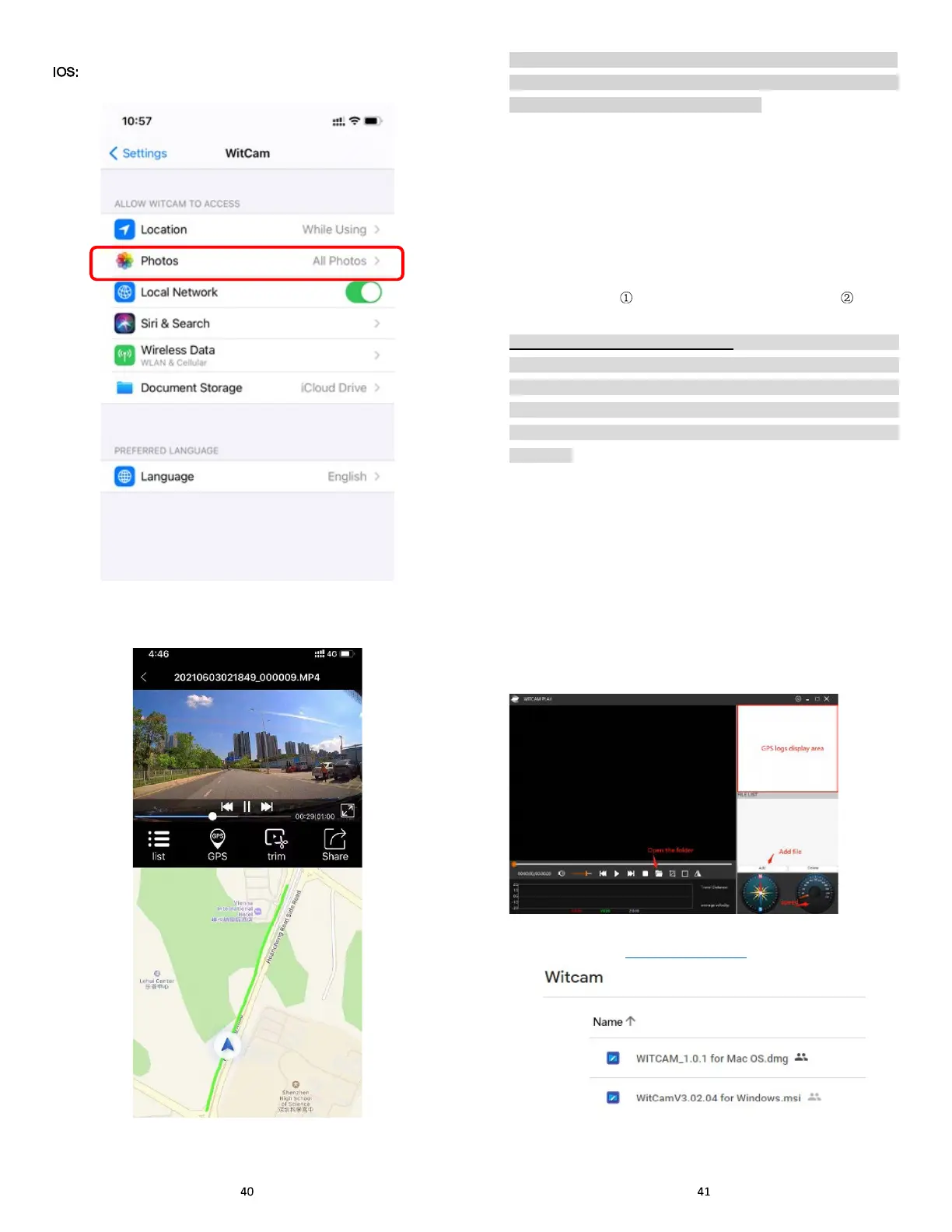
You have two ways to view the GPS LOGS:
View on the APP: . Download the video to your phone . Return
to the Home page of the App, open the album to playback the video.
(NOTE: if you use an Android phone, please disconnect the dash
cam WI-FI on your phone and turn on the SIM data (or you can
connect your family WIFI) when playback videos, because the
Android phone is a Single Signal Channel device, you need to
ensure your mobile phone can access the internet when viewing the
GPS logs).
View on the PC: You can export the video to your computer and play
it using the ‘WITCAM’ PC Version.
WITCAM PC Version downloaded address:
Google cloud drive: https://bit.ly/3zh2aBb



 To Next Page