7
Product Operating
2. Starting up/Pause/Sleeping
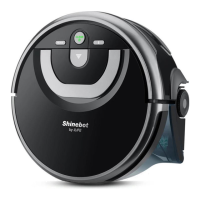
Sleeping mode: Robot is not working, light around main button are off and power switch is on;
Selected mode: Robot is not working, greenlight around main button flash;
Cleaning mode: Robot is working, green light around main button turn solid.
1>. Starting up
A. Make sure the power switch is on;
B. Press button on main body or button on remote control to start cleaning.
Note: If robot is in sleeping mode, press button to wake the robot up from sleeping mode.
Then press button for a second time, the robot starts cleaning automatically.
2>. Pause
Press button on main body or button on remote control to exchange robot from cleaning mode
to selected mode.
Note: When robot is paused, press button to make robot to re-start cleaning.
3>. Sleeping
To turn robot into sleeping mode from selected mode:
A. Keep pressing button on main body for 3 seconds.
B. Robot will automatically enter sleeping mode if no command received for 45 seconds.
3. Scheduling
You can schedule to let the robot start cleaning from a certain time.
Note: Remember to set the clock time and schedule once replace the remote battery.
Once the clock time is set, any scheduling you have set will make robot work on the scheduled
time.
Setting the clock time
1. Point the remote towards the robot (ensure the power switch is on).
2. Press CLOCK and then use directional buttons to set the correct time.
3. Press CLOCK to save the setting.
Setting a schedule
The robot will always work at the scheduled time unless power switch of the robot is turned off.
1. Point the remote towards the robot.
2. Press PLAN and then use directional buttons to set the schedule.
3. Press PLAN to save the setting. To cancel, set the number to “00:00”.
* When you set the clock time or schedule, the final operation will be confirmed by beep from robot;
If no tone received, your setting is unsuccessful.



 To Next Page