Changing Device Settings
The camera back holds a menu from where you can make all device
settings - see "Device Settings Menu" on page 22 for details:
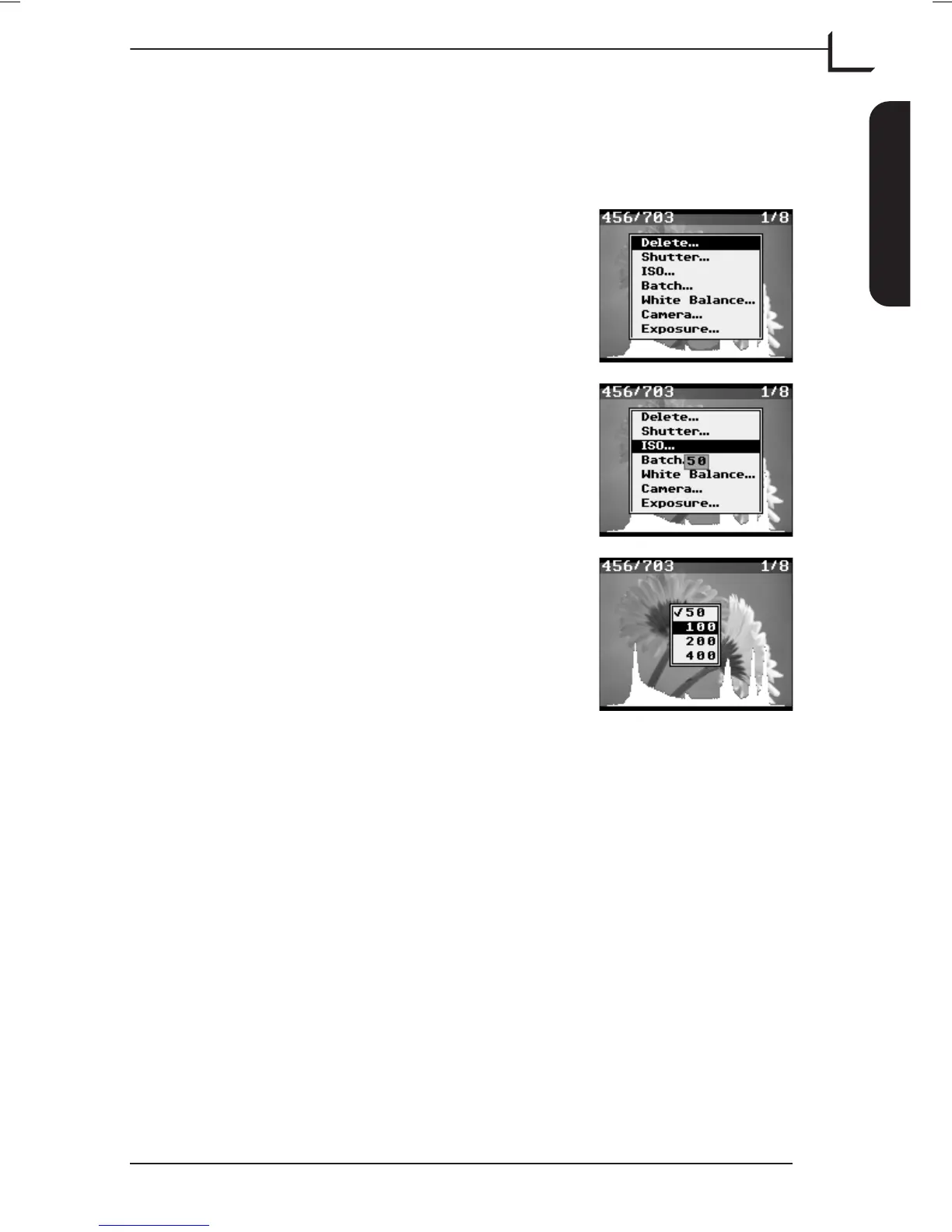
From the main display press MENU button.
The menu pops up.
Use Browse/Scroll button to scroll through
the menu items.
Please note that holding down the button will
make scrolling quicker.
Example:
Use Browse/Scroll button to select the ISO item.
Note that the current setting (50) is displayed
when the item is highlighted.
Press OK button to enter.
Use Browse/Scroll button to select the new
setting and press OK button.
The unit will return to show the main display.
User's Guide - Imacon Ixpress
English
The Ixpress Camera Back
21
Using the Control Panel



 To Next Page