Q770 Technical Service Manual
--5--
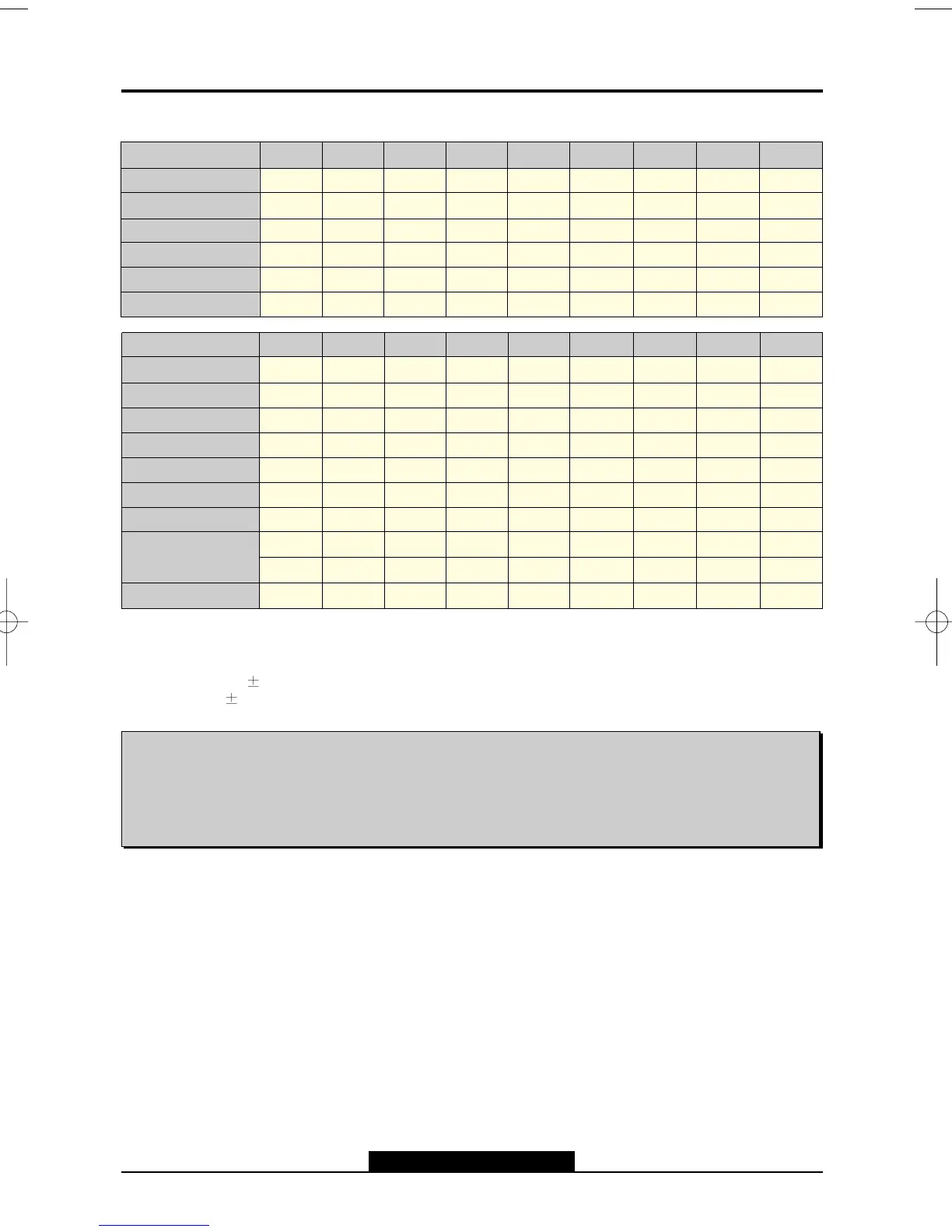
• Timing Table
Horizontal
Dot
720
31.469
31.778
3.813
1.907
25.422
0.636
640
43.269
23.111
1.556
2.222
17.778
1.556
640
50.625
19.752
1.580
1.975
15.802
0.395
800
46.875
21.333
1.616
3.232
16.162
0.323
800
53.674
18.631
1.138
2.702
14.222
0.569
800
63.920
15.645
1.185
2.015
11.852
0.593
1024
60.023
16.660
1.219
2.235
13.003
0.203
1024
68.677
14.561
1.016
2.201
10.836
0.508
400
70.080
14.268
0.064
1.081
12.711
0.413
1.577
-
+
Frequency
kHz
Period(T1)
µs
Sync Width(T2)
µs
Back Porch(T3)
µs
Active(T4)
µs
Front Porch(T5)
µs
Vertical
Line
Frequency
Hz
Period(T1) ms
Sync Width(T2) ms
Back Porch(T3) ms
Active(T4) ms
Front Porch(T5) ms
Interlaced
Sync Polar
ms
N
480
85.008
11.764
0.069
0.570
11.093
0.023
0.671
-
-
N
480
100.05
9.995
0.059
0.435
9.481
0.020
0.514
-
-
N
600
75.000
13.333
0.064
0.448
12.800
0.021
0.553
+
+
N
600
85.061
11.756
0.056
0.503
11.179
0.019
0.577
+
+
N
600
100.03
9.997
0.063
0.501
9.387
0.047
0.610
+
+
N
768
75.029
13.328
0.050
0.466
12.795
0.017
0.533
+
+
N
768
84.997
11.765
0.044
0.524
11.183
0.015
0.582
+
+
NInterlaced Y/N
H
V
The monitor is compatible with additional modes within the specified frequency ranges provided that
they are different at least for one of the following :
Horizontal Freq.:
1.0kHz
Vertical Freq.:
1Hz
Note: Even if the monitor detects the input timing as a factory preset mode, the size
and position may not be able to be set as desired. Check the input timings are under the specifications and
adjust the image as you want.
For better quality of display image, use the timing and polarity shown in the table above. Please see your video
card user's guide to ensure compatibility.
Note: Even if the monitor detects the input timing as a factory preset mode, the size and position
may not be able to be set as desired. Check the input timings are under the specifications and
adjust the image as you want.
For better quality of display image, use the timing and polarity shown in the table above. Please see
your video card user's guide to ensure compatibility.



 To Next Page