12
Driver Program Installation (For Windows OS)
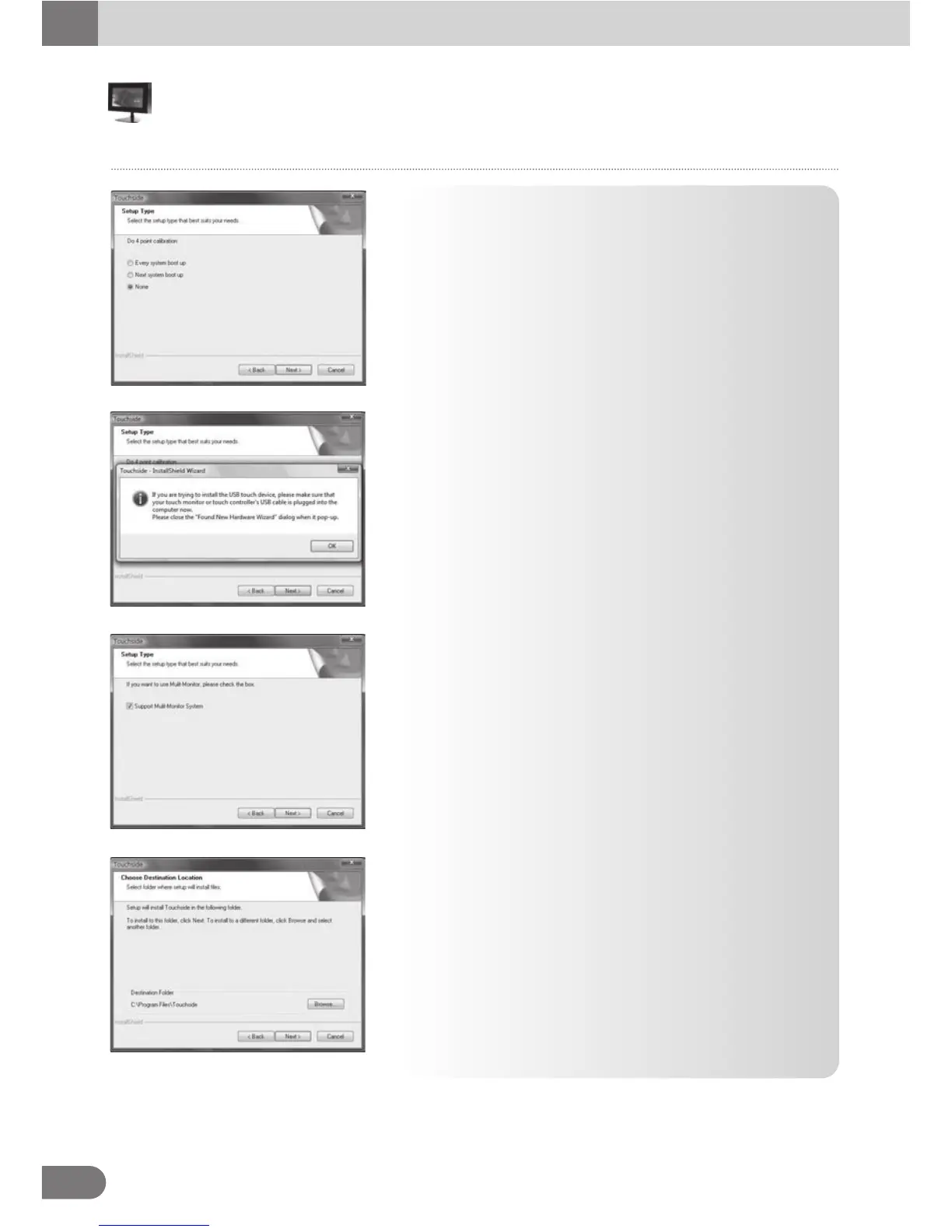
5. The installation pops up below dialog for calibration option.
Touchside provides 3 options for calibration.
● Every System boot up : The 4-point calibration utility
will launch automatically whenever the system boot up.
● Next System boot up : The 4-point calibration utility will
launch automatically at next system boot up.
● None : The 4-point calibration utility will NOT launch
automatically.
Choose the proper option, and click [Next] button to continue.
7. Touchside driver package supports multi monitors.
Please check the check box to support multi-monitor
feature. The multi-monitor setting property page will show
only when this check box is checked during installation.
Press [Next] to continue.
6. After selecting the ‘Touch Driver’ button, the driver package
installation wizard will guide user to install Touchside driver
software package. Click [Next] button to proceed installation.
8. The installation wizard pops up below dialog to let user
assign the target folder in local machine.
Press [Next] to continue.
Touch



 To Next Page