6
EN
3.EnabletheBluetoothofthedevicetobeconnected,e.g.PC,cellphoneortablet.Youcan
dothatlikebelow.
WindowsXP:ClickControlPanel->PrintersandOtherHardware->AddBluetoothDevice
Windows7/8/8.1:ClickControlPanel->AddDevices
Windows10:ClickSetting->Devices->Bluetooth
macOS:ClickSystemPreference->Bluetooth
iOS:ClickSetting->Bluetooth
android:ClikSetting->Bluetooth
EnabletheBluetoothonhostdeviceanditwillautomaticallysearchforBCST-73.After
afewsecondsʻBCST-73******ʼwillappearinthelistofavailabledevices.Pairthetwo
devices.Achordssoundmeanssuccessfulpairing.
4.Openafileoncomputerandmovecursortotheblankwherescanningoutputshould
beplaced.Scanningresultscanbedisplayedoncomputerthen.
Note:
1)NormallyBCST-73canre-connecttopreviouslyconnecteddeviceautomatically.Ifitfails,
pleaseremovetheparinghistoryofBCST-73inthelistofhostdevice.Afterwards,pair
themagain.
2)HIDandGATTaretwomodesofBluetooth.Thepairingmethodmentionedaboverefers
toHID,whichisthemostcommonlyusedmode.IfyouwanttouseBCST-73underGATT
mode,pleasecontactourcustomerservice.
WiredMode:
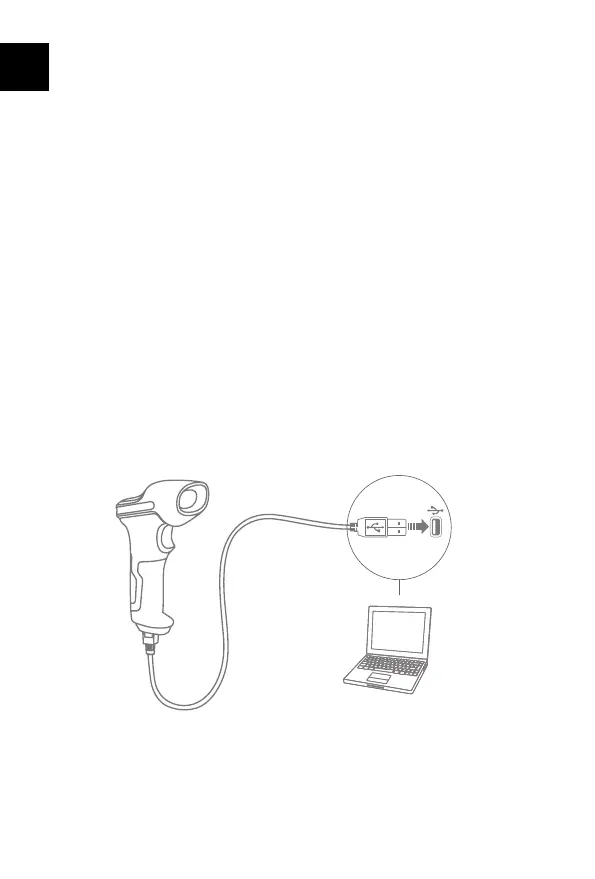
1.ConnectInateckBCST-73withcomputerviaUSBcable
2.PoweronInateckBCST-73bytogglingswitchfromOFFtoONandshortpressthe
trigger.InateckBCST-73willcontinuouslybeep.Beepstopsaftersuccessfulconnection.
3.Openafileoncomputerandmovecursortotheblankwherescanningoutputshould
beplaced.Scanningresultscanbedisplayedoncomputerthen.


 To Next Page