EasyManua.ls Logo

InFocus IN76 - User Manual

InFocus IN76
43 pages
Print Icon
To Next Page IconTo Next Page
Loading...
Trident
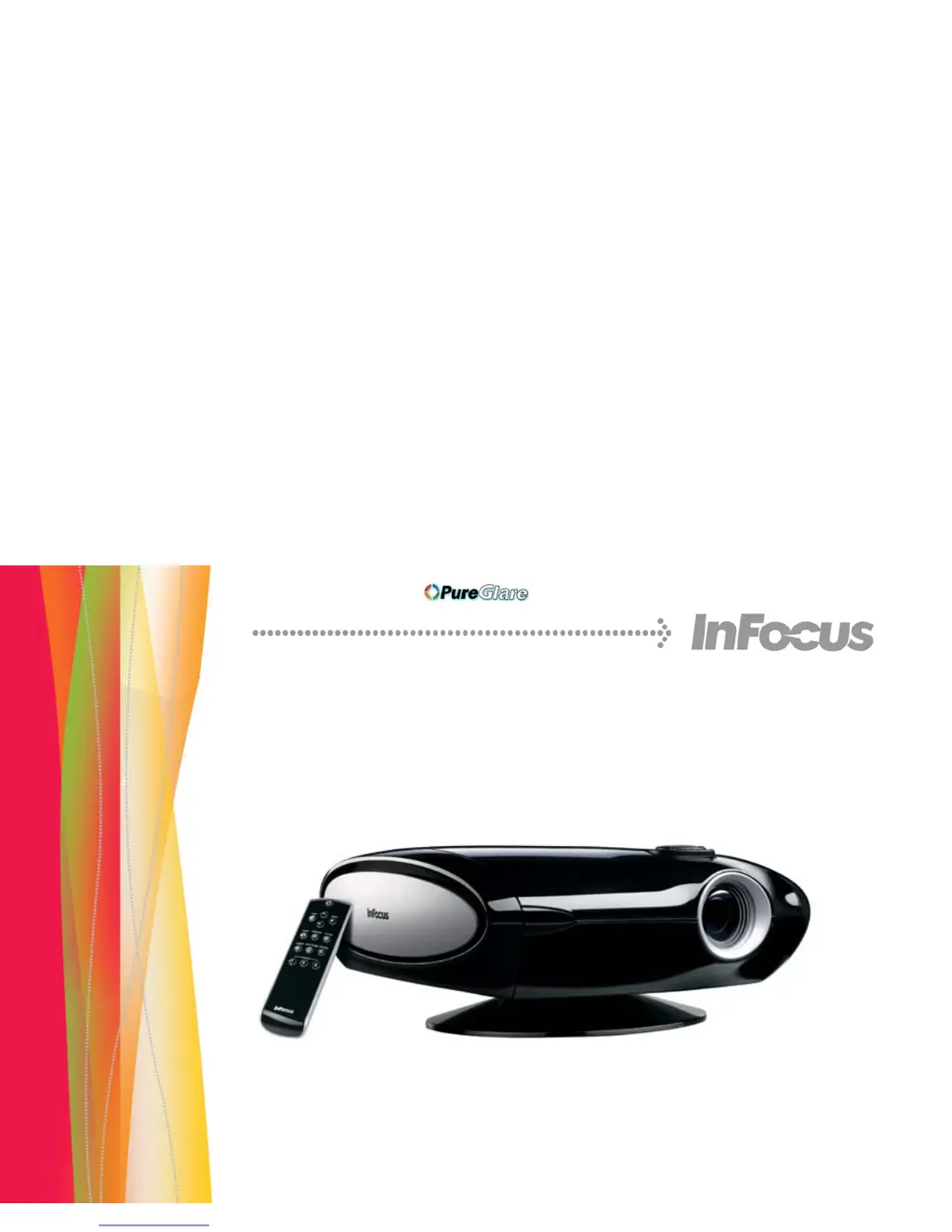
IN72/IN74/IN76/IN78
Reference Guide
http://www.pureglare.com.au

Questions and Answers

  • E
    Elizabeth BeckerAug 15, 2025
    What to do if a 'Change lamp' message appears at startup or LED is blinking red on InFocus Projector?
    • P
      Priscilla HarperAug 15, 2025
      If the 'Change lamp' message appears when you start your InFocus Projector, or the LED is blinking red, the lamp must be replaced. Replace the lamp and reset the lamp timer.
  • J
    James RichardsonAug 18, 2025
    How to flip image on InFocus Projector?
    • C
      Christopher AndersonAug 18, 2025
      If the image on your InFocus Projector is upside down, turn off the ceiling setting in the Settings>System menu.
  • A
    albert71Aug 21, 2025
    How to fix not square image on InFocus IN76 Projector?
    • J
      Jade DouglasAug 21, 2025
      If the image on your InFocus Projector is not square, tilt the projector up or down, or adjust the Keystone setting in the Picture menu.
  • N
    nicholasaveryAug 25, 2025
    How to center image on InFocus IN76 Projector?
    • D
      danabrownAug 26, 2025
      To center the image on your InFocus Projector screen, move the projector, adjust the zoom, or adjust the height.
  • J
    John HansonAug 28, 2025
    How to fix no start up screen on InFocus Projector?
    • E
      eric52Aug 28, 2025
      To fix a no start up screen issue on your InFocus Projector, plug the power cord into the back of the projector and press the power button.
  • R
    Robert FarrellAug 31, 2025
    What to do if only start up screen appears on InFocus IN76?
    • J
      John HughesAug 31, 2025
      If only the startup screen appears on your InFocus Projector, connect an active source and press the Source button.
  • B
    Brian HicksSep 4, 2025
    How to correct image reversed left to right on InFocus Projector?
    • B
      bellmarkSep 4, 2025
      If the image on your InFocus Projector is reversed left to right, turn off the rear setting in the Settings>System menu.
  • E
    Erika ReynoldsSep 7, 2025
    How to fix if projected colors don’t match source on InFocus IN76 Projector?
    • A
      Amanda GomezSep 7, 2025
      If the projected colors on your InFocus Projector don’t match the source, adjust the color, tint, color temperature, brightness, and contrast in the menus.
  • K
    Kristin RiveraSep 12, 2025
    How to adjust sharpness on InFocus IN76 Projector?
    • K
      kevingreenSep 12, 2025
      To adjust the sharpness on your InFocus Projector, go to the Picture>Advanced menu and adjust the Sharpness setting.

Summary

Introduction

Product specifications

Details about projector models and their features, subject to change.

Accessories

Information on standard and optional accessories included with the projector.

Online Registration

Instructions for registering the projector for warranty and updates.

Connector Panel

12 volt DC output

Description of the 3.5mm mini-jack trigger providing 12 volt DC output.

Positioning the Projector

Choosing the Aspect Ratio

Video Connectors

Connecting a Video Device

Composite (RCA) video connection

Steps to connect a composite video device using RCA cables.

S-video connection

Instructions for connecting an S-video device using its specific connector.

SCART RGB connection

Guide to connecting SCART RGB sources and required adapters.

Digital Connections

DVI connection

How to connect a digital DVI source using an M1-DA cable.

HDMI connection

Instructions for connecting HDMI devices for digital audio/video.

Computer connections

Connecting a computer's VGA connector via M1-DA/DVI.

RS-232 connections (IN74;IN76;IN78 only)

Details on serial control connections for specific models.

Displaying an Image

Adjusting the Image

Shutting Down the Projector

Power Save

Description of the automatic lamp-off feature for power saving.

Sleep Timer

Explanation of the automatic projector turn-off timer.

Troubleshooting Your Setup

LED behavior and projector errors

Guides to diagnosing projector issues based on red LED blinking patterns.

Using the Remote Control

Using the Keypad Buttons

Optimizing Video Images

Customizing the Projector

Using the Menus

Picture Menu

Presets

Gamma

Advanced Menu

Phase

Adjusts the horizontal phase for computer sources.

Tracking

Adjusts the vertical scan rate for computer sources.

Horizontal;Vertical Position

Adjusts the image position for computer sources.

Sync Threshold Adjust

Helps computer sources sync properly with the projector.

Flesh Tone Correction

Modifies colors to improve skin complexion.

Black Level Calibration (IN78 only)

Adjusts brightness for optimal black levels on specific models.

Film Mode

Optimizes image for film material by controlling deinterlacing.

Sharpness

Changes the clarity of edges in a video image.

Color Space

Selects specific color spaces tuned for input signals.

Color Temperature

Color Control

Video Standard

Overscan

Noise Reduction

Settings Menu

Sources

Manages source button programming and autosource features.

System

Configures projector settings like rear projection and ceiling modes.

Startup Logo

Language

Custom Key

Service

Service Info

Displays projector software, serial number, and lamp usage information.

Source Info

Provides details about the currently active video source.

Maintenance

Cleaning the lens

Instructions for safely cleaning the projector lens.

Replacing the projection lamp

Step-by-step guide for replacing the projector lamp.

Appendix

Red LED behavior and projector errors

Guides to diagnosing projector issues based on red LED blinking patterns.

LED Behavior

Table detailing LED blinking patterns and their corresponding explanations.

Remote Control Discrete Codes

Projector Dimensions for Ceiling Mount Installation

Supported Video Formats

RS-232 Terminal Specifications

Communication configuration

Serial port settings required for RS-232 control.

Command format

Structure and syntax for sending commands via RS-232.

Supported Commands

InFocus IN76 Specifications

General IconGeneral
Projection distance6.1 m
Projection technologyDLP
Contrast ratio (typical)3000:1
Screen size compatibility0.88 - 4.57 \
Projector native resolutionSXGA (1280x1024)
Keystone correction, vertical20 °
Lamp power200 W
Light source typeLamp
Service life of light source3000 h
Serial interface typeRS-232
S-Video inputs quantity1
Weight (imperial)9.3 lbs
Dimensions (WxDxH)360.7 x 360.7 x 119.4 mm
Offset116 %
Power consumption (typical)250 W
Operating temperature (T-T)10 - 35 °C
Weight and Dimensions IconWeight and Dimensions
Weight4220 g

Related product manuals