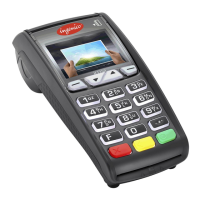
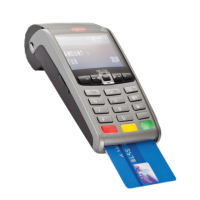
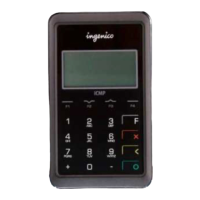
Ingenico iCT 200 Series Set-Up Guide
Page 4 of 5
CHANGING MERCHANT AND ADMIN PASSWORDS
Press ADMIN to access Admin menu
Press 9 to access Password Menu Options
TO CHANGE MERCHANT PASSWORD
Enter current password, press OK
Set new password, press OK
ENABLE PASSWORD TO RESTRICT VARIOUS TERMINAL FUNCTIONS
Press ADMIN to access Admin menu
Press 9 to access Password Menu Options
Enter the Admin password, press OK
Yes= Turn On No=Turn Off
Clerk ID Setup: Set Yes/No
Pre-auth Report: Set Yes/No
Terminal Config: Set Yes/No
Press ADMIN to access Admin menu
Press 2 to access REPORT MENU Options
Press 1 to print report of TERMINAL SET-UP, enter Merchant password, press OK
Press 2 to print CLERK REPORT
Choose to print DETAILS / SUMMARY clerk report
Press 3 to print BATCH REPORTS. Choose from 3 different batch reports
Press 1 to print TRM DETAILS – Summary of all transactions in terminal
Press 2 to print TRM SUMMARY – Summary of all transactions by card type
Press 3 to print HST SUMMARY – Summary of all transactions transmitted to host
Press 4 to print PRE-AUTHORIZATION REPORT, enter Merchant password, press OK
CT-PAYMENT HOST PARAMETER DOWNLOADS
Step 1: Press ADMIN to access Admin menu
Press 6 for MAINTENANCE function, press OK
Press 1 for DLL PARAMETERS, press OK
Terminal will automatically connect to Host and update DLL parameters
Step 2: Press ADMIN to access Admin menu
Press 4 for Key Exchange
Terminal will automatically perform a Key exchange
Step 3: Press ADMIN to access Admin menu
Press 6 for MAINTENANCE function, press OK
Press 2 for EMV KEY DLL, press OK, terminal will connect to Host and update EMV parameters


 To Next Page
 Loading...