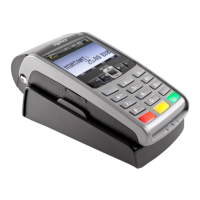
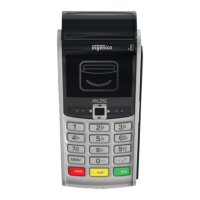
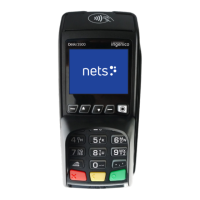
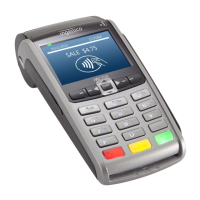
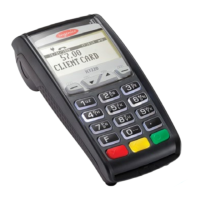
Quick Reference
Please contact Apriva Customer Contact Center with
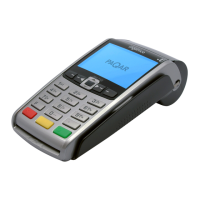
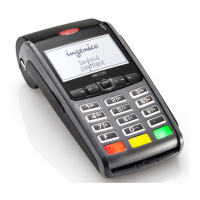
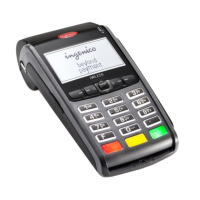
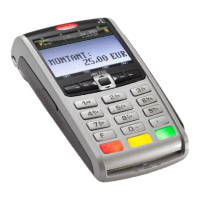
questions about using your Ingenico iWL250 device.
Apriva Customer Contact Center
(866) 277-4828
customercare@apriva.com
NOTE: Transactions that are manually entered (not swiped) will
require you to enter the card number, expiration date, customer zip
code and credit card CVV (on back of card) value.
Credit Transactions
Sale • At the Idle Screen, swipe customer card.
• Press 1.
• Key Sale Amount, and then press Enter.
• Merchant receipt is printed.
• Print Customer Receipt F1 (Yes) or F4
(No).
Refund • At the Idle Screen, press 2 (Return).
• Press 1 (Credit).
• Key Refund Amount, and then press Enter.
• Swipe customer card.
• Merchant receipt is printed.
• Print Customer Receipt F1 (Yes) or F4
(No).
Adjust • At the Idle Screen, press 9 (Other).
• Press 1 (TransAdjustment).
• Press 1 (All).
• Locate transaction (using arrow keys), and
then press F4 (Select).
• Key new sale amount, and then press
Enter.
• Key new tip amount, and then press Enter.
• Press F1 (Accept).
• Merchant receipt is printed.
Void • At the Idle Screen, press 3 (Void).
• Press 1 (All).
• Locate transaction (using arrow keys), and
then press F4 (Select).
• Press F1 (Yes).
• Merchant receipt is printed.
• Print Customer Receipt F1 (Yes) or F4
(No).
Force • At the Idle Screen, press 5 (Force).
• Press 1 (Credit).
• Key Sale Amount, and then press Enter.
• Swipe customer card.
• Key Approval Code, and then press Enter.
• Merchant receipt is printed.
• Print Customer Receipt F1 (Yes) or F4
(No).
Batch
Summary
• At the Idle Screen, press #.
• Press 0 (Reports Menu).
• Press 2 (Summary).
• Press 1 (Print) or 2 (Display).
Batch Detail • At the Idle Screen, press #.
• Press 0 (Reports Menu).
• Press 1 (Detail).
• Press 1 (Print) or 2 (Display).
Open Tab
Report
• At the Idle Screen, press #.
• Press 0 (Reports Menu).
• Press 4 (Open Tab).
Reprint Last
Merchant
Receipt
• At the Idle Screen, press 9 (Other).
• Press 2 (Reprint).
• Press 1 (Last Receipt).
• Press 1 (Merchant Copy).
Reprint Last
Customer
Receipt
• At the Idle Screen, press 9 (Other).
• Press 2 (Reprint).
• Press 1 (Last Receipt).
• Press 2 (Customer Copy).
Settlement • At the Idle Screen, Press 4 (Settlement).
• Press 1 (Credit/Debit/EBT).
• Press F1 (Yes).
Debit Sale • At the Idle Screen, press 1 (Sale).
• Press 2 (Debit).
• Key Sale Amount, and then press Enter.
• Swipe customer card.
• Customer keys PIN number on PIN pad, and
the presses Enter.
• Merchant receipt is printed.
• Print Customer Receipt F1 (Yes) or F4 (No).
Debit Refund • At the Idle Screen, press 2 (Return).
• Press 2 (Debit).
• Key Refund Amount, and then press Enter.
• Swipe customer card.
• Customer keys PIN number on PIN pad, and
the presses Enter.
• Merchant receipt is printed.
• Print Customer Receipt F1 (Yes) or F4 (No).
Balance
Inquiry
• At the Idle Screen, press 8 (Balance Inquiry).
• Press 2 (Debit).
• Swipe customer card.
• Customer keys PIN number on PIN pad, and
the presses Enter.
• Merchant receipt is printed.
• Print Customer Receipt F1 (Yes) or F4 (No).
Reports / Settlement
Debit Transactions



 To Next Page
 Loading...