PAGE 7
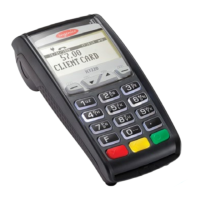
Swiped Credit Sale • At the Idle Screen, swipe customer card.
• Press 1.
• Key Sale Amount, and then press Enter.
• Merchant receipt is printed.
• Print Customer Receipt F1 (Yes) or F4 (No).
Manual Credit Sale • At the Idle Screen, press 1 (Sale).
• Press 1 (Credit).
• Key Sale Amount, and then press Enter.
• Key Card Number, and then press Enter.
• Key Expiration Date (MM/YY), and then press Enter.
• Key CVV, and the press Enter.
• Press F1 (Yes - Card Present).
• Key customer House Number, and then press Enter.
• Key customer Zip Code, and then press Enter.
• Merchant receipt is printed.
• Print Customer Receipt F1 (Yes) or F4 (No).
Credit Refund • At the Idle Screen, press 2 (Return).
• Press 1 (Credit).
• Key Refund Amount, and then press Enter.
• Swipe customer card.
• Merchant receipt is printed.
• Print Customer Receipt F1 (Yes) or F4 (No).
Void Transaction • At the Idle Screen, press 3 (Void).
• Press 1 (All).
• Locate transaction (using arrow keys), and then press F4 (Select).
• Press F1 (Yes).
• Merchant receipt is printed.
• Print Customer Receipt F1 (Yes) or F4 (No).
Force • At the Idle Screen, press 5 (Force).
• Press 1 (Credit).
• Key Sale Amount, and then press Enter.
• Swipe customer card.
• Key Approval Code, and then press Enter.
• Merchant receipt is printed.
• Print Customer Receipt F1 (Yes) or F4 (No).
Credit Adjust • At the Idle Screen, press 9 (Other).
• Press 1 (TransAdjustment).
• Press 1 (All).
• Locate transaction (using arrow keys), and then press F4 (Select).
• Key new sale amount, and then press Enter.
• Key new tip amount, and then press Enter.
• Press F1 (Accept).
• Merchant receipt is printed.
Credit Transactions



 To Next Page
 Loading...