© The contents of this document are the property of Iskratel, Kranj, Slovenia, and may not be copied, reproduced or disclosed to a third party without written consent of the owner.
5 HOW TO USE THE UTILITY
Click the desktop icon below to enter the configuration page.
Figure 9 Desktop icon
5.1 Main Tab
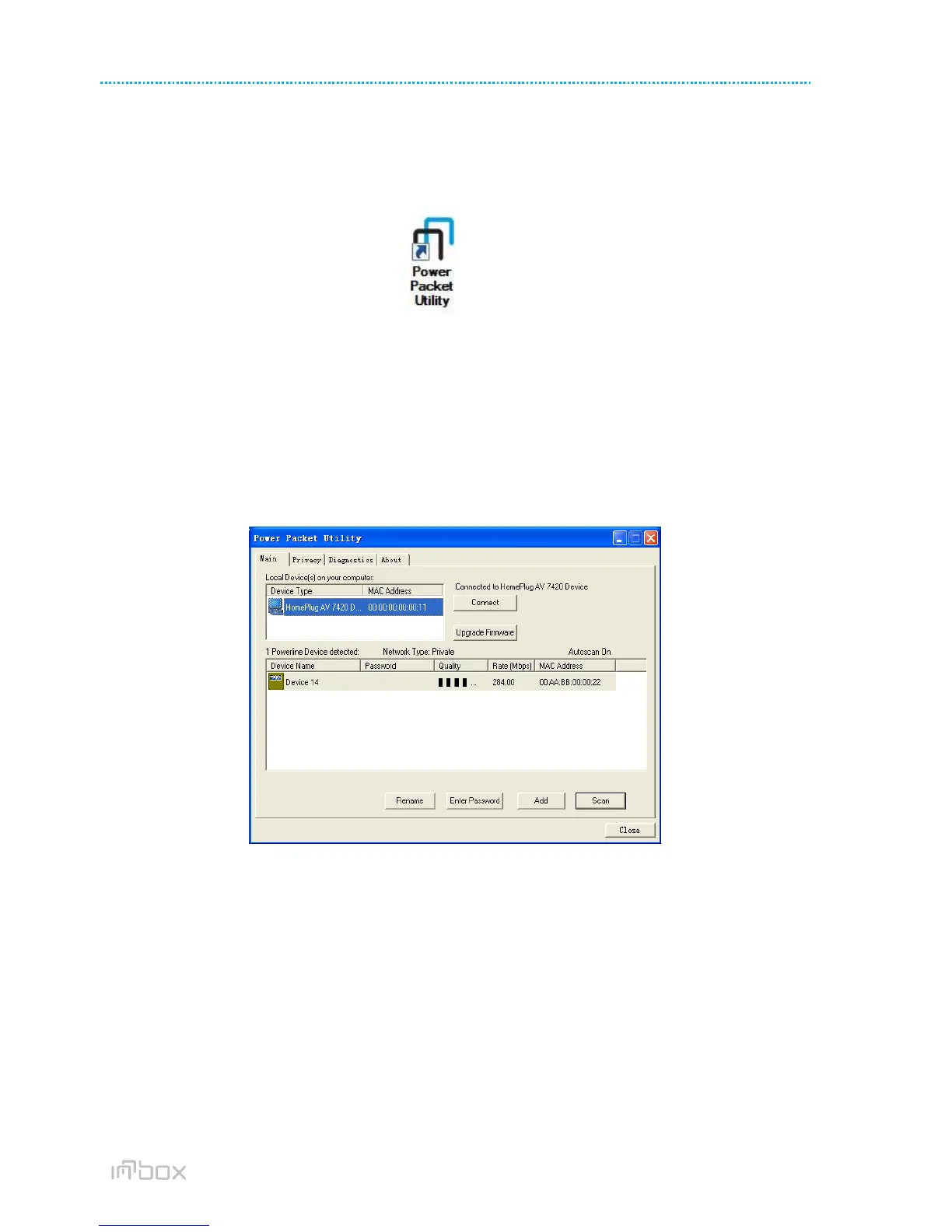
The Main screen provides a list of all powerline devices logically connected to the computer when the utility is
running.
The top panel shows the local HomePlugAV devices connected to the network interface card (NIC) of the computer.
Click Connect. The utility automatically scans the powerline periodically for other HomePlugAV devices connected to
it. If no local HomePlugAV device is discovered, the status bar displays NO HOMEPLUG ADAPTERS DETECTED.
Figure 10 Main tab
The lower panel displays all the HomePlugAV remote devices, which are discovered in the current logical network. The
total number of remote devices connected in the same network is displayed above the remote device panel. Network
type (Public or Private) depends on the network status of the local device. Autoscan shows whether the autoscan
function is on. The following information is displayed for all the devices that appear in the lower panel.
Device Name
This column shows the default device name, which may be modified. To change the name, click Rename, or click the
name and edit it in the list.
MAC Address
This column shows the MAC addresses of the remote devices.



 To Next Page