8 9
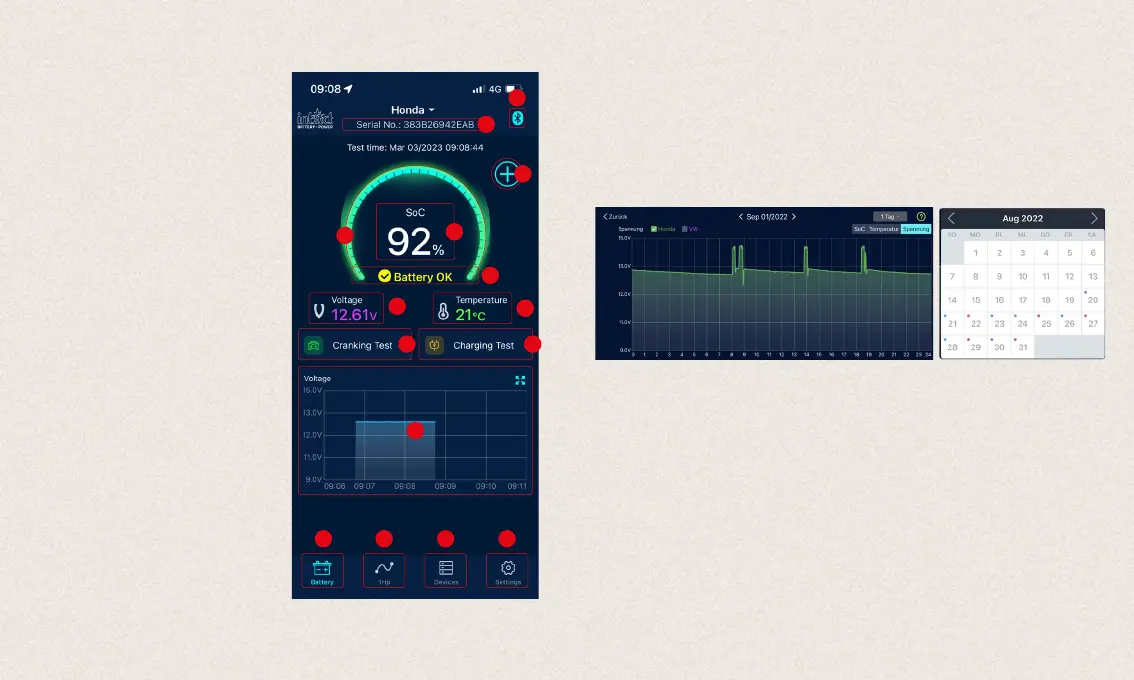
1. Here you can edit the device name and
assign an individualized name to your
Battery-Guard.
2. If the device is connected to the app,
the Bluetooth icon will turn blue, if the
connection is lost, it will turn red. By default,
the app automatically connects to the
device as soon as it is within Bluetooth
range.
3.
Here you can add a new device or select the
one to be displayed from the already added
devices. Up to four devices can be displayed
at the same time.
4. Battery charge level in percent.
5. The color of the ring changes according to
the battery charge level.
6. Battery status display: battery OK (yellow),
battery charging (blue), low battery (red).
7. Display of battery voltage in real time.
8. Display of battery case temperature in real
time.
9. Access to the start test interface. Every time
the engine starts, a start test is performed
automatically.
10. Access the charging test interface and test
the charging system manually.
9
10
11
12 13 14 15
7
8
6
2
1
4
3
5
11.
Battery voltage graph: click on the graph to
enlarge it. The graphic shows you either the
state of charge in %, the temperature or the
battery voltage in volts. Here you can choose
between the display of one day, 3 or 5 days.
You can also switch between the days at the
top center.
12. Start screen
13. Overview of your trips
14. Device list
15. Settings
4.25 Basic function start page



 To Next Page