EasyManua.ls Logo

Intel E42249-003 - User Manual

Intel E42249-003
119 pages
Print Icon
To Next Page IconTo Next Page
Loading...
Intel
®
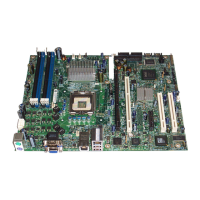
Server Board S5500BC
Technical Product Specification
Intel order number: E42249-003
Revision 1.0
January, 2009
Enterprise Platforms and Services Division - Marketing

Table of Contents

Questions and Answers

  • S
    Sandra FrancisAug 13, 2025
    What to do if the power light does not light on my Intel E42249-003 Server Board?
    • H
      haleypatrickAug 13, 2025
      If the power light on your Intel Server Board doesn't illuminate, start by ensuring you've pressed the power-on button and that the server's AC power cord is securely connected. Check if other devices function correctly when plugged into the same outlet. Some ATX power supplies have a switch near the fan; verify it's turned on. If issues persist, try removing all add-in cards and booting the system. If successful, add the cards back one at a time, rebooting after each. Also, ensure memory DIMMs and processors meet system requirements and are properly seated. Finally, check chassis standoffs to prevent shorts.
  • A
    Angela CoxAug 21, 2025
    Why are the system cooling fans not rotating properly on my Intel Server Board?
    • G
      Glen BurnsAug 21, 2025
      If the cooling fans on your Intel Server Board aren't rotating correctly, first check if the power light is on. If not, refer to the troubleshooting steps for 'Power Light Does Not Light'. If your system has fan LEDs, check if any are lit. Also, observe if other front panel LEDs are lit. Use the server management subsystem to check the fan status and see if any fan motors have stopped. Determine if the fans have sped up due to overheating or a fan failure. Ensure the fan power connectors, front panel board cable, and power supply cables are properly connected to the server board. Check for shorted wires caused by pinched cables or improperly forced power connector plugs.
  • J
    Jay DavisAug 25, 2025
    How to troubleshoot connection issues with an Intel Server Board?
    • L
      Lance CrawfordAug 25, 2025
      If you cannot connect to a server using your Intel Server Board, ensure the network cable is securely connected to the correct connector on the system's back panel. Try using a different network cable. Verify that you are using the correct and current drivers, and that the driver is loaded with the protocols bound. Make sure the hub port is configured for the same duplex mode as the network controller. Confirm that the correct networking software is installed. If directly connecting two servers, use a crossover cable. Finally, check the network controller LEDs next to the NIC connectors.
  • A
    asanchezAug 28, 2025
    What to do if the drive activity light does not light on my Intel E42249-003 Server Board?
    • A
      Amanda NelsonAug 28, 2025
      If the drive activity light on your Intel Server Board doesn't light up, start by checking if the drive's power and signal cables are properly installed. Ensure all relevant switches and jumpers on the drive are set correctly and that the drive is properly configured. If the light is always on, the signal cable may be incorrectly plugged in. If using the onboard diskette controller, verify in the BIOS setup that 'Onboard Floppy' is set to 'Enabled'; if using an add-in controller, ensure it's set to 'Disabled'.
  • J
    Jennifer HaysSep 1, 2025
    Why is the CD-ROM/DVD-ROM drive activity light not lighting up on my Intel E42249-003?
    • L
      Linda BrownSep 1, 2025
      If the CD-ROM or DVD-ROM drive activity light doesn't illuminate on your Intel Server Board, verify that the drive's power and signal cables are properly installed. Also, check that all relevant switches and jumpers on the drive are set correctly, and confirm the drive is properly configured.
  • T
    Timothy SanchezSep 4, 2025
    Why are the characters distorted or incorrect on my Intel Server Board?
    • L
      Lee BarajasSep 5, 2025
      If characters appear distorted or incorrect on your Intel Server Board, first, ensure the brightness and contrast controls on the video monitor are properly adjusted. Next, check that the video monitor's signal and power cables are securely installed. Finally, test the video monitor by plugging it into a different system to see if it functions correctly.
  • J
    Jesse LyonsSep 8, 2025
    What to do if Intel E42249-003 Server Board boots when installing PCI card?
    • S
      Stanley SummersSep 8, 2025
      When installing a PCI card, if your Intel Server Board unexpectedly boots, power off the server using the power button on the front. Then, unplug the AC power cord(s) from the server before proceeding.
  • C
    Cynthia GarzaNov 16, 2025
    What to do if no characters display on screen with Intel E42249-003?
    • Q
      qpierceNov 16, 2025
      If no characters appear on your Intel Server Board's screen, first, check the keyboard by testing the Num Lock key. Ensure the video monitor is plugged in, turned on, and set to the correct input if using a switch box. Adjust the monitor's brightness and contrast, and verify the signal cable is properly connected. Test the monitor with another system if possible. Also, check if the onboard video controller is enabled in the BIOS. Remove any add-in cards to see if the video returns; if it does, add them back one by one, rebooting each time. Confirm memory DIMMs and processors meet system requirements and are correctly seated. If using an add-in video card, verify it works with the onboard controller and is fully seated in the connector. Reboot the system for changes to take effect. If the p...

Intel E42249-003 Specifications

General IconGeneral
BrandIntel
ModelE42249-003
CategoryServer Board
LanguageEnglish

Related product manuals