EasyManua.ls Logo

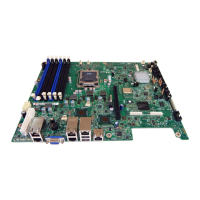
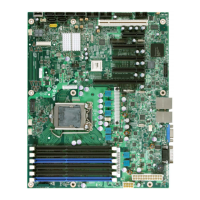
Intel S3420GP - User Manual

Intel S3420GP
88 pages
Print Icon
To Next Page IconTo Next Page
Loading...
Intel
®
Server Board S3420GP User
Guide
A Guide for Technically Qualified Assemblers of Intel® Identified Subassemblies/Products
Intel Order Number E70969-004

Table of Contents

Other manuals for Intel S3420GP

Questions and Answers

  • W
    William MooreAug 18, 2025
    How to make the BIOS detect a bootable CD-ROM disk on my Intel S3420GP Server Board?
    • C
      Christine DanielsAug 18, 2025
      To resolve issues with a non-detected bootable CD-ROM disk on your Intel Server Board, ensure that the BIOS is configured to allow the CD-ROM to be the first bootable device.
  • T
    Travis FordAug 21, 2025
    How to fix a power light that does not light on an Intel Server Board?
    • A
      Amanda RomeroAug 21, 2025
      If the power light on your Intel Server Board doesn't illuminate, start by ensuring the AC power cord is securely plugged into the power supply. If your power supply has a switch on the back, verify it's turned on. Then, check if the power-on button was pressed. If the system is operating normally, the power LED might be defective, or the cable from the control panel to the server board might be loose. As further steps, remove all add-in cards to see if the system boots, adding them back one at a time. Ensure memory DIMMs and processors comply with and are populated according to system requirements, reseating them if necessary. Finally, confirm chassis standoffs are correctly placed to avoid short circuits.
  • J
    johnhunterAug 26, 2025
    Why are the system cooling fans not rotating properly on my Intel S3420GP?
    • A
      April Salazar MDAug 26, 2025
      To troubleshoot system cooling fans that aren't rotating properly on your Intel Server Board, first check if the power-on light is lit. If not, refer to the troubleshooting steps for 'Power Light Does Not Light'. If your system has LED lights for the fans, check if any of these are lit, and note any other lit control panel LEDs. Use the server management subsystem to check the fan status and see if any fan motors have stopped or if the fans have sped up due to overheating or a failed fan. Ensure the fan power connectors and the cable from the control panel board are properly connected to the server board. Also, check that the power supply cables are correctly connected and inspect for shorted wires or improperly forced power connector plugs.
  • B
    barbara94Aug 28, 2025
    Why are characters distorted or incorrect on my Intel S3420GP display?
    • K
      Kristen MooreAug 28, 2025
      If your Intel Server Board displays distorted or incorrect characters, first ensure that the brightness and contrast controls on the video monitor are properly adjusted. Also, check that the video monitor's signal and power cables are correctly installed. If the issue persists, test the video monitor by plugging it into a different system to see if it works correctly.
  • E
    esmithAug 30, 2025
    What to do if the drive activity light does not light on an Intel Server Board?
    • J
      Jimmy LeachAug 30, 2025
      To troubleshoot a non-lighting drive activity light on your Intel Server Board, check that the diskette drive's power and signal cables are properly installed. Verify that all relevant switches and jumpers on the diskette drive are set correctly and that the drive is properly configured. If the light is always on, the signal cable may be plugged in incorrectly. If you are using the onboard diskette controller, use the BIOS setup to ensure that 'Onboard Floppy' is set to 'Enabled.' If you are using an add-in diskette controller, make sure that 'Onboard Floppy' is set to 'Disabled.'
  • A
    Alexis CardenasSep 1, 2025
    Why is the CD-ROM drive or DVD-ROM drive activity light not lighting on my Intel S3420GP Server Board?
    • T
      Tammy RosalesSep 1, 2025
      If your Intel Server Board's CD-ROM or DVD-ROM drive activity light does not light, ensure that the drive's power and signal cables are properly installed. Also, check that all relevant switches and jumpers on the drive are set correctly, and that the drive is properly configured.
  • Y
    ymunozSep 3, 2025
    What to do if I cannot connect to a server using my Intel S3420GP Server Board?
    • E
      Emma AguilarSep 3, 2025
      If your Intel Server Board cannot connect to a server, ensure the network cable is securely attached to the correct connector on the system back panel. Try using a different network cable. Make sure you are using the correct and current drivers, that the driver is loaded, and the protocols are bound. Verify the hub port is configured for the same duplex mode as the network controller and that the correct networking software is installed. If directly connecting two servers, use a crossover cable. Check the network controller LEDs next to the NIC connectors.
  • J
    Jacqueline JohnsonSep 6, 2025
    What to do if the Intel S3420GP Server Board hangs when the drivers are loaded?
    • S
      Sheila GarciaSep 6, 2025
      If your Intel Server Board hangs when the drivers are loaded, some drivers may require interrupts that are not shared with other PCI drivers. Alter settings, so that interrupts are not shared.
  • P
    Patricia OlsonSep 8, 2025
    What to do if diagnostics pass but the connection fails on my Intel Server Board?
    • J
      John MorrisSep 8, 2025
      If diagnostics pass but the connection fails on your Intel Server Board, ensure the network cable is securely attached. Also, make sure you specify the correct frame type in your NET.CFG file.
  • R
    Rachel JohnsonSep 12, 2025
    What to do if the controller stopped working when an add-in adapter was installed on my Intel S3420GP Server Board?
    • R
      Robert Rush DDSSep 12, 2025
      If the controller stopped working when an add-in adapter was installed in your Intel Server Board, ensure the cable is connected to the port from the onboard network controller. Make sure your BIOS is current, and that the other adapter supports shared interrupts, along with your operating system. Try reseating the add-in adapter.

Summary

Safety Information

Important Safety Instructions

Provides essential safety guidelines and warnings for operating the server board.

Warnings

Heed Safety Instructions

Emphasizes adherence to safety guidelines for compliance and product integrity.

System Power On;Off Procedures

Details how to safely turn the system on and off, including AC power disconnection.

Electrostatic Discharge (ESD) Precautions

Advises on protecting components from ESD damage during handling.

Chapter 1: Server Board Features

Chapter 2: Server Utilities

Using the BIOS Setup Utility

Guides users on accessing and navigating the BIOS Setup Utility for configuration.

BIOS Setup Menu Key Commands

Explains keyboard commands used for interacting with BIOS Setup menus.

BIOS Update and Recovery Procedures

Provides instructions for updating the BIOS and procedures for BIOS recovery.

Clearing Passwords and CMOS Settings

Details methods for clearing user/administrator passwords and resetting CMOS settings.

Integrated BMC Firmware Update Process

Explains the process for updating the BMC firmware, including force update procedures.

Chapter 3: Hardware Installations and Upgrades

Preparation and Tools for Installation

Lists necessary tools and safety precautions before starting hardware installations.

Processor Installation and Removal Guide

Guides on safely installing and removing the system processor and heatsink.

Appendix E: Troubleshooting

System Boot Quiet Time and Resetting Procedures

Describes normal system boot quiet time and methods for system reset.

Specific Problems and Corrective Actions

Offers solutions for common problems like power light, display, and fan issues.

Intel S3420GP Specifications

General IconGeneral
Product TypeServer Board
ChipsetIntel 3420
SocketLGA 1156
Maximum Memory16GB
Form FactorATX
RAID SupportRAID 0, 1, 5, 10
Supported CPUIntel Xeon 3400 series, Intel Core i3, Intel Celeron
Memory TypeDDR3
Storage Interface6 x SATA 3.0 Gb/s
Integrated LAN2 x Gigabit Ethernet
USB Ports6 x USB 2.0

Related product manuals