EasyManua.ls Logo

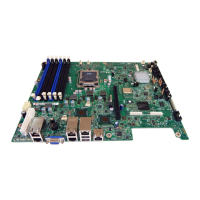
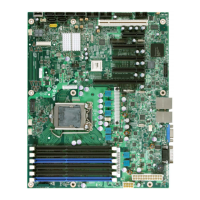
Intel S3420GP - User Manual

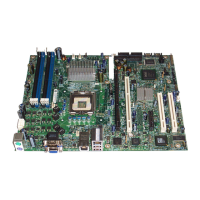
Intel S3420GP
88 pages
Print Icon
To Next Page IconTo Next Page
Loading...
Intel
®
Server Board S3420GP User
Guide
A Guide for Technically Qualified Assemblers of Intel® Identified Subassemblies/Products
Intel Order Number E70969-004

Table of Contents

Other manuals for Intel S3420GP

Questions and Answers

  • F
    fordlarrySep 12, 2025
    Why did the add-in adapter stop working without apparent cause on my Intel S3420GP?
    • J
      Jessica BrewerSep 13, 2025
      If the add-in adapter stopped working without apparent cause on your Intel Server Board, try reseating the adapter first, then try a different slot if necessary. The network driver files may be corrupt or deleted, so delete and then reinstall the drivers. You can also run the diagnostics.
  • J
    John MillerSep 15, 2025
    Why are hard drive(s) not recognized by my Intel S3420GP Server Board?
    • D
      Duane HarrisSep 15, 2025
      If hard drives are not recognized by your Intel Server Board, ensure the drive is not disabled in the BIOS Setup. Make sure the drive is connected correctly and plugged into the power supply, and that it is compatible. Ensure you have not exceeded the power budget for the server. If using SCSI drives, verify that each SCSI ID number is unique on the SCSI bus. If using ATA drives, verify the master/slave settings are set correctly. If using a RAID configuration with SCSI or SATA drives, make sure the RAID card is installed correctly.
  • S
    Sean MolinaNov 22, 2025
    What to do if no characters display on the screen of my Intel S3420GP Server Board?
    • D
      David HallNov 22, 2025
      If your Intel Server Board displays no characters on the screen, first check if the video monitor is plugged in, turned on, and properly adjusted for brightness and contrast. Ensure the video signal cable is correctly installed and test the monitor with another system if possible. Verify that the onboard video controller is enabled in the BIOS. Remove any add-in cards to see if the video returns, adding them back one at a time. Ensure memory DIMMs and processors meet system requirements, are correctly populated, and reseat them if needed. If using an add-in video controller board, check the video using the onboard controller and ensure the add-in board is fully seated. Reboot the system for changes to take effect. If problems persist, the video display monitor or video controller may have ...

Summary

Safety Information

Important Safety Instructions

Provides essential safety guidelines and warnings for operating the server board.

Warnings

Heed Safety Instructions

Emphasizes adherence to safety guidelines for compliance and product integrity.

System Power On;Off Procedures

Details how to safely turn the system on and off, including AC power disconnection.

Electrostatic Discharge (ESD) Precautions

Advises on protecting components from ESD damage during handling.

Chapter 1: Server Board Features

Chapter 2: Server Utilities

Using the BIOS Setup Utility

Guides users on accessing and navigating the BIOS Setup Utility for configuration.

BIOS Setup Menu Key Commands

Explains keyboard commands used for interacting with BIOS Setup menus.

BIOS Update and Recovery Procedures

Provides instructions for updating the BIOS and procedures for BIOS recovery.

Clearing Passwords and CMOS Settings

Details methods for clearing user/administrator passwords and resetting CMOS settings.

Integrated BMC Firmware Update Process

Explains the process for updating the BMC firmware, including force update procedures.

Chapter 3: Hardware Installations and Upgrades

Preparation and Tools for Installation

Lists necessary tools and safety precautions before starting hardware installations.

Processor Installation and Removal Guide

Guides on safely installing and removing the system processor and heatsink.

Appendix E: Troubleshooting

System Boot Quiet Time and Resetting Procedures

Describes normal system boot quiet time and methods for system reset.

Specific Problems and Corrective Actions

Offers solutions for common problems like power light, display, and fan issues.

Intel S3420GP Specifications

General IconGeneral
Product TypeServer Board
ChipsetIntel 3420
SocketLGA 1156
Maximum Memory16GB
Form FactorATX
RAID SupportRAID 0, 1, 5, 10
Supported CPUIntel Xeon 3400 series, Intel Core i3, Intel Celeron
Memory TypeDDR3
Storage Interface6 x SATA 3.0 Gb/s
Integrated LAN2 x Gigabit Ethernet
USB Ports6 x USB 2.0

Related product manuals