EasyManua.ls Logo

Inteno DG201 R1 - User Manual

Inteno DG201 R1
10 pages
Print Icon
To Next Page IconTo Next Page
Loading...
1
Installation
Guide
English Svenska Suomi Norsk
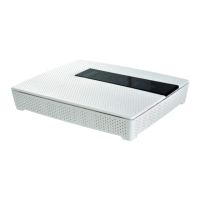
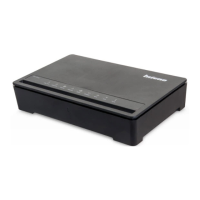
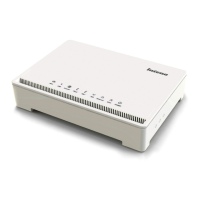
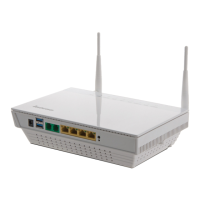
DG201 R1 Multi WAN Residential Gateway
www.inteno.se
Question and Answer IconNeed help?

Do you have a question about the Inteno DG201 R1 and is the answer not in the manual?

Summary

Installation Steps

Start Box Contents

Verify all essential items are present in the Start Box, including the DG201 modem and necessary cables.

Connecting the DSL;Telephone Jack

Connect the broadband service to the primary telephone jack in your home to ensure proper telephony and data service.

Connecting the WAN;Broadband Connection

Establish the WAN connection by linking your broadband outlet to the DG201's WAN port using an RJ45 network cable.

Connecting to Networks

Connecting the LAN

Connect the DG201 network port (LAN 1-4) to your computer using an RJ45 network cable for wired access.

Connecting the Wireless Local Area Network (WLAN)

Connect to WLAN by searching for available networks, matching the SSID, and entering the WPA encryption code.

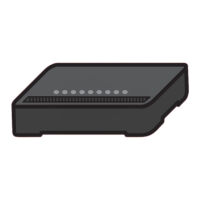
Front Panel Indicators

Power Indicator Light

Indicates power status: green for on, red for error, off for power off.

Ethernet Indicator

Shows LAN connection status: green for connected, blinking for active, off for not connected.

GbE1 Indicator

Shows GbE1 port connection: green for 100 Mbps, yellow for 1000 Mbps, blinking for active.

TEL1;TEL2 Indicators

Indicates telephone line status: green for registered, yellow for off-hook, blinking for incoming call.

WLAN Indicator

Shows WLAN status: green for activated, blinking for active, off for not active.

USB Indicator

Indicates USB connection: blue for connected, blinking for active, off for not connected.

DSL Indicator

Shows DSL connection: green for connected, blinking for active, off for not connected.

Internet Indicator

Shows Internet status: green for IP received, red for no IP received.

Troubleshooting Common Issues

Power and Indicator Lights

Check power connection and indicator lights for status. Red lights or no power may indicate issues.

DSL Connection Problems

Verify DSL port connection and ensure the modem is connected to the first telephone jack.

Ethernet Connection Issues

Check LAN cable connections and ensure the computer's network interface card is functioning correctly.

Resetting the Modem

Use the reset button to restore the modem to factory settings by holding it for 10 seconds.

Summary

Installation Steps

Start Box Contents

Verify all essential items are present in the Start Box, including the DG201 modem and necessary cables.

Connecting the DSL;Telephone Jack

Connect the broadband service to the primary telephone jack in your home to ensure proper telephony and data service.

Connecting the WAN;Broadband Connection

Establish the WAN connection by linking your broadband outlet to the DG201's WAN port using an RJ45 network cable.

Connecting to Networks

Connecting the LAN

Connect the DG201 network port (LAN 1-4) to your computer using an RJ45 network cable for wired access.

Connecting the Wireless Local Area Network (WLAN)

Connect to WLAN by searching for available networks, matching the SSID, and entering the WPA encryption code.

Front Panel Indicators

Power Indicator Light

Indicates power status: green for on, red for error, off for power off.

Ethernet Indicator

Shows LAN connection status: green for connected, blinking for active, off for not connected.

GbE1 Indicator

Shows GbE1 port connection: green for 100 Mbps, yellow for 1000 Mbps, blinking for active.

TEL1;TEL2 Indicators

Indicates telephone line status: green for registered, yellow for off-hook, blinking for incoming call.

WLAN Indicator

Shows WLAN status: green for activated, blinking for active, off for not active.

USB Indicator

Indicates USB connection: blue for connected, blinking for active, off for not connected.

DSL Indicator

Shows DSL connection: green for connected, blinking for active, off for not connected.

Internet Indicator

Shows Internet status: green for IP received, red for no IP received.

Troubleshooting Common Issues

Power and Indicator Lights

Check power connection and indicator lights for status. Red lights or no power may indicate issues.

DSL Connection Problems

Verify DSL port connection and ensure the modem is connected to the first telephone jack.

Ethernet Connection Issues

Check LAN cable connections and ensure the computer's network interface card is functioning correctly.

Resetting the Modem

Use the reset button to restore the modem to factory settings by holding it for 10 seconds.

Inteno DG201 R1 Specifications

General IconGeneral
ModelDG201 R1
Product TypeGateway
WAN Ports1
LAN Ports4
Ethernet Ports Speed10/100 Mbps
Wireless Frequency Bands2.4 GHz
Maximum Wireless Speed300 Mbps
USB Ports1 x USB 2.0
FirewallYes
VPN SupportYes
Power Supply12V DC, 1A
Wireless Standard802.11n
DSL StandardsADSL2+, VDSL2

Related product manuals