D-0121151-B – 2018/11
AD528 - Instructions for Use - EN Page 13
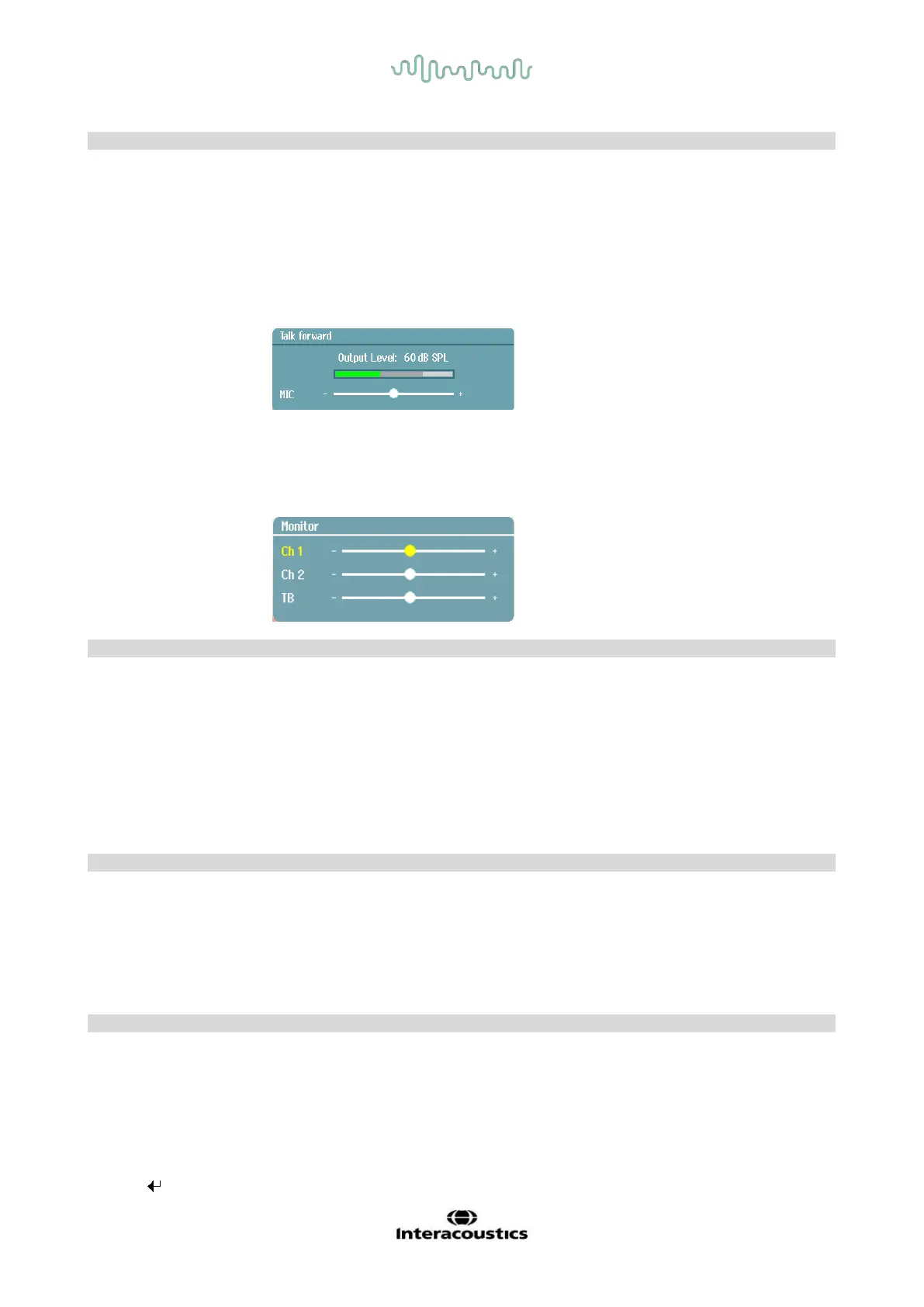
Allows for communication with the patient, talking through the microphone by the
operator and heard by the patient in the selected transducer headset.
The microphone used for talk forward is the one plugged into the socket TF as
first priority. If a microphone is not plugged in, the internal microphone will be
used.
The output level for talk forward is changed by turning the left wheel while
holding the Talk Forward button.
The gain of the MIC can be adjusted pressing Talk forward and turning the right
wheel. Please refer to the speech section for more detail how to set the MIC gain
level for testing.
Monitor/TB activates the monitor and Talk Back (TB) from the patient in the test
cabin. With the activation the monitor presentation to the patient can be heard
through the built in speaker monitor or the monitor headset.
Adjust the Monitor/TB gain for Ch 1, Ch 2 or TB by long pressing on the
Monitor/TB button.
Selects right test ear, and toggles between headset and insert earphone
transducers.
Selects left test ear, and toggles between headset and insert earphone
transducers.
Press this button to use the bone conductor for audiometry. First push selects
the right ear for testing, while the second push selects the left ear for testing.
The light above the button will indicate the ear selected.
Press 1 FF 2 to select the free field speaker as output for channel 1. First push
will present the sound through free field speaker 1, while second push will
present the signal through free field speaker 2.
Pressing this button let you toggle between pure tones or warble tones during
audiometry. If in the speech test this button can be used to enter the tone
Allows for presentation of speech material using build in wave files, aux or mic
input. The speech material must be installed and set up in the speech settings.
Hold down Tests and use the wheel to select the desired test. Let go of the
button to make your selection.
No response
Allows for storage of a no response when the patient does not respond to the
Allows for testing at higher intensity levels during audiometry. The light above
the button will turn slightly orange when extend range is available.
The wheel is multifunctional. It is used for adjusting the level of the output for
channel 1 during audiometry.
Enter
Used for tone switch in audiometry.
In menus enter is used for making selections.













 To Next Page