REMOTEPOINT PRESENTER
10
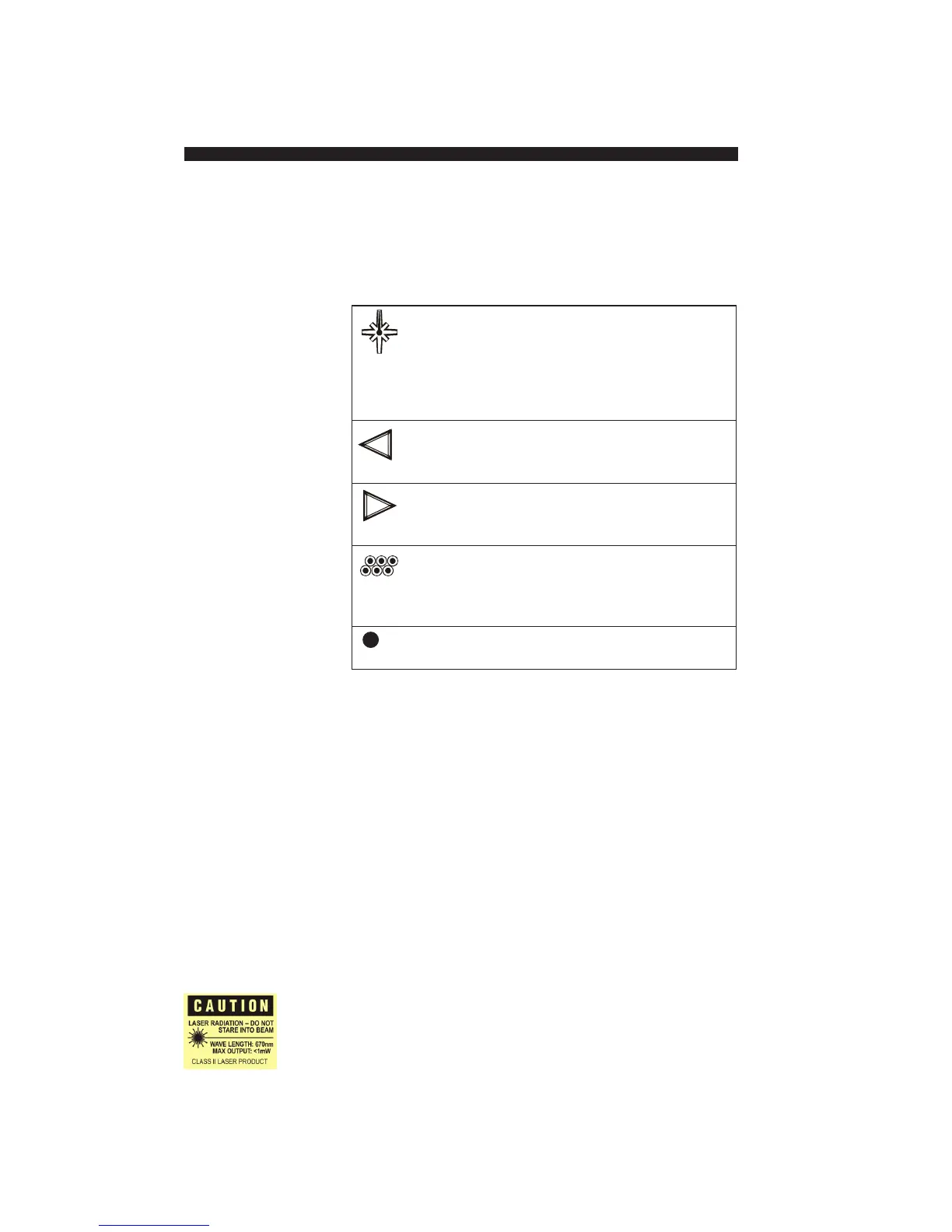
The other RemotePoint Presenter Remote buttons work
as follows:
Illuminates the red laser pointer on the front of the
RemotePoint Presenter Remote. It is typically used
as a pointer during presentations. The laser beam
emits for the duration that you press the button, up to a
maximum of 60 seconds. The range of the beam is in
excess of 100 feet.
Moves to the previous slide in a PowerPoint
slide show, or moves to the previous page in
other applications.
Moves to the next slide in a PowerPoint slide
show, or moves to the next page in other
applications.
Alternately blanks the screen or restores the
current slide in a PowerPoint slide show.
Use this when you want to direct the audience’s attention
away from the screen or to begin or end a slide show.
Launches a PowerPoint slideshow when
PowerPoint is active. F5 keystroke in other programs.
The RemotePoint Presenter software allows you to
customize the buttons on RemotePoint Presenter. Built-in
profiles for several common applications are provided,
and you can create your own profiles if the built-in
profiles don’t fit your needs. For information about
customizing the button functions, see Customizing
RemotePoint Presenter on page 14.
To start the RemotePoint Presenter software:
• Double-click the RemotePoint Presenter icon in the
notification area (also known as the system tray) at
the lower right corner of the screen.
Note: If the RemotePoint Presenter icon does not appear in
the notification area, start the program by clicking
Start, pointing to Programs, Interlink
Starting the
RemotePoint
Presenter
Software


 To Next Page