
 Need help?
Do you have a question about the iodd MINI and is the answer not in the manual?
The internal SSD is shipped uninitialized and requires initialization, partitioning, and formatting.
The built-in firmware is the latest version, so no update is needed at this time.
Supports GPT/MBR partition types and NTFS/exFAT/FAT32 formatting, with multiple partitions supported.
Allows mounting of ISO files from any partition; select partition using button 4 (3-second press) if multiple exist.
Press button 5 to select a file and view its information (name/size).
Pressing button 0 on any screen provides access to help.
Some heat may be generated when copying large amounts of data; normal use maintains proper temperature.
Keys for navigating lists, selecting files, and accessing menus or folders.
Keys for viewing file information and displaying tooltips or menu descriptions.
Pressing and holding keys for 3 seconds to refresh lists or reconnect drives with specific modes.
Keys used during device startup to reset settings or change connection behavior.
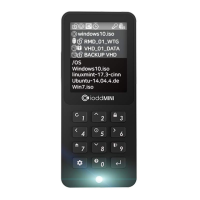
Displays device status icons for write-protection, mounting, mode, power, encryption, and USB speed.
Provides information on active ISO/VHD/RMD files, including names, drive status, and write protection.
Lists available files and folders; use button 4 (hold 3 sec) to enter Partition Selection Mode.
Configure drive options, write protection, and removable/fixed disk status for virtual drives.
Warns about data initialization upon setting/removing encryption and password loss consequences.
Steps to enable AES256 encryption, set a password, and configure reconnection prompts.
Steps to remove AES256 encryption, requiring password entry and resulting in SSD data initialization.
Indicates a drive error and advises consulting troubleshooting.
Signifies that no suitable partition was found on the drive.
Advises contacting customer service for drive errors.
Occurs when folder limits are exceeded; suggests splitting folders.
Indicates the disk is in use by programs; suggests unlocking or reconnecting the USB cable.
Explains ISO file fragmentation limits and recommends using Disk Defragmenter for VHDs.
Notes that Dynamic VHD is not supported; only fixed VHD is.
States that sparse files are not supported by the device.
Provides a step-by-step guide to resolve issues, including button presses and PC actions.
Defines various status messages like 'Please Wait', 'Disconnect', 'Saving data', and error indicators.
Recommends using the Device Cleanup utility to improve USB recognition rates by clearing registry data.
Instructions on downloading and using the Device Cleanup tool to remove old USB device entries.
Explains the need to turn off defragmentation for SSD drives and cancel reservations for VHDs.
Steps to disable scheduled optimization in Windows 8/10 for the IODD MINI.
Steps to disable scheduled execution in Windows 7 Disk Defragmenter for the IODD MINI.
Instructions to cancel defragmentation schedules for each drive when using multiple partitions.
Guide on using the VHD Tool to create VHD files, specifying name, size, and location.
Instructions on how to mount a created VHD file using the device's keys.
Explains using Rufus to create UEFI bootable VHD files or Windows-to-go disks.
Instructions on downloading Rufus and running it as an administrator.
Steps for configuring Rufus, including selecting the VHD drive, ISO file, partition scheme, and target system.
Details on VHD file settings and crucial warnings against modifying or deleting mounted files.
Instructions on changing a VHD file's mode between fixed (external HDD) and removable disk.
Guide on enabling or disabling write protection for selected VHD files using button 5.
Highlights WTG and encryption features enabling secure booting on Macs.
Requirements include external USB/VHD for drivers and VHD for bootcamp installation.
Details on configuring Rufus for UEFI boot, partition scheme (GPT), and target system (UEFI) for Mac.
Guide for selecting the boot disk on Mac and installing the bootcamp support driver.
Specifies that only the IODD MINI body is covered under warranty for 1 year.
Lists items not covered, such as USB cable, pouch, and user data on the SSD drive.
Details cases excluded from warranty even within the period, including physical damage and misuse.
Notes that warranty coverage is for the United States only; contact details for inquiries are provided.
 General
| Interface | USB 3.0 |
|---|---|
| Supported Drive Type | 2.5" SATA HDD/SSD |
| Compatibility | Windows, macOS, Linux |
| Material | Aluminum |
| Supported File Systems | FAT32, NTFS, exFAT |
| Security | AES 256-bit Encryption |
| Features | Write Protection |
| Capacity | Up to 2TB |
| Dimensions | 13mm |
| Power | USB-Powered |

 To Next Page