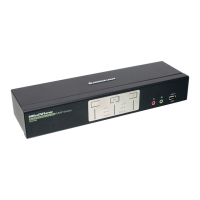
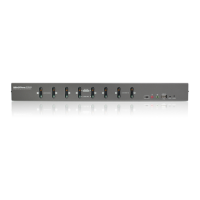
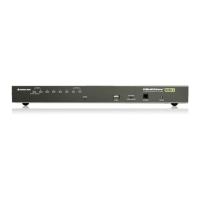
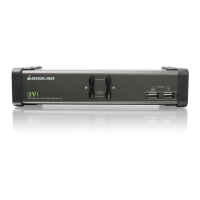
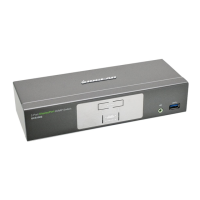
The Windows-based Firmware Upgrade Utility (FWUpgrade.exe) provides a smooth, automated process
for upgrading the GCS1642 / GCS1644’s rmware. The Utility comes as part of a Firmware Upgrade
Package that is specic for each device. New rmware upgrade packages are posted on our website as
new rmware revisions become available. Check the website regularly to nd the latest packages and
information relating to them: www.iogear.com
To prepare for the rmware upgrade, do the following:
1. Go to our Internet support site and choose the
model name that relates to your device (GCS1642
/ GCS1644) to get a list of available Firmware
Upgrade Packages.
2. Choose the Firmware Upgrade Package you want
to install (usually the most recent), and download
it to the computer connected to port 1 on the
GCS1642 / GCS1644.
3. If you have a DCC mode installation, remove the
cable connected to the DCC port, which connects
the two GCS1642 / GCS1644 units, and set both
DCC switches to Host.
4. Shut down all other computers connected to the
GCS1642 / GCS1644 installation, except the
computer connected to port 1.
5. Invoke Firmware Upgrade Mode (see Firmware
Upgrade Mode, page 23). The front panel LEDs ash
together to indicate Firmware Upgrade Mode is in effect.
27
The Firmware Upgrade Utility
Before you Begin



 To Next Page
 Loading...