640 & 650 Series 947291 Configuring Ethernet Models 640e & 650e 4-11
STEP 7 - Configure and test the System using the Daq* Configuration Applet
The Daq* Configuration applet, designed for 32-bit systems, is located in the Windows Control Panel. It
allows you to add or remove a device and change configuration settings. The included test utility provides
feedback on the validity of current configuration settings, as well as performance summaries.
1. Open the Daq* Configuration Applet.
a. Open the Control Panel by navigating from the Windows’ Desktop as follows:
Start Menu Settings Control Panel
b. From the Control Panel, double-click the Daq* Configuration icon.
2. Add the first-level device to the list of installed devices.
The first-level device is the device that will be connected directly to the Ethernet, via a host computer’s
Ethernet jack or a jack on a network hub. The 640e and 650e are first-level devices.
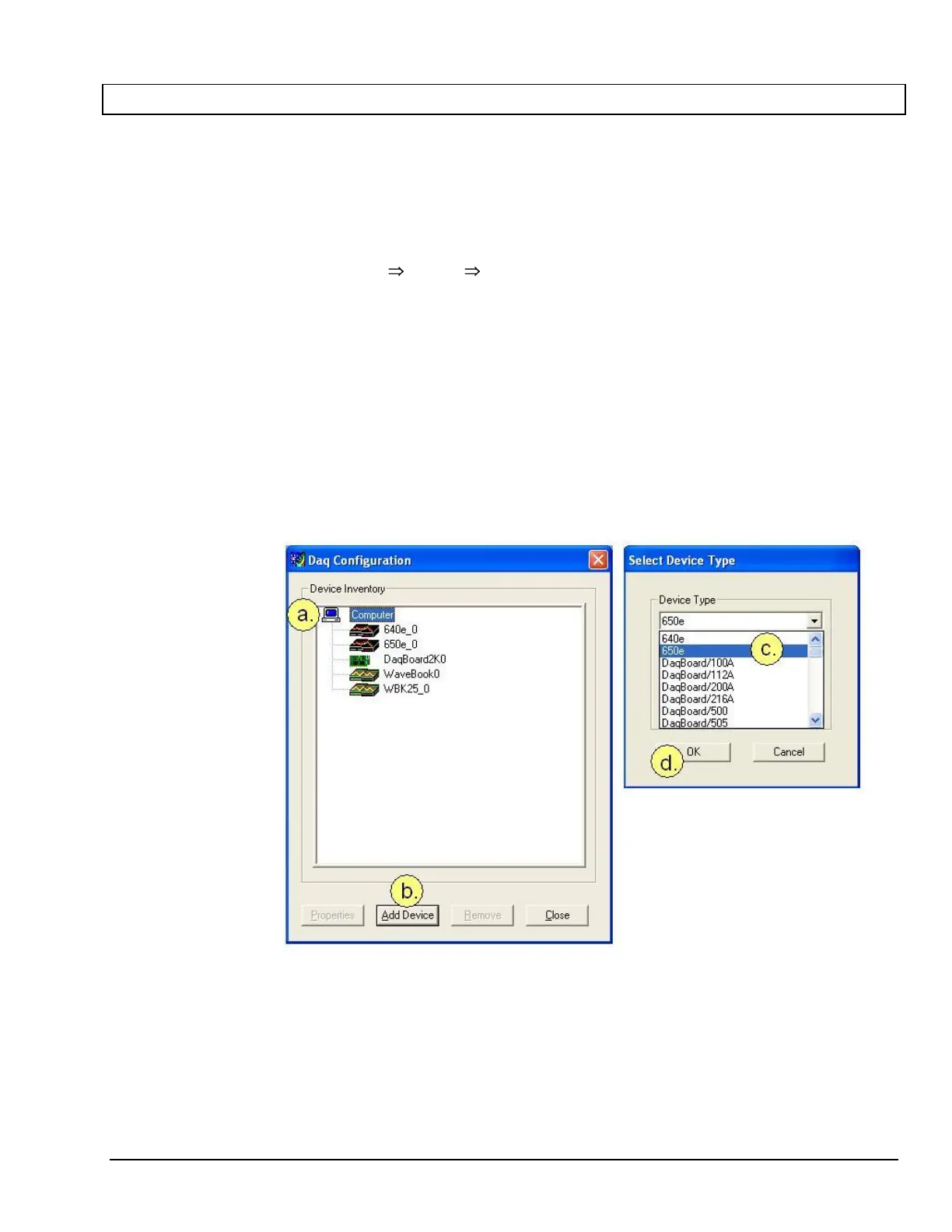
a. Select the Computer image in the Device Inventory configuration tree (following figure).
b. Click the <Add Device> button. The “Select Device Type” box will appear.
c. Select the 640e or 650e from the list of devices, as applicable.
d. Click the <OK> button. The “Properties” box will appear for the selected device.
Using Daq Configuration Device Inventory & Select Device Type to Add a Device


 To Next Page