37
connected to the AC to access the internet through this AC.
You are not recommended to manually configure a NAT rule, unless you want to disallow some
users to access the internet through this AC.
Adding a Rule
1. Log in to the AC's web UI and go to Network Setting > Network Setting > NAT Rule.
2. On the "NAT Rule" section, click Add.
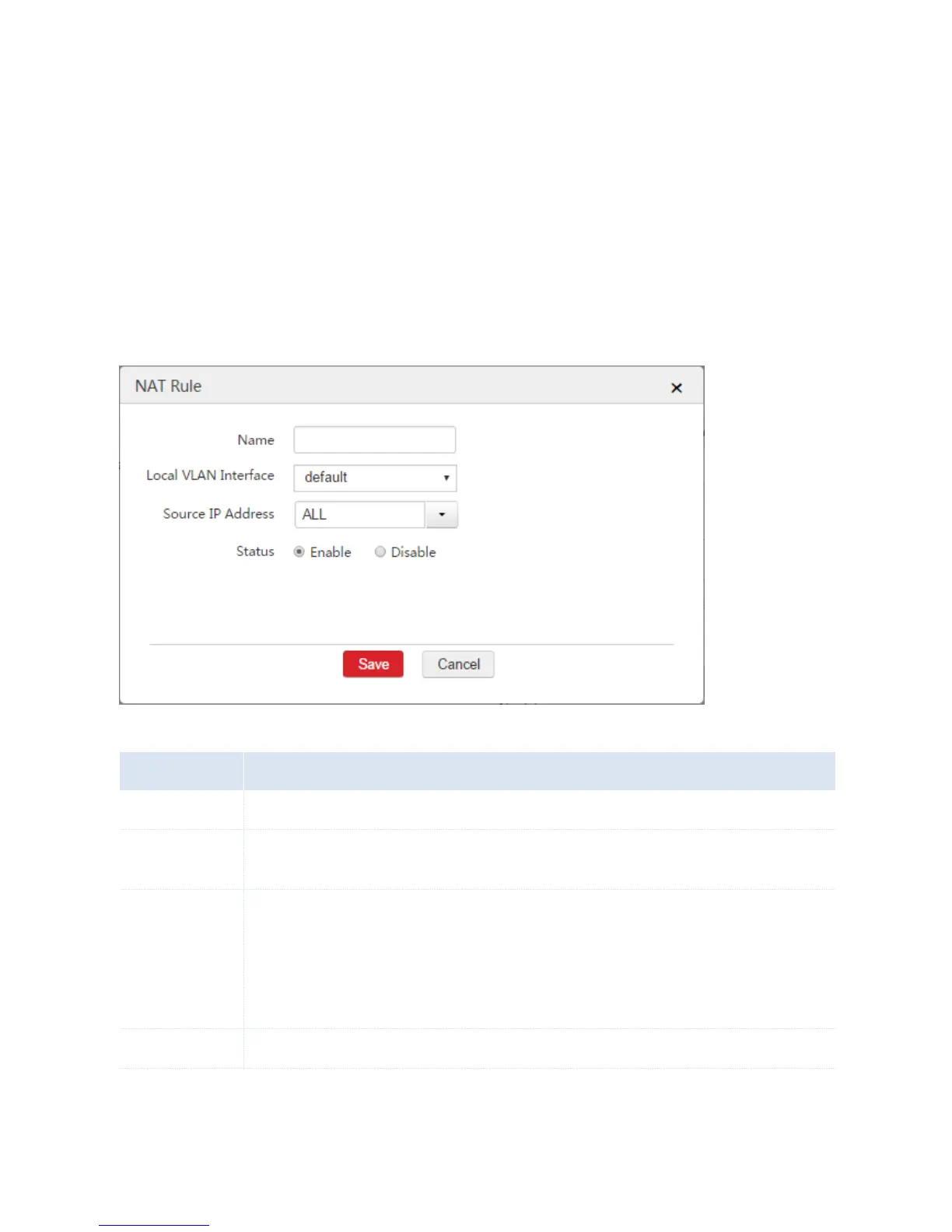
3. Configure the parameters in the window.
4. Click Save.
Parameter Description
The description of the configured NAT rule. Note: Duplicated names of NAT rules are not allowed.
The interface that data packets come from.
The network segment of a VLAN interface that needs to access the internet through WAN
interfaces of the AC.
ALL: It includes all network segments of the selected VLAN interface.
Manually: Manually enter a network segment that needs to access the internet through WAN
interfaces of the AC. And you need to set the subnet mask of the network segment.
Enable or disable the configured rule.
End: When you add a NAT rule successfully, you can choose Network Setting > Network Setting >
NAT Rule > NAT Rule to view the rule. See the following figure.



 To Next Page