38
Modifying a Rule
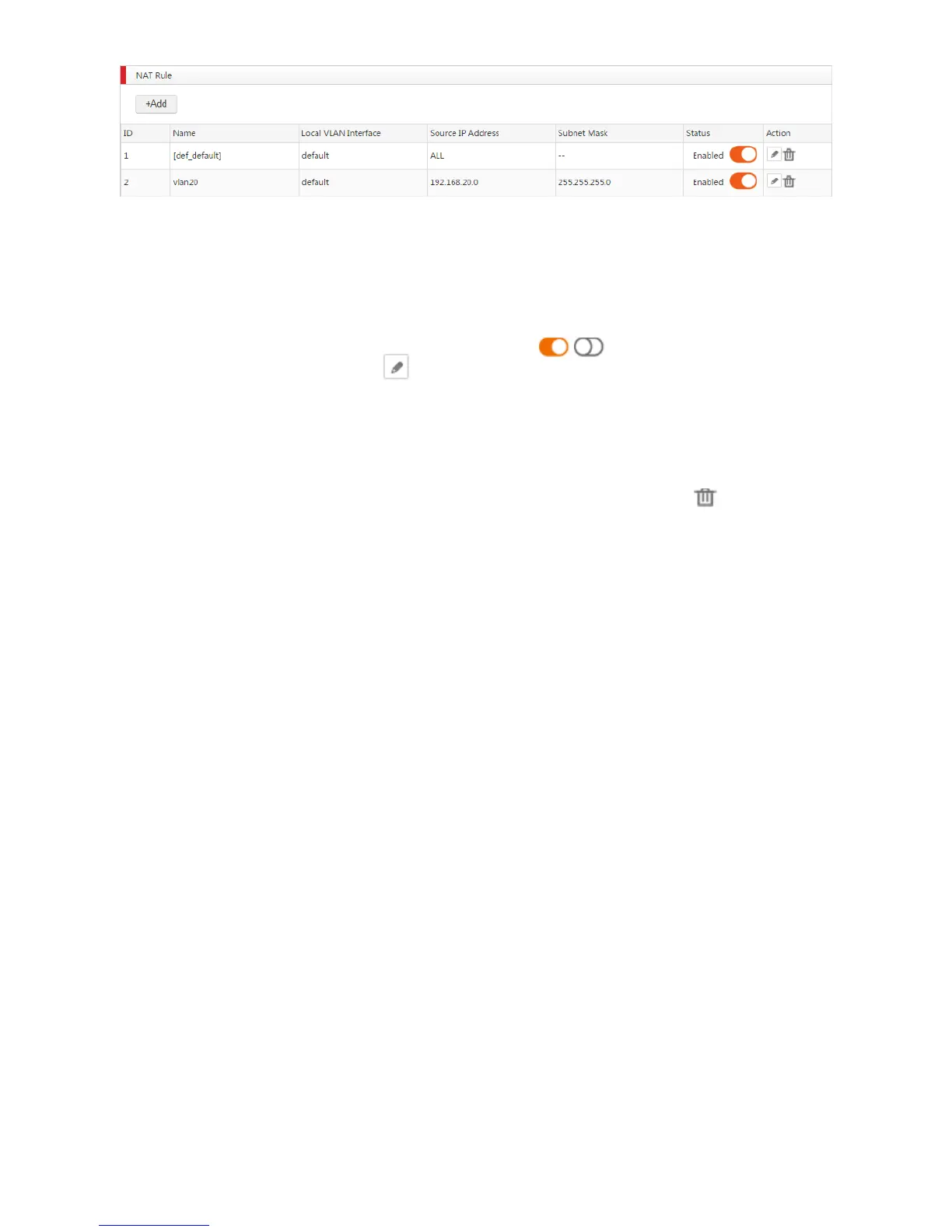
1. Log in to the AC's web UI and go to Network Setting > Network Setting > NAT Rule.
2. On the "NAT Rule" section, find the NAT rule to be modified.
3. If you want to disable/enable a NAT rule, click the button / on "Status" column. If you want
to edit a NAT rule, click the button on "Action" column.
Deleting a Rule
1. Log in to the AC's web UI and go to Network Setting > Network Setting > NAT Rule.
2. On the "NAT Rule" section, find the NAT rule to be deleted, and click the button on the "Action"
column.
Configuring Virtual Server
By default, no virtual server rules exist on the AC.
Adding a Rule
1. Log in to the AC's web UI and go to Network Setting > Network Setting > NAT Rule.
2. On the "Virtual Server" section, click Add.
3. Configure the parameters in the window.
4. Click Save.



 To Next Page