Using the Phone Book Directory
Access the stored
telephone numbers in your system
Press the Directory button followed by one of the following options:
1 - Station Speed
2 - Group Speed
3 - Station Name
Once selected you can then use the navigation keys to scroll through the list. To alpha dial, press
the button showing the letter you wish to dial – e.g. press 2 for the letter B. Then, press the button
with the second letter. The system will show all matches. Then press OK to dial the number.
Accessing your Voicemail
Press the Message button followed by one of the following options:.
1 – accesses messages to give an internal user a call back
2 – to access your voicemail
3 – to sort internal messages
If you do not know your pin, contact your system administrator
Listening to Voicemail (Options)
Lift the handset
Press the Dir button
Select; (1) Station Speed --> (2) Group Speed --> (3) Station Name
For options 1 & 2, follow the on-screen instructions.
For option 3, scroll through names or search using the key pad
Fixed
Buttons
Navigation
Key
Flexible
Buttons
OK Key
LCD Display
Handset
Speaker
Dial Pad
Buttons
Speaker
Button
Volume
Button
Soft Keys
Ring/Message
Indicator
Menu
Button
• Fixed Buttons
• MSG: Accesses message boxes
• Mute: Mute the call so that the caller
cannot hear your voice.
• Headset (icon): If a headset is plugged in
this button allows you to toggle between the
headset and handset.
• Dir: Assign or use assigned station speed dial
numbers.
• Trans: Transfer the current active call or
access the Program menu while the phone is
idle.
• DND (Do-Not-Disturb): Blocks incoming calls.
You can also activate Do-Not-Disturb while the
phone is ringing - this terminates the call and
the caller will get a busy tone.
• Hold: Place a call on hold – the caller will
receive on-hold music or comfort tones.
• Menu button: Access the settings for your
phone, such as changing the font and display or
• Volume button: Adjust the Ring, Headset,
Handset, and Speaker volume.
• Speaker button: Toggle the speakerphone On
and Off during a call. The button will automatically
illuminate when the phone is in menu mode.
• Flexible buttons: A line or feature can be
assigned to these buttons.
• LCD screen: Phone interface for status, dialing
directories, and text message information.
• Soft Keys: These buttons are interactive and
have a changing function based on the phone’s
status.
Phone Guide
Ericsson-LG Enterprise iPECS
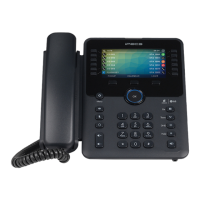
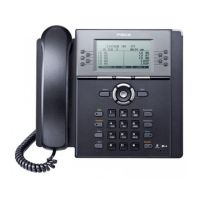
1040i Handset Key Features Guide
1040i Button Layout
ith
calls
Phone directory
Voicemail

 Need help?
 General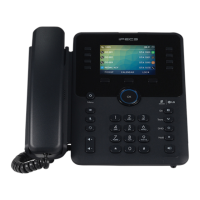

 To Next Page